> ## Documentation Index
> Fetch the complete documentation index at: https://docs.utilified.com/llms.txt
> Use this file to discover all available pages before exploring further.
# Accounts
> Manage the businesses you supply energy for. Accounts are the top-level container for sites, connections, agreements, invoices, and contacts.
Accounts represent the businesses or entities you manage energy for. Each account is the top-level container for sites, connections, agreements, invoices, and contacts.
 ## Accounts list
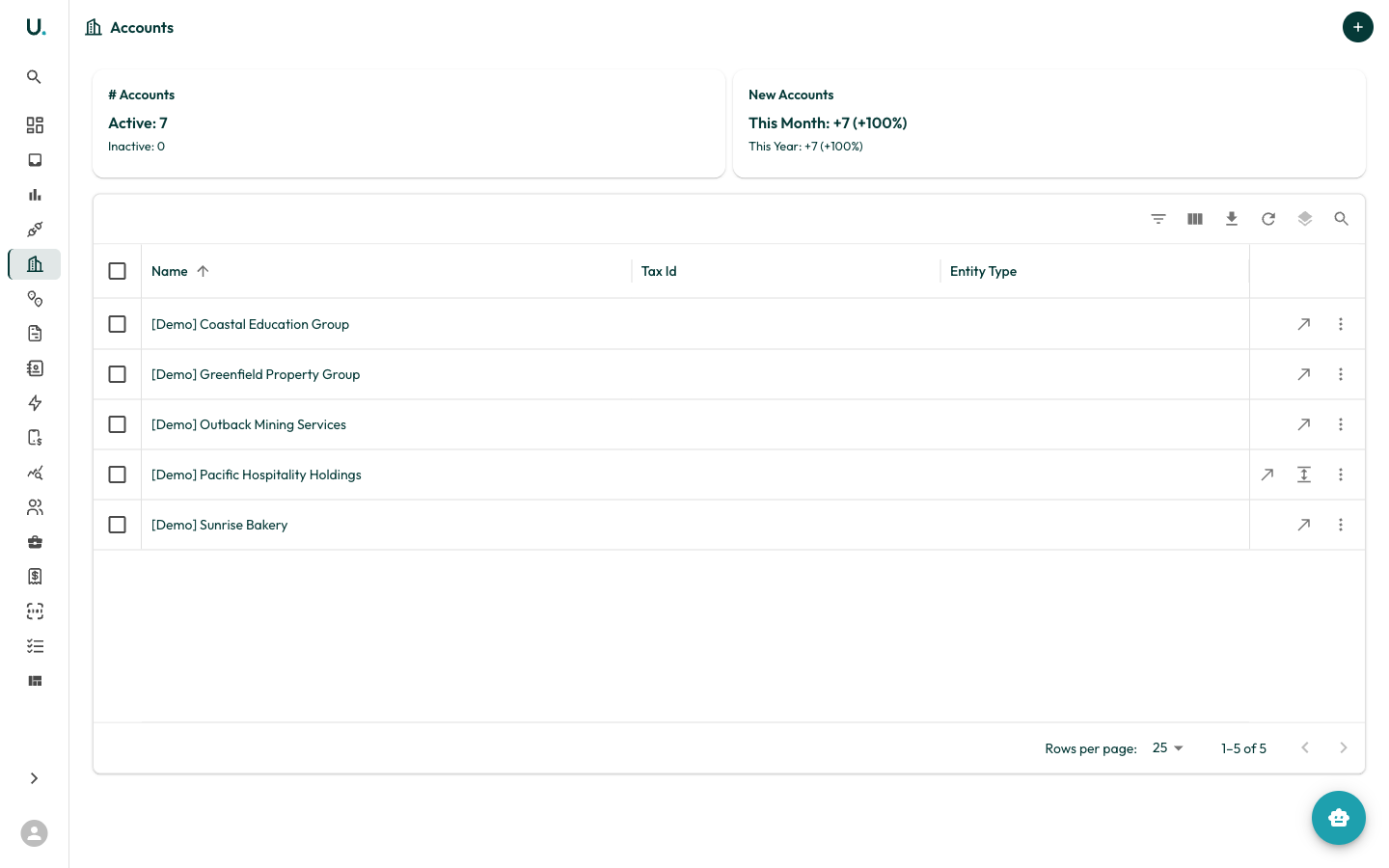
The Accounts page displays all accounts in your organisation in a data grid with the following columns:
| Column | Description |
| --------------- | ------------------------------------------------------------------------------------------------ |
| **Name** | The business or entity name |
| **Tax Id** | ABN or ACN for the entity |
| **Entity Type** | The legal entity type (for example, Australian Private Company, Strata-title, Other Partnership) |
Summary cards at the top show:
* **# Accounts** — Total active and inactive accounts
* **New Accounts** — Accounts added this month and this year, with percentage growth
### Toolbar actions
The data grid toolbar provides:
* **Filter** — Filter accounts by any column
* **Column visibility** — Show or hide columns
* **Export** — Download account data as CSV
* **Refresh** — Reload the data
* **Density** — Toggle between compact, standard, and comfortable row heights
* **Search** — Quick-search across all visible columns
### Row actions
Each row has action buttons on the right:
* **See Details** (arrow icon) — Navigate to the account detail page
* **Quick Edit** (pencil icon) — Open a drawer to edit account fields inline
* **More** (three dots) — Additional actions
### Creating an account
Click the **+** button in the top-right corner to create a new account. You are prompted to enter the account name, tax ID, entity type, and other details.
For a detailed walkthrough, see the [Creating Accounts](/guides/creating-accounts) guide.
## Account detail page
## Accounts list
The Accounts page displays all accounts in your organisation in a data grid with the following columns:
| Column | Description |
| --------------- | ------------------------------------------------------------------------------------------------ |
| **Name** | The business or entity name |
| **Tax Id** | ABN or ACN for the entity |
| **Entity Type** | The legal entity type (for example, Australian Private Company, Strata-title, Other Partnership) |
Summary cards at the top show:
* **# Accounts** — Total active and inactive accounts
* **New Accounts** — Accounts added this month and this year, with percentage growth
### Toolbar actions
The data grid toolbar provides:
* **Filter** — Filter accounts by any column
* **Column visibility** — Show or hide columns
* **Export** — Download account data as CSV
* **Refresh** — Reload the data
* **Density** — Toggle between compact, standard, and comfortable row heights
* **Search** — Quick-search across all visible columns
### Row actions
Each row has action buttons on the right:
* **See Details** (arrow icon) — Navigate to the account detail page
* **Quick Edit** (pencil icon) — Open a drawer to edit account fields inline
* **More** (three dots) — Additional actions
### Creating an account
Click the **+** button in the top-right corner to create a new account. You are prompted to enter the account name, tax ID, entity type, and other details.
For a detailed walkthrough, see the [Creating Accounts](/guides/creating-accounts) guide.
## Account detail page
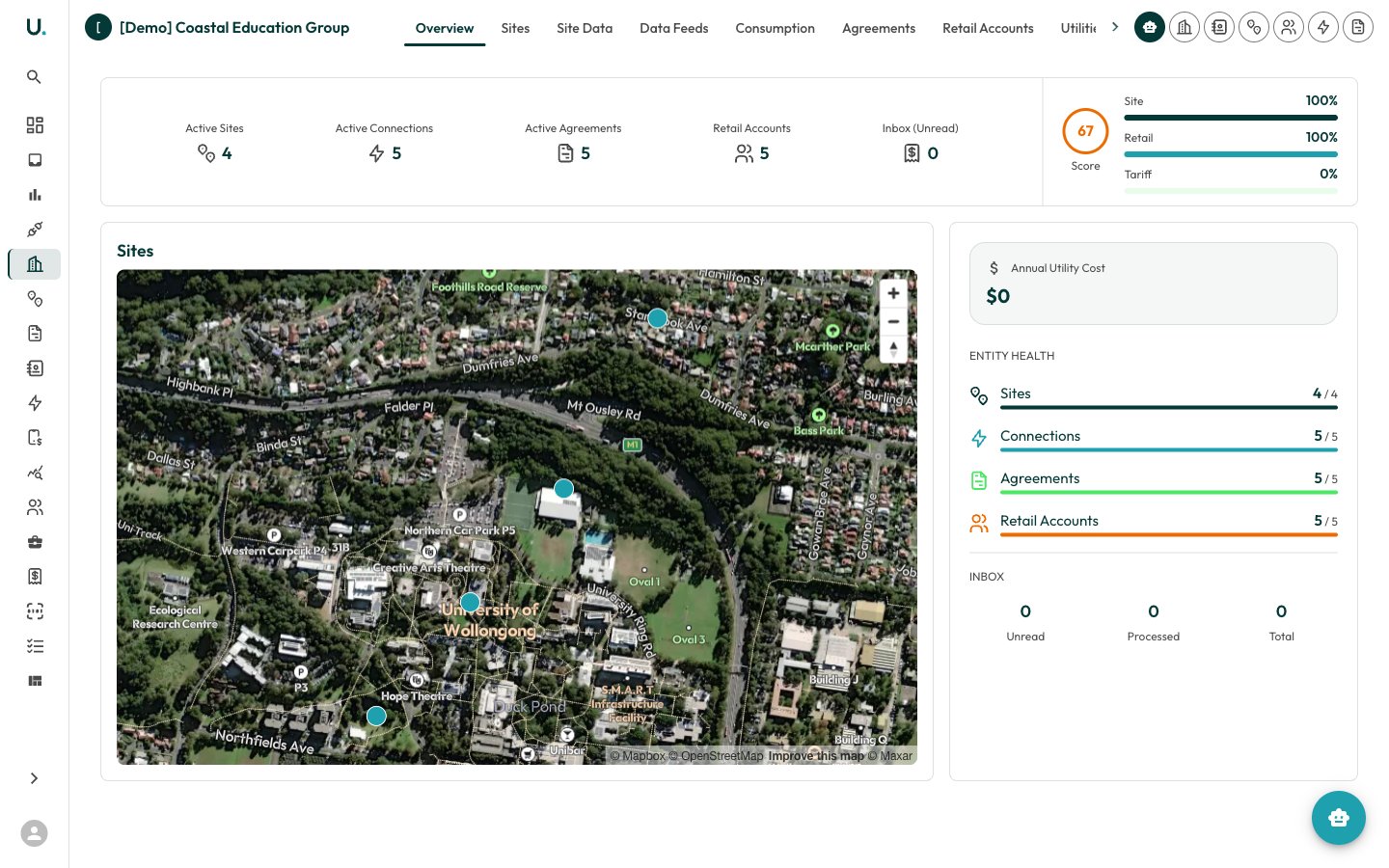 Clicking **See Details** on an account opens the detail page with a tabbed interface:
| Tab | Description |
| ------------------- | ------------------------------------------------------------------------------- |
| **Overview** | Summary stats, site map, account details, entity health score, and inbox status |
| **Sites** | Physical locations associated with this account |
| **Agreements** | Energy agreements linked to this account |
| **Retail Accounts** | Retailer account references |
| **Connections** | Energy connections (NMIs, MIRNs) under this account |
| **Invoices** | Invoices associated with this account |
| **Contacts** | People associated with this account |
| **Inbox** | Email inbox for this account (shown when the account has an email inbox) |
| **Settings** | Account-specific settings |
### Overview tab
The Overview tab provides an at-a-glance summary:
* **Summary Cards** — Active Sites, Active Connections, Active Agreements, Retail Accounts, and Inbox (Unread) counts
* **Score** — An entity health score showing completeness of Site, Retail, and Tariff data as percentages
* **Sites Map** — Interactive map showing the geographic location of all sites under this account
* **Annual Utility Cost** — Total annual energy expenditure
* **Account Details** — Entity type and other key information
* **Entity Health** — Progress bars showing Sites, Connections, Agreements, and Retail Accounts with active vs total counts
* **Inbox** — Unread, Processed, and Total inbox items for this account
Clicking **See Details** on an account opens the detail page with a tabbed interface:
| Tab | Description |
| ------------------- | ------------------------------------------------------------------------------- |
| **Overview** | Summary stats, site map, account details, entity health score, and inbox status |
| **Sites** | Physical locations associated with this account |
| **Agreements** | Energy agreements linked to this account |
| **Retail Accounts** | Retailer account references |
| **Connections** | Energy connections (NMIs, MIRNs) under this account |
| **Invoices** | Invoices associated with this account |
| **Contacts** | People associated with this account |
| **Inbox** | Email inbox for this account (shown when the account has an email inbox) |
| **Settings** | Account-specific settings |
### Overview tab
The Overview tab provides an at-a-glance summary:
* **Summary Cards** — Active Sites, Active Connections, Active Agreements, Retail Accounts, and Inbox (Unread) counts
* **Score** — An entity health score showing completeness of Site, Retail, and Tariff data as percentages
* **Sites Map** — Interactive map showing the geographic location of all sites under this account
* **Annual Utility Cost** — Total annual energy expenditure
* **Account Details** — Entity type and other key information
* **Entity Health** — Progress bars showing Sites, Connections, Agreements, and Retail Accounts with active vs total counts
* **Inbox** — Unread, Processed, and Total inbox items for this account