> ## Documentation Index
> Fetch the complete documentation index at: https://docs.utilified.com/llms.txt
> Use this file to discover all available pages before exploring further.
# Connections
> Work with individual utility meter points — electricity NMIs, gas MIRNs, and water meter connections linked to sites, agreements, and tariffs.
Connections represent individual utility meter points — electricity NMIs, gas MIRNs, or water meter connections. Each connection is linked to a [site](/sites) and can be associated with [agreements](/agreements), [retail accounts](/retail-accounts), and [tariffs](/tariffs).
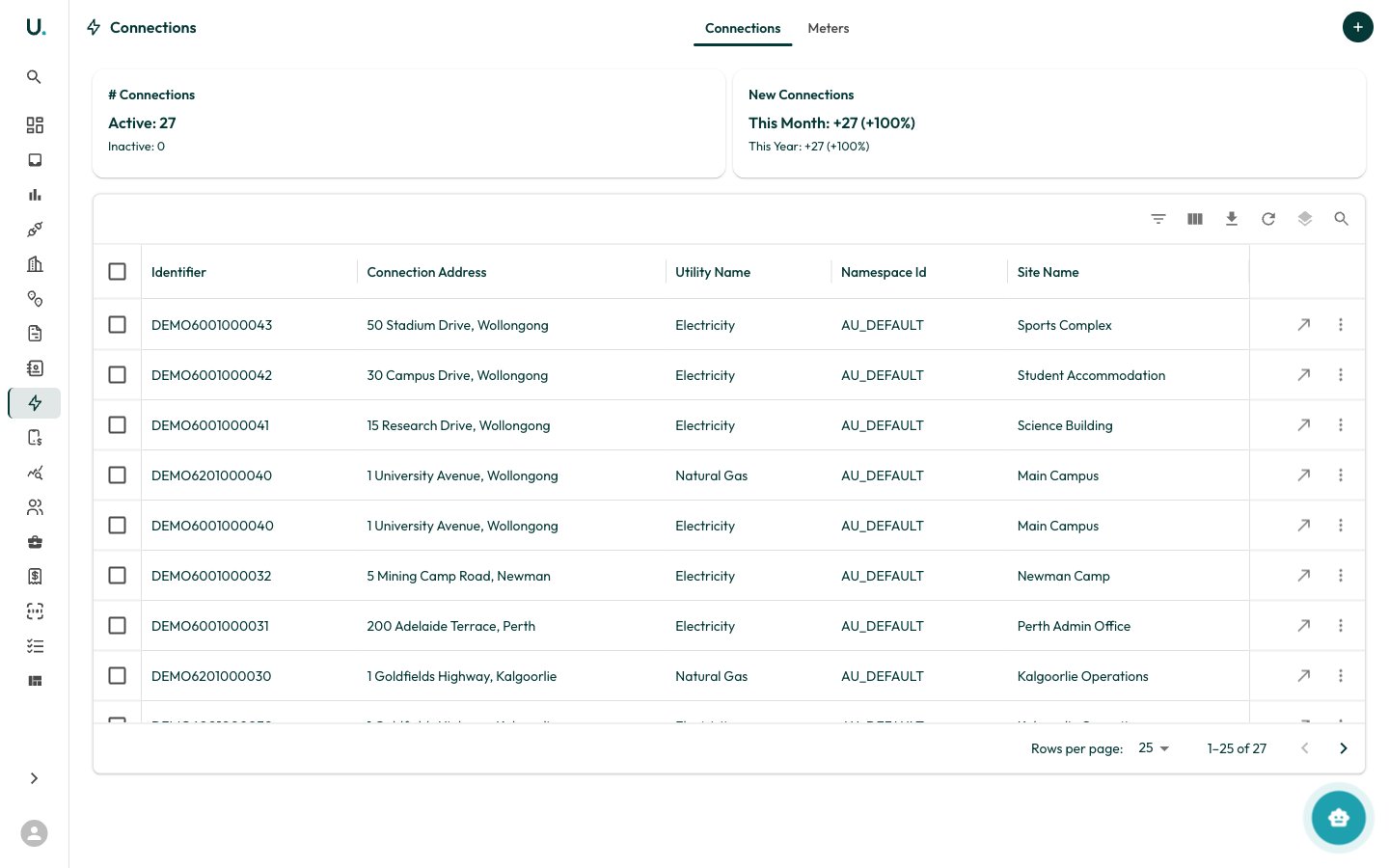 ## Connections list
The Connections page has two tabs: **Connections** and **Meters**.
### Connections tab
Displays all connections in a data grid:
| Column | Description |
| ---------------------- | --------------------------------------------------------------------------------- |
| **Identifier** | The unique connection identifier (for example, NMI for electricity, MIRN for gas) |
| **Connection Address** | The physical address of the connection |
| **Utility Name** | The utility type — Electricity, Natural Gas, or Water |
| **Namespace Id** | The identifier namespace (for example, AU\_DEFAULT for Australian connections) |
| **Site Name** | The site this connection is linked to |
### Meters tab
Shows the individual meters associated with each connection. A single connection can have multiple meters (for example, peak and off-peak meters).
### Creating a connection
Click the **+** button in the top-right corner to add a new connection.
## Connections list
The Connections page has two tabs: **Connections** and **Meters**.
### Connections tab
Displays all connections in a data grid:
| Column | Description |
| ---------------------- | --------------------------------------------------------------------------------- |
| **Identifier** | The unique connection identifier (for example, NMI for electricity, MIRN for gas) |
| **Connection Address** | The physical address of the connection |
| **Utility Name** | The utility type — Electricity, Natural Gas, or Water |
| **Namespace Id** | The identifier namespace (for example, AU\_DEFAULT for Australian connections) |
| **Site Name** | The site this connection is linked to |
### Meters tab
Shows the individual meters associated with each connection. A single connection can have multiple meters (for example, peak and off-peak meters).
### Creating a connection
Click the **+** button in the top-right corner to add a new connection.