> ## Documentation Index
> Fetch the complete documentation index at: https://docs.utilified.com/llms.txt
> Use this file to discover all available pages before exploring further.
# Contacts
> Manage the people linked to your UMS accounts — key personnel, billing contacts, site managers, and other stakeholders for each business you supply.
Contacts represent the people associated with your accounts — key personnel, billing contacts, site managers, and other stakeholders. Each contact is linked to an [account](/accounts) and can be managed from the Contacts page or from within an account's **Contacts** tab.
 ## Contacts list
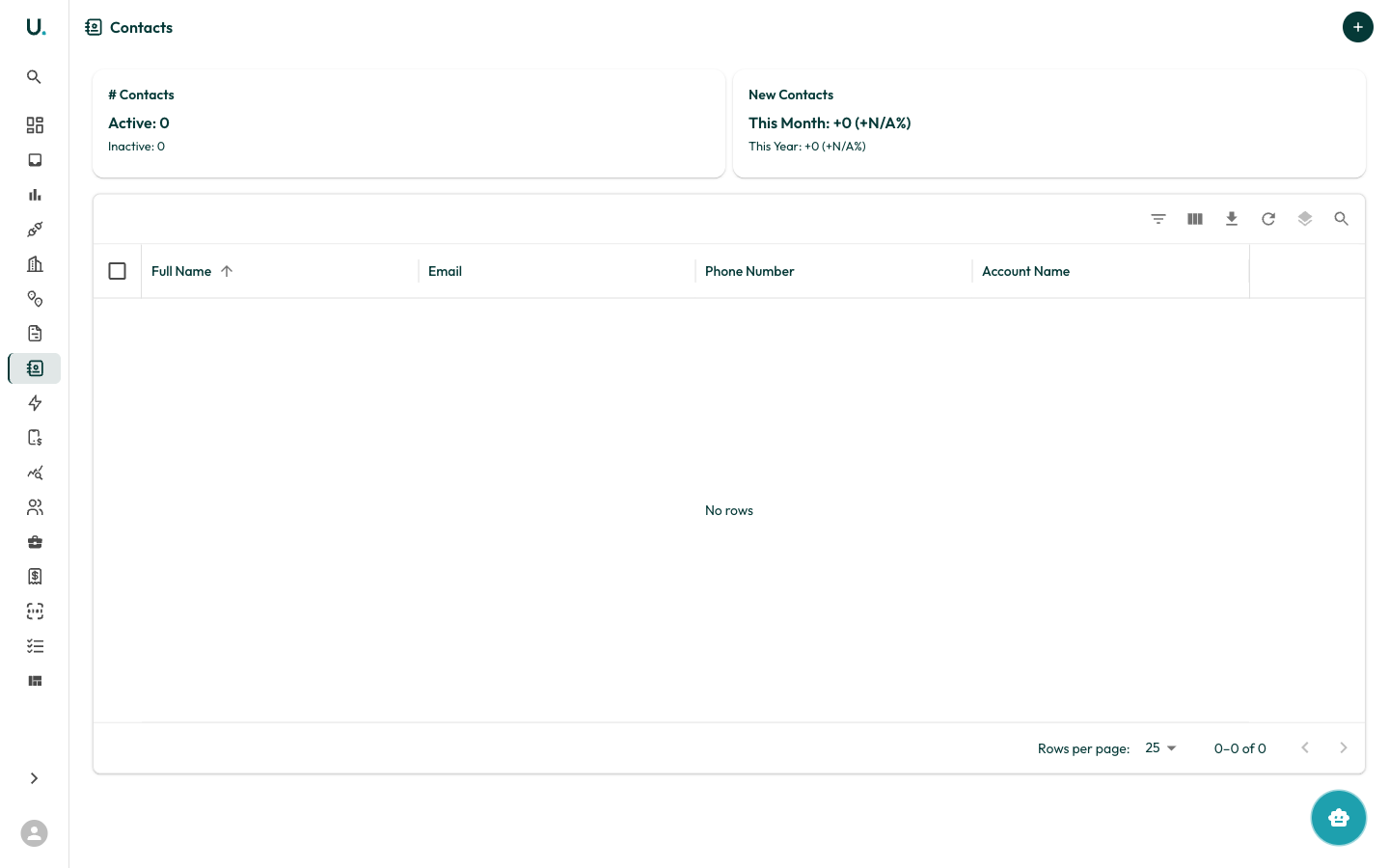
The Contacts page displays all contacts across your organisation in a data grid with the following columns:
| Column | Description |
| ----------------- | ------------------------------------------------- |
| **Full Name** | The contact's full name |
| **Email** | Primary email address |
| **Phone Number** | Landline or primary phone number |
| **Mobile Number** | Mobile phone number |
| **Position** | The contact's role or job title |
| **Department** | The department or team the contact belongs to |
| **Account** | The [account](/accounts) the contact is linked to |
| **Active** | Whether the contact is active |
| **Date Added** | When the contact was created |
| **Date Edited** | When the contact was last updated |
Summary cards at the top show contact totals for your organisation.
### Toolbar and row actions
The data grid toolbar provides **Filter**, **Column visibility**, **Export** (CSV), **Refresh**, **Density**, and **Search**, matching the [Accounts](/accounts) grid. Each row offers **See Details** to open the contact detail page and **Quick Edit** to edit fields inline in a drawer.
### Creating a contact
Click the **+** button in the top-right corner to open the **Create New Contact** drawer. The form captures:
* `first_name` — First name (required)
* `last_name` — Last name (required)
* `email` — Email address (required, validated)
* `phone_number` — Phone number
* `mobile_number` — Mobile number
* `position` — Role or job title
* `department` — Department or team
* `account` — The [account](/accounts) to link the contact to (required)
You can also add a contact from an account's **Contacts** tab, which pre-fills the linked account.
## Contact detail page
Clicking **See Details** on a contact opens the detail page with a tabbed interface:
| Tab | Description |
| ------------ | --------------------------------------------------------------------- |
| **Overview** | Summary cards plus editable Contact Details and Contact Info sections |
| **Details** | Additional profile fields for the contact |
| **Settings** | Archive or delete the contact |
### Overview tab
The Overview tab opens with summary cards for **Name**, **Email**, **Phone**, and **Account**, followed by two editable sections:
* **Contact Details** — `id` (read-only), `first_name`, `last_name`, and `account`
* **Contact Info** — `email` and `phone_number`
### Details tab
The Details tab shows additional profile information for the contact, including any extended fields captured beyond the core name, contact, and account details.
### Settings tab
The Settings tab lets you manage the contact's lifecycle:
* **Archive** — Set the contact to inactive (`active` is set to `false`) while keeping its history
* **Delete** — Permanently remove the contact
## Contacts list
The Contacts page displays all contacts across your organisation in a data grid with the following columns:
| Column | Description |
| ----------------- | ------------------------------------------------- |
| **Full Name** | The contact's full name |
| **Email** | Primary email address |
| **Phone Number** | Landline or primary phone number |
| **Mobile Number** | Mobile phone number |
| **Position** | The contact's role or job title |
| **Department** | The department or team the contact belongs to |
| **Account** | The [account](/accounts) the contact is linked to |
| **Active** | Whether the contact is active |
| **Date Added** | When the contact was created |
| **Date Edited** | When the contact was last updated |
Summary cards at the top show contact totals for your organisation.
### Toolbar and row actions
The data grid toolbar provides **Filter**, **Column visibility**, **Export** (CSV), **Refresh**, **Density**, and **Search**, matching the [Accounts](/accounts) grid. Each row offers **See Details** to open the contact detail page and **Quick Edit** to edit fields inline in a drawer.
### Creating a contact
Click the **+** button in the top-right corner to open the **Create New Contact** drawer. The form captures:
* `first_name` — First name (required)
* `last_name` — Last name (required)
* `email` — Email address (required, validated)
* `phone_number` — Phone number
* `mobile_number` — Mobile number
* `position` — Role or job title
* `department` — Department or team
* `account` — The [account](/accounts) to link the contact to (required)
You can also add a contact from an account's **Contacts** tab, which pre-fills the linked account.
## Contact detail page
Clicking **See Details** on a contact opens the detail page with a tabbed interface:
| Tab | Description |
| ------------ | --------------------------------------------------------------------- |
| **Overview** | Summary cards plus editable Contact Details and Contact Info sections |
| **Details** | Additional profile fields for the contact |
| **Settings** | Archive or delete the contact |
### Overview tab
The Overview tab opens with summary cards for **Name**, **Email**, **Phone**, and **Account**, followed by two editable sections:
* **Contact Details** — `id` (read-only), `first_name`, `last_name`, and `account`
* **Contact Info** — `email` and `phone_number`
### Details tab
The Details tab shows additional profile information for the contact, including any extended fields captured beyond the core name, contact, and account details.
### Settings tab
The Settings tab lets you manage the contact's lifecycle:
* **Archive** — Set the contact to inactive (`active` is set to `false`) while keeping its history
* **Delete** — Permanently remove the contact