> ## Documentation Index
> Fetch the complete documentation index at: https://docs.utilified.com/llms.txt
> Use this file to discover all available pages before exploring further.
# Logging In & Security
> How to sign in to UMS with email, SSO, or two-factor authentication, plus password resets, session management, and troubleshooting.
## Creating your organisation
If you're brand new to UMS, start by creating your account.
On the sign-up page, enter your name, **Organisation Name**, email, and a password, then click **Sign Up**.
UMS sends a verification email. Open it and click the link to activate your account (check spam/junk if it doesn't arrive within a few minutes).
After verifying, you're guided through [choosing a plan](/getting-started/choosing-a-plan) and the [guided onboarding wizard](/getting-started/getting-set-up) to load your portfolio.
Already have an account? Sign in below.
## Accessing UMS
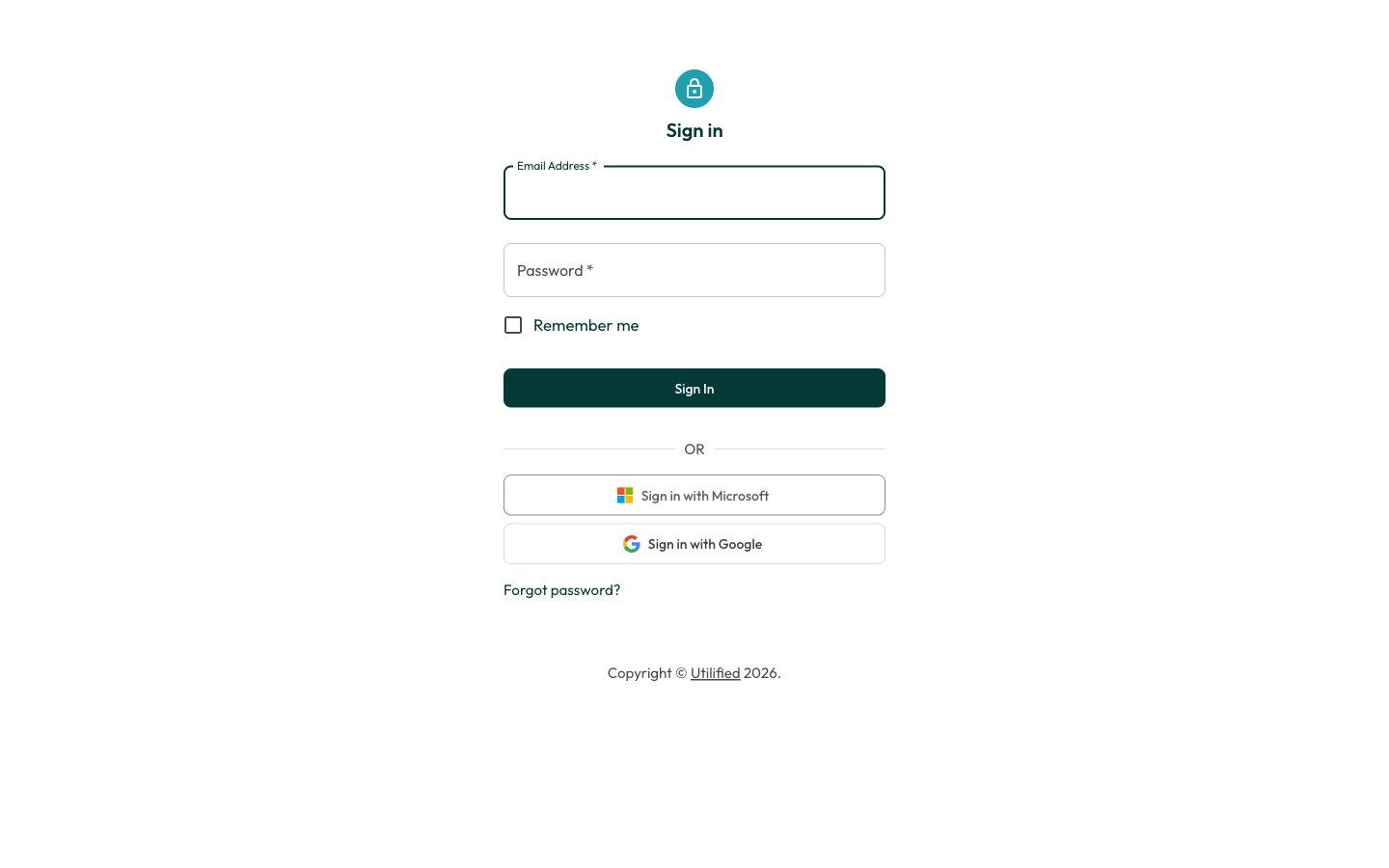 Navigate to your organisation's UMS URL in a web browser.
Enter your **email address** and **password**.
Click **Sign In**.
### Single sign-on (SSO)
If your organisation has SSO configured, you can also sign in using:
* **Sign in with Microsoft 365** — Use your corporate Microsoft account
* **Sign in with Google** — Use your Google Workspace account
SSO leverages your organisation's existing security policies and multi-factor authentication.
## Two-factor authentication (2FA)
If your organisation requires 2FA, you will be prompted for a verification code after entering your password.
### Setting up 2FA
Navigate to **Settings** then **Security**.
Click **Set up Two-Factor Authentication**.
Scan the QR code with your authenticator app (Google Authenticator, Authy, Microsoft Authenticator, or any TOTP-compatible app).
Navigate to your organisation's UMS URL in a web browser.
Enter your **email address** and **password**.
Click **Sign In**.
### Single sign-on (SSO)
If your organisation has SSO configured, you can also sign in using:
* **Sign in with Microsoft 365** — Use your corporate Microsoft account
* **Sign in with Google** — Use your Google Workspace account
SSO leverages your organisation's existing security policies and multi-factor authentication.
## Two-factor authentication (2FA)
If your organisation requires 2FA, you will be prompted for a verification code after entering your password.
### Setting up 2FA
Navigate to **Settings** then **Security**.
Click **Set up Two-Factor Authentication**.
Scan the QR code with your authenticator app (Google Authenticator, Authy, Microsoft Authenticator, or any TOTP-compatible app).
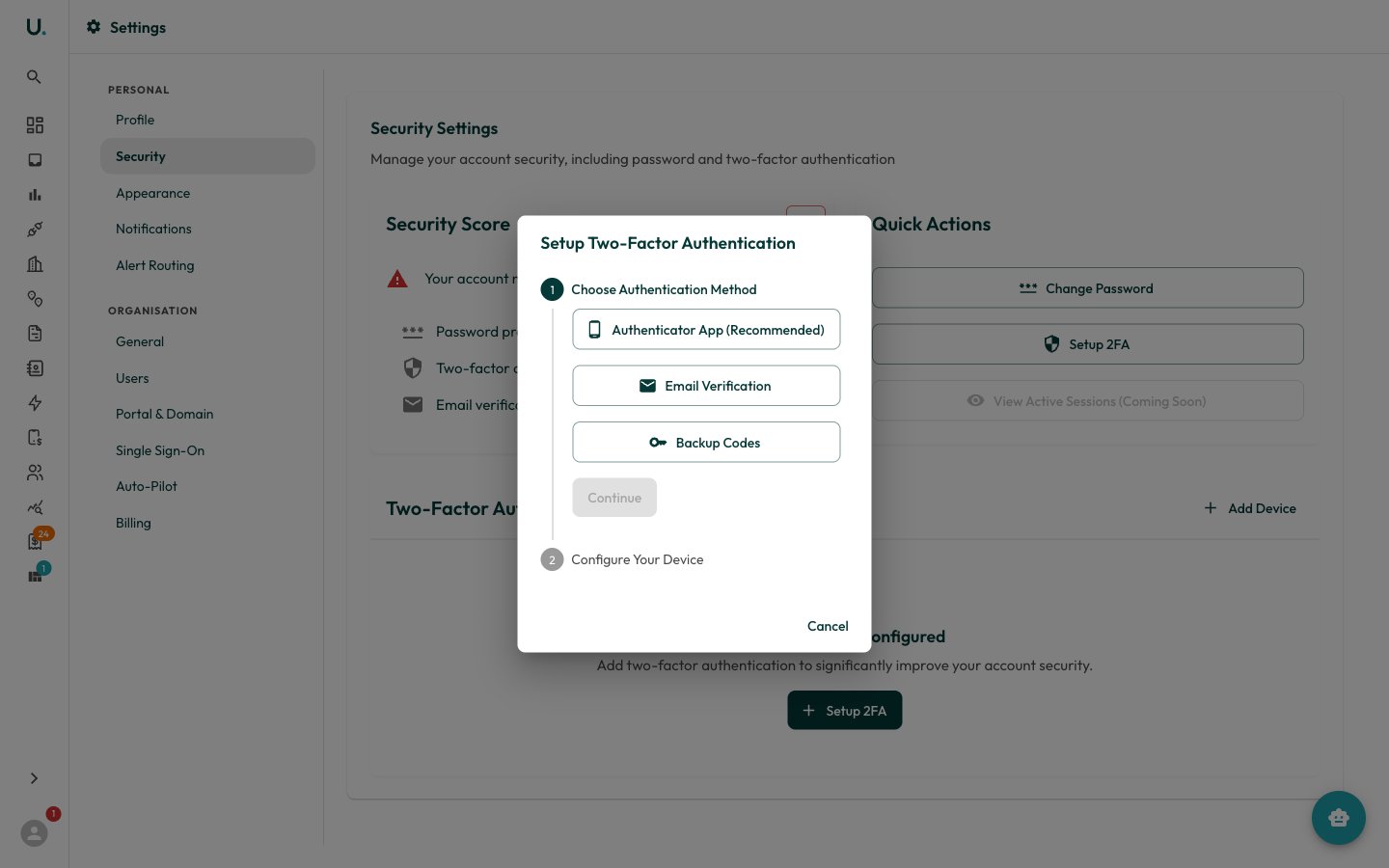 Enter the 6-digit code from your app to confirm.
Save your **backup recovery codes** in a secure location — you will need these if you lose access to your authenticator.
Store your backup recovery codes somewhere safe. Without them, losing access to your authenticator device can lock you out of your account.
### Signing in with 2FA
Enter your email and password as normal.
When prompted, open your authenticator app.
Enter the current 6-digit code.
Click **Verify**.
## Resetting your password
On the login page, click **Forgot Password**.
Enter your email address.
Check your email for a reset link (check spam/junk if it does not arrive within a few minutes).
Click the link and set a new password.
Sign in with your new password.
## Session management
* Your session remains active while you are using UMS
* After a period of inactivity, you may be asked to sign in again
* Tokens refresh automatically in the background — you should rarely need to re-authenticate during a working session
## Troubleshooting
| Problem | Solution |
| ------------------------- | ---------------------------------------------------------------------------------- |
| Forgotten password | Use the **Forgot Password** link on the login page |
| 2FA code not working | Ensure your device clock is synchronised. Try waiting for the next code cycle |
| Lost authenticator device | Use one of your backup recovery codes, then set up 2FA on your new device |
| SSO not working | Contact your IT administrator to verify your account is provisioned for UMS access |
| Account locked | Contact your system administrator to unlock your account |
Enter the 6-digit code from your app to confirm.
Save your **backup recovery codes** in a secure location — you will need these if you lose access to your authenticator.
Store your backup recovery codes somewhere safe. Without them, losing access to your authenticator device can lock you out of your account.
### Signing in with 2FA
Enter your email and password as normal.
When prompted, open your authenticator app.
Enter the current 6-digit code.
Click **Verify**.
## Resetting your password
On the login page, click **Forgot Password**.
Enter your email address.
Check your email for a reset link (check spam/junk if it does not arrive within a few minutes).
Click the link and set a new password.
Sign in with your new password.
## Session management
* Your session remains active while you are using UMS
* After a period of inactivity, you may be asked to sign in again
* Tokens refresh automatically in the background — you should rarely need to re-authenticate during a working session
## Troubleshooting
| Problem | Solution |
| ------------------------- | ---------------------------------------------------------------------------------- |
| Forgotten password | Use the **Forgot Password** link on the login page |
| 2FA code not working | Ensure your device clock is synchronised. Try waiting for the next code cycle |
| Lost authenticator device | Use one of your backup recovery codes, then set up 2FA on your new device |
| SSO not working | Contact your IT administrator to verify your account is provisioned for UMS access |
| Account locked | Contact your system administrator to unlock your account |