> ## Documentation Index
> Fetch the complete documentation index at: https://docs.utilified.com/llms.txt
> Use this file to discover all available pages before exploring further.
# Navigating UMS
> Move around UMS with the sidebar, global search, consistent list and detail page patterns, drawers, keyboard shortcuts, and notifications.
## Sidebar navigation
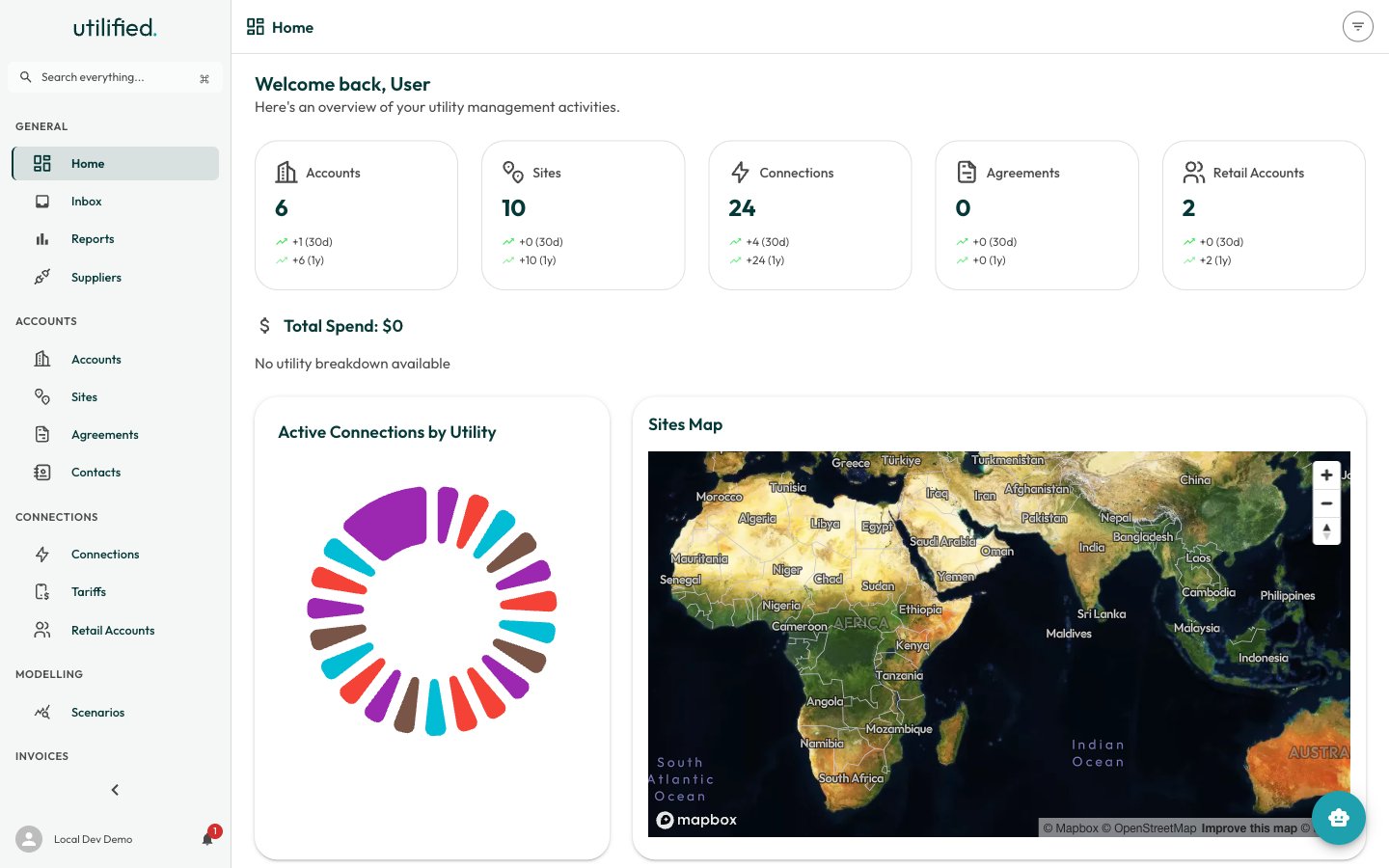 The left sidebar is the primary way to move around UMS. It is organised into six sections that mirror your energy management workflow:
| Section | What it contains |
| --------------- | --------------------------------------------------------------- |
| **General** | Home, Inbox, Reports, Suppliers — your daily starting points |
| **Accounts** | Accounts, Sites, Agreements, Contacts — your customer portfolio |
| **Connections** | Connections, Tariffs, Retail Accounts — the energy data layer |
| **Modelling** | Scenarios, Brokerage — analysis and commissions |
| **ESG** | ESG Overview, Reference Data — sustainability reporting |
| **Invoices** | Invoices, Payments — your billing workflow |
### Expanding and collapsing
The sidebar can be **expanded** (showing icon and label) or **collapsed** (showing icons only). Click the arrow at the bottom of the sidebar to toggle between modes. The collapsed sidebar gives you more screen space for data grids and detail pages.
## Global search
Click the **Search everything...** bar at the top of the sidebar to open global search, or press **Cmd+K** (Mac) / **Ctrl+K** (Windows/Linux) to open the Command Palette.
Global search finds results across all modules simultaneously — accounts, sites, connections, invoices, agreements, suppliers, and more. Click any result to navigate directly to that record.
## Common page patterns
UMS uses consistent patterns across all modules so you only need to learn them once.
### List pages
Every module has a list page with:
* **Summary cards** at the top showing counts and growth trends
* **Data grid** with sortable columns, row selection, and pagination
* **Toolbar** with filter, column visibility, export, refresh, density, and search controls
* **Create button** (+) in the top-right corner
### Row actions
Each row in the data grid has action buttons:
| Icon | Action | Description |
| ---------- | --------------- | ---------------------------------------------------------- |
| Arrow | **See Details** | Navigate to the record's detail page |
| Pencil | **Quick Edit** | Open a side drawer to edit fields without leaving the list |
| Three dots | **More** | Additional context-specific actions |
### Detail pages
Detail pages use a **tabbed interface** with:
* **Header** showing the record name, status, and action buttons
* **Tabs** for different aspects of the record (e.g. Overview, Sites, Agreements, Invoices)
* **Overview tab** with summary statistics and key information
### Drawers
When you click **Quick Edit** or **Create**, a **drawer panel** slides in from the right side of the screen. Drawers let you view and edit records without navigating away from your current page. Click **Save** to apply changes or **Cancel** / press **Escape** to close.
## Keyboard shortcuts
| Shortcut | Action |
| ---------------------- | ----------------------------- |
| **Cmd+K** / **Ctrl+K** | Open the Command Palette |
| **Escape** | Close drawer or modal |
| **Enter** | Submit form or confirm action |
## Notifications
Open the **user menu** (click your avatar in the bottom-left of the sidebar) and choose **Notifications** to open the notification drawer. An unread count badge appears on your avatar when you have unread notifications. The drawer shows alerts for:
* Completed reports
* Invoice import results
* Agreement expiry warnings
* Brokerage calculation completions
Click any notification to navigate directly to the relevant page.
The left sidebar is the primary way to move around UMS. It is organised into six sections that mirror your energy management workflow:
| Section | What it contains |
| --------------- | --------------------------------------------------------------- |
| **General** | Home, Inbox, Reports, Suppliers — your daily starting points |
| **Accounts** | Accounts, Sites, Agreements, Contacts — your customer portfolio |
| **Connections** | Connections, Tariffs, Retail Accounts — the energy data layer |
| **Modelling** | Scenarios, Brokerage — analysis and commissions |
| **ESG** | ESG Overview, Reference Data — sustainability reporting |
| **Invoices** | Invoices, Payments — your billing workflow |
### Expanding and collapsing
The sidebar can be **expanded** (showing icon and label) or **collapsed** (showing icons only). Click the arrow at the bottom of the sidebar to toggle between modes. The collapsed sidebar gives you more screen space for data grids and detail pages.
## Global search
Click the **Search everything...** bar at the top of the sidebar to open global search, or press **Cmd+K** (Mac) / **Ctrl+K** (Windows/Linux) to open the Command Palette.
Global search finds results across all modules simultaneously — accounts, sites, connections, invoices, agreements, suppliers, and more. Click any result to navigate directly to that record.
## Common page patterns
UMS uses consistent patterns across all modules so you only need to learn them once.
### List pages
Every module has a list page with:
* **Summary cards** at the top showing counts and growth trends
* **Data grid** with sortable columns, row selection, and pagination
* **Toolbar** with filter, column visibility, export, refresh, density, and search controls
* **Create button** (+) in the top-right corner
### Row actions
Each row in the data grid has action buttons:
| Icon | Action | Description |
| ---------- | --------------- | ---------------------------------------------------------- |
| Arrow | **See Details** | Navigate to the record's detail page |
| Pencil | **Quick Edit** | Open a side drawer to edit fields without leaving the list |
| Three dots | **More** | Additional context-specific actions |
### Detail pages
Detail pages use a **tabbed interface** with:
* **Header** showing the record name, status, and action buttons
* **Tabs** for different aspects of the record (e.g. Overview, Sites, Agreements, Invoices)
* **Overview tab** with summary statistics and key information
### Drawers
When you click **Quick Edit** or **Create**, a **drawer panel** slides in from the right side of the screen. Drawers let you view and edit records without navigating away from your current page. Click **Save** to apply changes or **Cancel** / press **Escape** to close.
## Keyboard shortcuts
| Shortcut | Action |
| ---------------------- | ----------------------------- |
| **Cmd+K** / **Ctrl+K** | Open the Command Palette |
| **Escape** | Close drawer or modal |
| **Enter** | Submit form or confirm action |
## Notifications
Open the **user menu** (click your avatar in the bottom-left of the sidebar) and choose **Notifications** to open the notification drawer. An unread count badge appears on your avatar when you have unread notifications. The drawer shows alerts for:
* Completed reports
* Invoice import results
* Agreement expiry warnings
* Brokerage calculation completions
Click any notification to navigate directly to the relevant page.