> ## Documentation Index
> Fetch the complete documentation index at: https://docs.utilified.com/llms.txt
> Use this file to discover all available pages before exploring further.
# Building & Comparing Scenarios
> Model and compare current versus proposed energy tariffs across your retail accounts with the Tariff Review Wizard, then review costs, savings, and a connection-by-tariff matrix.
Scenarios let you model energy costs for your retail accounts and compare your **current** tariffs against **proposed** alternatives before you commit to a contract. Each scenario calculates charges over a defined period and surfaces the savings (or extra cost) of switching.
Find scenarios under **Modelling > Scenarios** in the sidebar (`/scenarios`). The list shows every scenario in your organisation with its **Status** (`DRAFT`, `CALCULATING`, `COMPLETED`, or `FAILED`), type, period, and when it was last calculated.
The current UI builds **Tariff Review** scenarios. Other scenario types (Solar/BESS, PFC, Procurement) exist as labels but are not yet wizard-driven.
## Creating a scenario
From the **Scenarios** page, click the **+** (**New Tariff Review**) action in the header to open the **Tariff Review Wizard**.
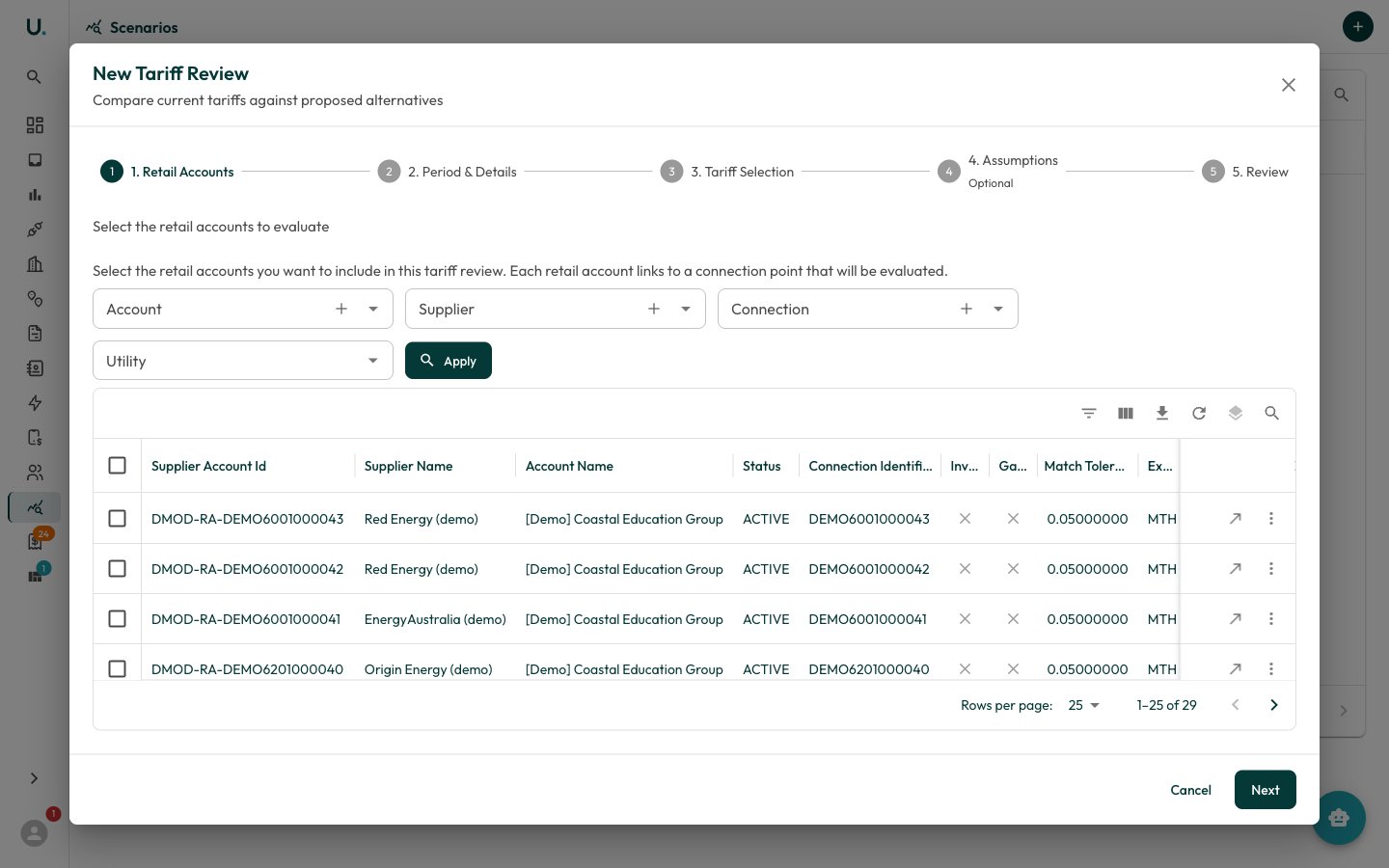 Choose one or more [retail accounts](/retail-accounts) to evaluate. These are the connections whose costs you want to model.
* Choose a **Period Type** — **Custom Date Range** or **Annualised (12 months)**.
* Set **Period From** and **Period To**. This determines which tariff versions and meter data are used.
* Give the review a **Name** (for example, `Q1 2026 Tariff Comparison`) and an optional description.
Select **Current Tariff Groups** (what the accounts are on today) on the left and **Proposed Tariff Groups** (the alternatives) on the right. See [Managing Tariffs](/guides/managing-tariffs) for how these are built.
* **Assignment Mode** — pick **Apply to All** to use the same tariffs for every connection, or **Per Connection** to assign tariffs to each connection individually.
* Where a tariff group has multiple versions, expand **version overrides** to pin a specific version (the latest is used by default).
The wizard detects quantities it can't source from meter data for your connections and period:
* **Load Profiles** — assign a load profile and **Annual Consumption (kWh)** to generate synthetic interval data when no meter reads exist.
* **Missing quantities** — values flagged **No data** must be entered to include those charges. For demand-style quantities you can estimate from annual consumption using the calculator action.
* **Quantity overrides** — optionally override system-calculated demand values.
Confirm your selections on the **Review** step and finish. UMS creates the scenario, adds the current and proposed tariff items, and starts the calculation.
Connections with missing quantities still calculate, but the affected charges are left out and flagged as warnings — fill them in on the **Assumptions** step for an accurate comparison.
## Reviewing results
While a scenario is `CALCULATING`, its detail page polls for completion and the **Overview** tab shows a progress indicator. Once `COMPLETED`, the Overview tab summarises the comparison.
* **Summary cards** — Status, **Current Cost**, **Best Proposed** option, and **Potential Savings** (or Additional Cost) with the percentage difference.
* **Actual / Annualised toggle** — switch between the actual period cost and a 365-day annualised figure.
* **Cost Comparison** — a bar chart of current versus each proposed tariff.
* **Category Breakdown (Current)** — current charges split by category.
* **Connection × Tariff Comparison Matrix** — every connection against every tariff option, with the cheapest option per connection highlighted.
### Scenario items
The **Scenarios** tab lists each tariff item per connection — its **Type** (`CURRENT` or `PROPOSED`), tariff group, supplier, and charges (ex GST, GST, inc GST). Click a row to expand its line items and any warnings. Use **Add Tariff** to add another current or proposed tariff group to a connection after the fact.
## Comparing and iterating
A `COMPLETED` scenario offers two header actions:
* **Recalculate** — rerun the calculation after editing items or assumptions.
* **Clone** — copy the scenario as a new `DRAFT` so you can tweak inputs and compare a fresh run without losing the original.
To compare more than two options, add several proposed tariff groups to one scenario — the comparison matrix and chart scale to show every option side by side.
Choose one or more [retail accounts](/retail-accounts) to evaluate. These are the connections whose costs you want to model.
* Choose a **Period Type** — **Custom Date Range** or **Annualised (12 months)**.
* Set **Period From** and **Period To**. This determines which tariff versions and meter data are used.
* Give the review a **Name** (for example, `Q1 2026 Tariff Comparison`) and an optional description.
Select **Current Tariff Groups** (what the accounts are on today) on the left and **Proposed Tariff Groups** (the alternatives) on the right. See [Managing Tariffs](/guides/managing-tariffs) for how these are built.
* **Assignment Mode** — pick **Apply to All** to use the same tariffs for every connection, or **Per Connection** to assign tariffs to each connection individually.
* Where a tariff group has multiple versions, expand **version overrides** to pin a specific version (the latest is used by default).
The wizard detects quantities it can't source from meter data for your connections and period:
* **Load Profiles** — assign a load profile and **Annual Consumption (kWh)** to generate synthetic interval data when no meter reads exist.
* **Missing quantities** — values flagged **No data** must be entered to include those charges. For demand-style quantities you can estimate from annual consumption using the calculator action.
* **Quantity overrides** — optionally override system-calculated demand values.
Confirm your selections on the **Review** step and finish. UMS creates the scenario, adds the current and proposed tariff items, and starts the calculation.
Connections with missing quantities still calculate, but the affected charges are left out and flagged as warnings — fill them in on the **Assumptions** step for an accurate comparison.
## Reviewing results
While a scenario is `CALCULATING`, its detail page polls for completion and the **Overview** tab shows a progress indicator. Once `COMPLETED`, the Overview tab summarises the comparison.
* **Summary cards** — Status, **Current Cost**, **Best Proposed** option, and **Potential Savings** (or Additional Cost) with the percentage difference.
* **Actual / Annualised toggle** — switch between the actual period cost and a 365-day annualised figure.
* **Cost Comparison** — a bar chart of current versus each proposed tariff.
* **Category Breakdown (Current)** — current charges split by category.
* **Connection × Tariff Comparison Matrix** — every connection against every tariff option, with the cheapest option per connection highlighted.
### Scenario items
The **Scenarios** tab lists each tariff item per connection — its **Type** (`CURRENT` or `PROPOSED`), tariff group, supplier, and charges (ex GST, GST, inc GST). Click a row to expand its line items and any warnings. Use **Add Tariff** to add another current or proposed tariff group to a connection after the fact.
## Comparing and iterating
A `COMPLETED` scenario offers two header actions:
* **Recalculate** — rerun the calculation after editing items or assumptions.
* **Clone** — copy the scenario as a new `DRAFT` so you can tweak inputs and compare a fresh run without losing the original.
To compare more than two options, add several proposed tariff groups to one scenario — the comparison matrix and chart scale to show every option side by side.