> ## Documentation Index
> Fetch the complete documentation index at: https://docs.utilified.com/llms.txt
> Use this file to discover all available pages before exploring further.
# Bulk Importing Data
> Import accounts, sites, connections, tariffs, and meter reads into UMS in bulk from CSV files using the Bulk Upload Wizard, then monitor exceptions.
When you are onboarding a large portfolio or loading data from another system, the **Bulk Upload Wizard** lets you import many records at once from CSV files. Each import is based on a template that defines the expected columns, so you can download a sample, fill it in, and upload it back.
Bulk importing requires administrator permissions.
## Open the Imports page
Click your avatar in the bottom-left corner and select **Bulk Imports**.
The **Imports** page lists your previous upload tasks with their type, file name, status, and timestamps.
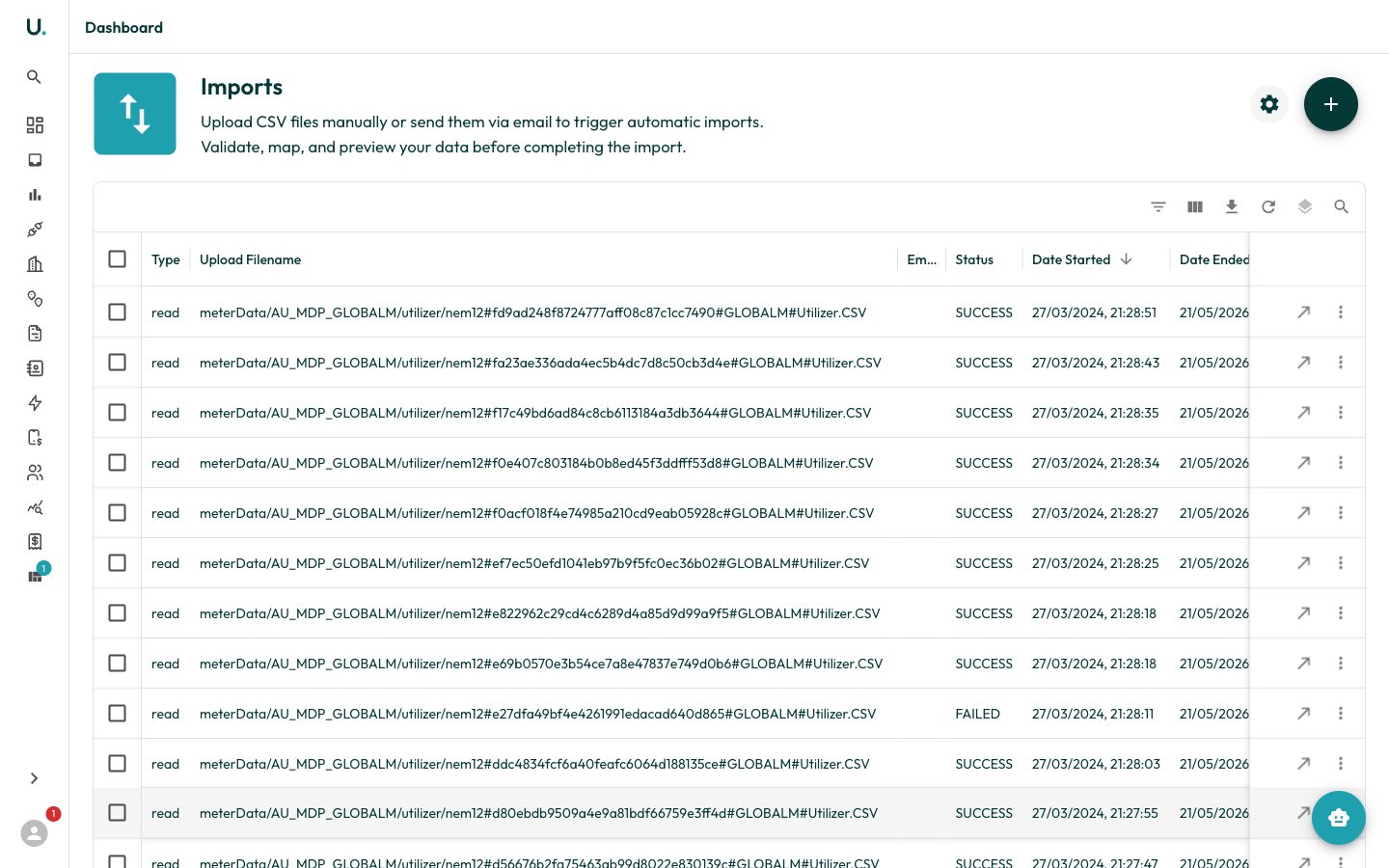 Click the **+** button in the top-right to open the **Bulk Upload Wizard**.
## Run the Bulk Upload Wizard
The wizard guides you through four steps: select a template, choose how to provide your data, supply the data, then upload and monitor.
Choose the type of data you want to import. Each template card shows how many fields it has and how many are required.
Click the **+** button in the top-right to open the **Bulk Upload Wizard**.
## Run the Bulk Upload Wizard
The wizard guides you through four steps: select a template, choose how to provide your data, supply the data, then upload and monitor.
Choose the type of data you want to import. Each template card shows how many fields it has and how many are required.
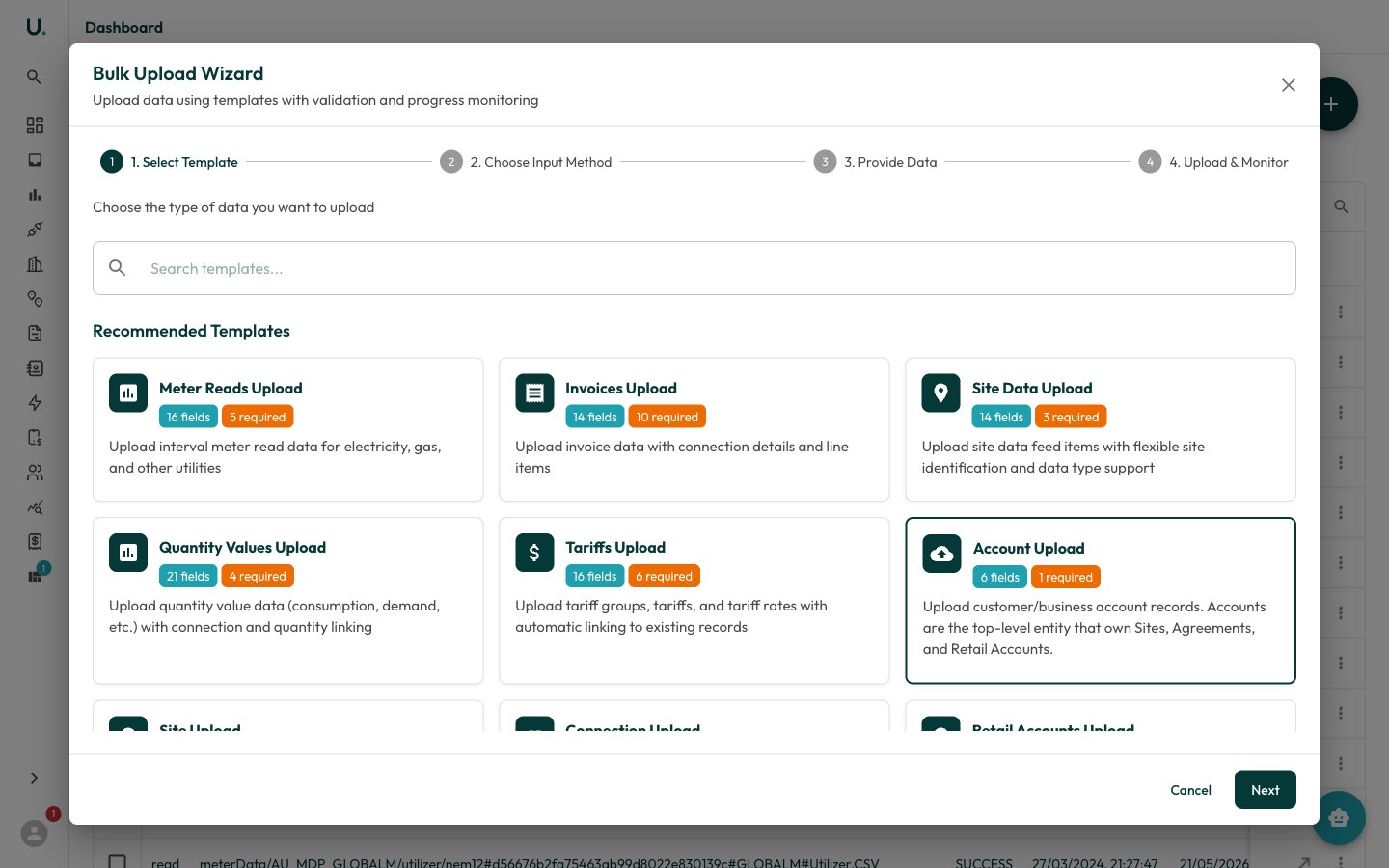 Templates are available for **accounts**, **sites**, **connections**, **tariffs**, **meter reads**, **quantity values**, **invoices**, **site data**, and **retail accounts**. Use the search box to find a template quickly.
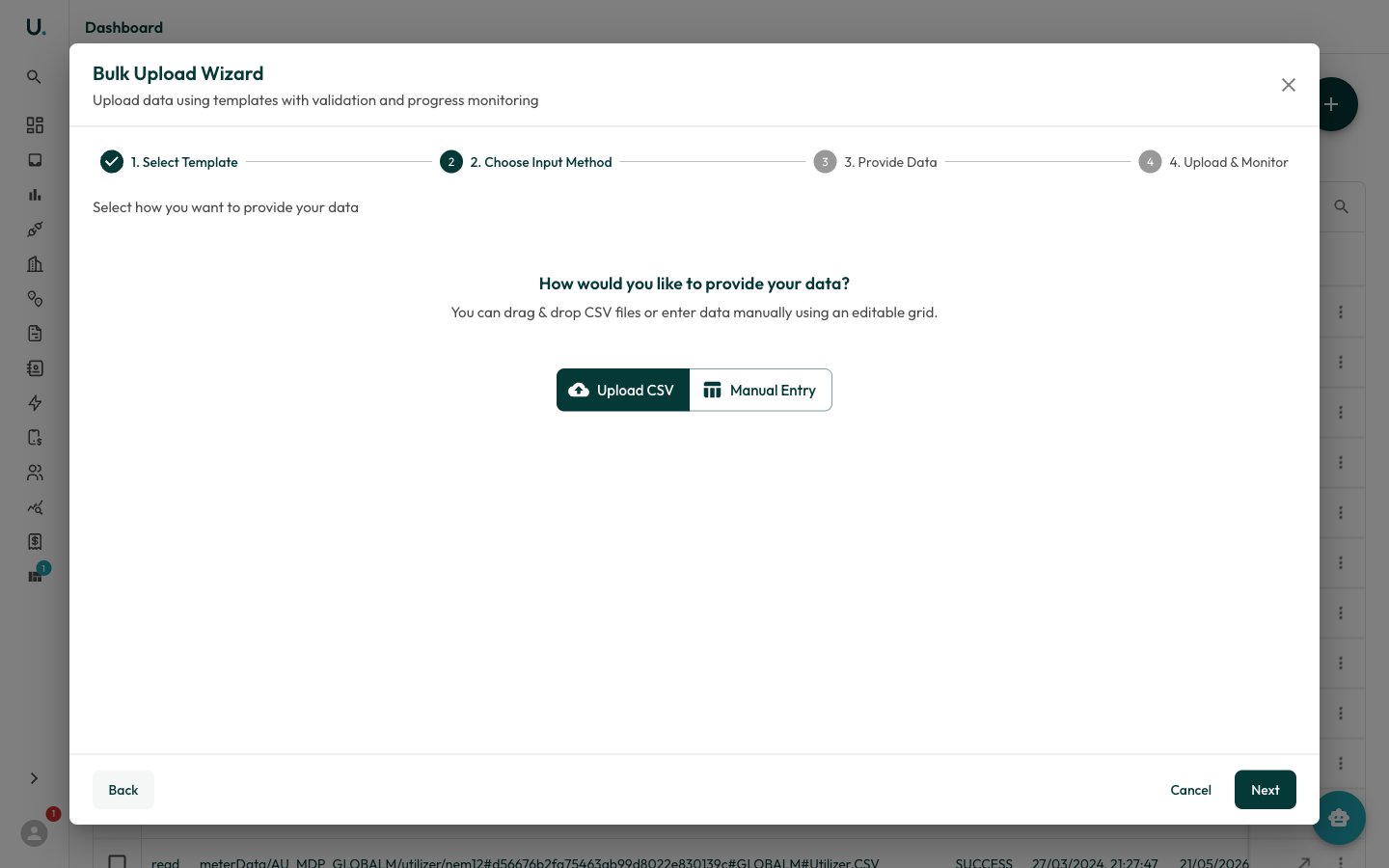
Decide how you want to provide your data — upload a CSV file, or enter rows manually in an editable grid.
Templates are available for **accounts**, **sites**, **connections**, **tariffs**, **meter reads**, **quantity values**, **invoices**, **site data**, and **retail accounts**. Use the search box to find a template quickly.
Decide how you want to provide your data — upload a CSV file, or enter rows manually in an editable grid.
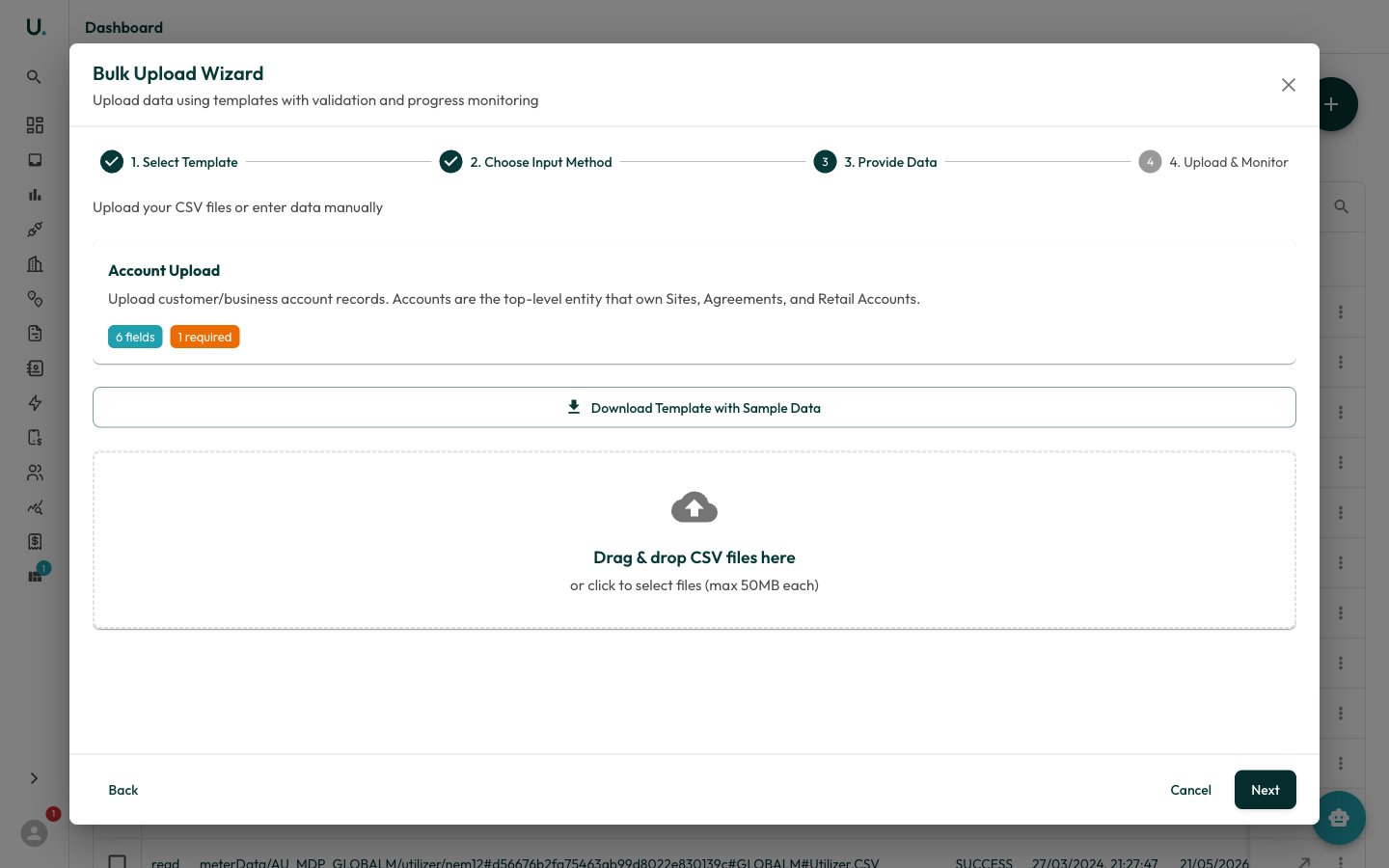
 If you chose **Upload CSV**, click **Download Template with Sample Data** to get a correctly-formatted CSV with example rows. Fill it in, then drag and drop your file (or several) onto the upload area. Each file can be up to 50 MB.
 UMS validates each file's columns against the template as soon as you add it, flagging any file as **Valid** or listing the errors to fix. If you chose **Manual Entry**, fill in the editable grid instead.
Always start from the downloaded template. It contains the exact column headers the importer expects, which avoids most validation errors.
Click **Finish** to start the upload. UMS processes your files in the background and shows live progress for each one, including how many rows succeeded and any per-row errors.
## Onboarding upload (all-in-one)
When you're setting up a brand-new portfolio, the **onboarding** upload creates your whole hierarchy — **accounts, sites, connections, retail accounts, and agreements** — from a *single* CSV, instead of preparing a separate file for each entity in dependency order. It's the file behind the [guided onboarding wizard](/getting-started/getting-set-up).
It's one **row per connection (meter)**. Account, site, and agreement values repeat down the rows and are de-duplicated automatically on a natural key, so you list each account or site once across many connections.
The onboarding upload is **all-or-nothing**. If any row fails validation, nothing is created — fix the file and re-submit. You never end up with a half-built hierarchy.
### Before you upload
* **Suppliers and utilities must already exist.** They're referenced by name and looked up only — an unknown name is a validation error. Set them up first.
* **Values that repeat must be consistent.** Two rows with the same `account_name` but a different `account_email` are rejected (no last-write-wins).
### Columns
Download the template to get the exact headers: onboarding-template.csv.
The required minimum per row is `account_name`, `connection_identifier`, `retail_supplier_name`, and `retail_supplier_account_id`. Everything else is optional — a row can create just an account, connection, and retail account when there's no site or agreement yet.
| Group | Columns | Notes |
| ------------------ | ------------------------------------------------------------------------------------------------------------------------------------------------------- | --------------------------------------------------------------------------------------------------------------------------------------- |
| **Account** | `account_name` *(required)*, `account_parent_name`, `account_email` | De-dup on name. `account_parent_name` may reference another row's account. |
| **Site** | `site_name`, `site_address`, `site_city`, `site_state`, `site_postcode`, `site_type` | Optional per row — leave `site_name` blank to skip. The site links to the connection automatically. |
| **Connection** | `connection_identifier` *(required)*, `utility_name`, `connection_namespace`, `connection_address`, `annual_utility_cost`, `annual_utility_consumption` | `utility_name` is looked up (must exist). `connection_namespace` defaults to `AU_DEFAULT`. |
| **Retail Account** | `retail_supplier_name` *(required)*, `retail_supplier_account_id` *(required)*, `retail_status`, `retail_open_date` | `retail_supplier_name` is looked up (must exist). Status defaults to `ACTIVE`. |
| **Agreement** | `agreement_name`, `agreement_type`, `agreement_supplier_name`, `agreement_date_start`, `agreement_date_end`, `agreement_status` | `agreement_type` is required when `agreement_name` is set. The connection and retail account are linked to the agreement automatically. |
Start from the downloaded template and fill in only the columns you have. A row with just the four required columns is valid — you can enrich sites and agreements later.
## Review import results
Back on the **Imports** page, each upload task has a row menu for reviewing the outcome:
* **Download** — Retrieve the original file you uploaded.
* **Exceptions** — Download a CSV of the rows that failed, with the reason for each.
* **Result Data** — Download a CSV showing the per-row outcome (success or failure) for the whole file.
* **Refresh** — Re-check the status of an in-progress task.
Invalid files are skipped during upload rather than blocking the rest. Review the **Exceptions** report to see exactly which rows were rejected and why, then fix and re-import just those rows.
UMS validates each file's columns against the template as soon as you add it, flagging any file as **Valid** or listing the errors to fix. If you chose **Manual Entry**, fill in the editable grid instead.
Always start from the downloaded template. It contains the exact column headers the importer expects, which avoids most validation errors.
Click **Finish** to start the upload. UMS processes your files in the background and shows live progress for each one, including how many rows succeeded and any per-row errors.
## Onboarding upload (all-in-one)
When you're setting up a brand-new portfolio, the **onboarding** upload creates your whole hierarchy — **accounts, sites, connections, retail accounts, and agreements** — from a *single* CSV, instead of preparing a separate file for each entity in dependency order. It's the file behind the [guided onboarding wizard](/getting-started/getting-set-up).
It's one **row per connection (meter)**. Account, site, and agreement values repeat down the rows and are de-duplicated automatically on a natural key, so you list each account or site once across many connections.
The onboarding upload is **all-or-nothing**. If any row fails validation, nothing is created — fix the file and re-submit. You never end up with a half-built hierarchy.
### Before you upload
* **Suppliers and utilities must already exist.** They're referenced by name and looked up only — an unknown name is a validation error. Set them up first.
* **Values that repeat must be consistent.** Two rows with the same `account_name` but a different `account_email` are rejected (no last-write-wins).
### Columns
Download the template to get the exact headers: onboarding-template.csv.
The required minimum per row is `account_name`, `connection_identifier`, `retail_supplier_name`, and `retail_supplier_account_id`. Everything else is optional — a row can create just an account, connection, and retail account when there's no site or agreement yet.
| Group | Columns | Notes |
| ------------------ | ------------------------------------------------------------------------------------------------------------------------------------------------------- | --------------------------------------------------------------------------------------------------------------------------------------- |
| **Account** | `account_name` *(required)*, `account_parent_name`, `account_email` | De-dup on name. `account_parent_name` may reference another row's account. |
| **Site** | `site_name`, `site_address`, `site_city`, `site_state`, `site_postcode`, `site_type` | Optional per row — leave `site_name` blank to skip. The site links to the connection automatically. |
| **Connection** | `connection_identifier` *(required)*, `utility_name`, `connection_namespace`, `connection_address`, `annual_utility_cost`, `annual_utility_consumption` | `utility_name` is looked up (must exist). `connection_namespace` defaults to `AU_DEFAULT`. |
| **Retail Account** | `retail_supplier_name` *(required)*, `retail_supplier_account_id` *(required)*, `retail_status`, `retail_open_date` | `retail_supplier_name` is looked up (must exist). Status defaults to `ACTIVE`. |
| **Agreement** | `agreement_name`, `agreement_type`, `agreement_supplier_name`, `agreement_date_start`, `agreement_date_end`, `agreement_status` | `agreement_type` is required when `agreement_name` is set. The connection and retail account are linked to the agreement automatically. |
Start from the downloaded template and fill in only the columns you have. A row with just the four required columns is valid — you can enrich sites and agreements later.
## Review import results
Back on the **Imports** page, each upload task has a row menu for reviewing the outcome:
* **Download** — Retrieve the original file you uploaded.
* **Exceptions** — Download a CSV of the rows that failed, with the reason for each.
* **Result Data** — Download a CSV showing the per-row outcome (success or failure) for the whole file.
* **Refresh** — Re-check the status of an in-progress task.
Invalid files are skipped during upload rather than blocking the rest. Review the **Exceptions** report to see exactly which rows were rejected and why, then fix and re-import just those rows.