> ## Documentation Index
> Fetch the complete documentation index at: https://docs.utilified.com/llms.txt
> Use this file to discover all available pages before exploring further.
# Editing Invoices
> Review and edit invoice details, line items, and attached documents in UMS, then re-run invoices through the validation engine to clear flagged issues.
This guide explains how to review and edit invoice details, line items, and documents.
## Invoice detail page
Click **See Details** on any invoice to open the detail page.
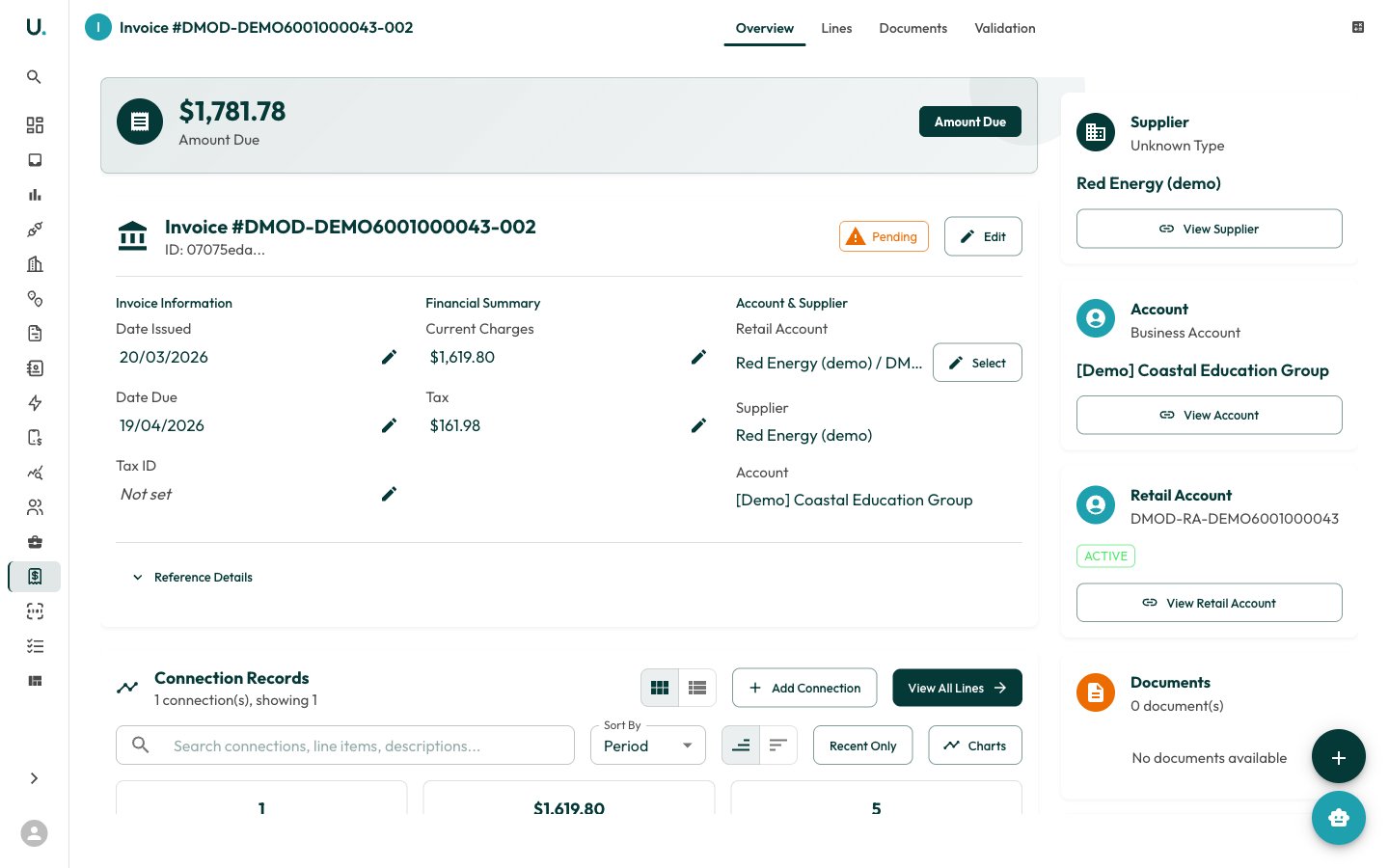 The invoice detail page has these tabs:
* **Overview** — Invoice summary with dates, amounts, supplier, and connection information
* **Lines** — Individual line items (charges) on the invoice
* **Ledger** — Accounting ledger entries for the invoice
* **Documents** — Attached PDF documents
* **Review** — Validation results, flagged review items, and rules
* **History** — Change history for the invoice
## Editing line items
The **Lines** tab shows all charges on the invoice.
The invoice detail page has these tabs:
* **Overview** — Invoice summary with dates, amounts, supplier, and connection information
* **Lines** — Individual line items (charges) on the invoice
* **Ledger** — Accounting ledger entries for the invoice
* **Documents** — Attached PDF documents
* **Review** — Validation results, flagged review items, and rules
* **History** — Change history for the invoice
## Editing line items
The **Lines** tab shows all charges on the invoice.
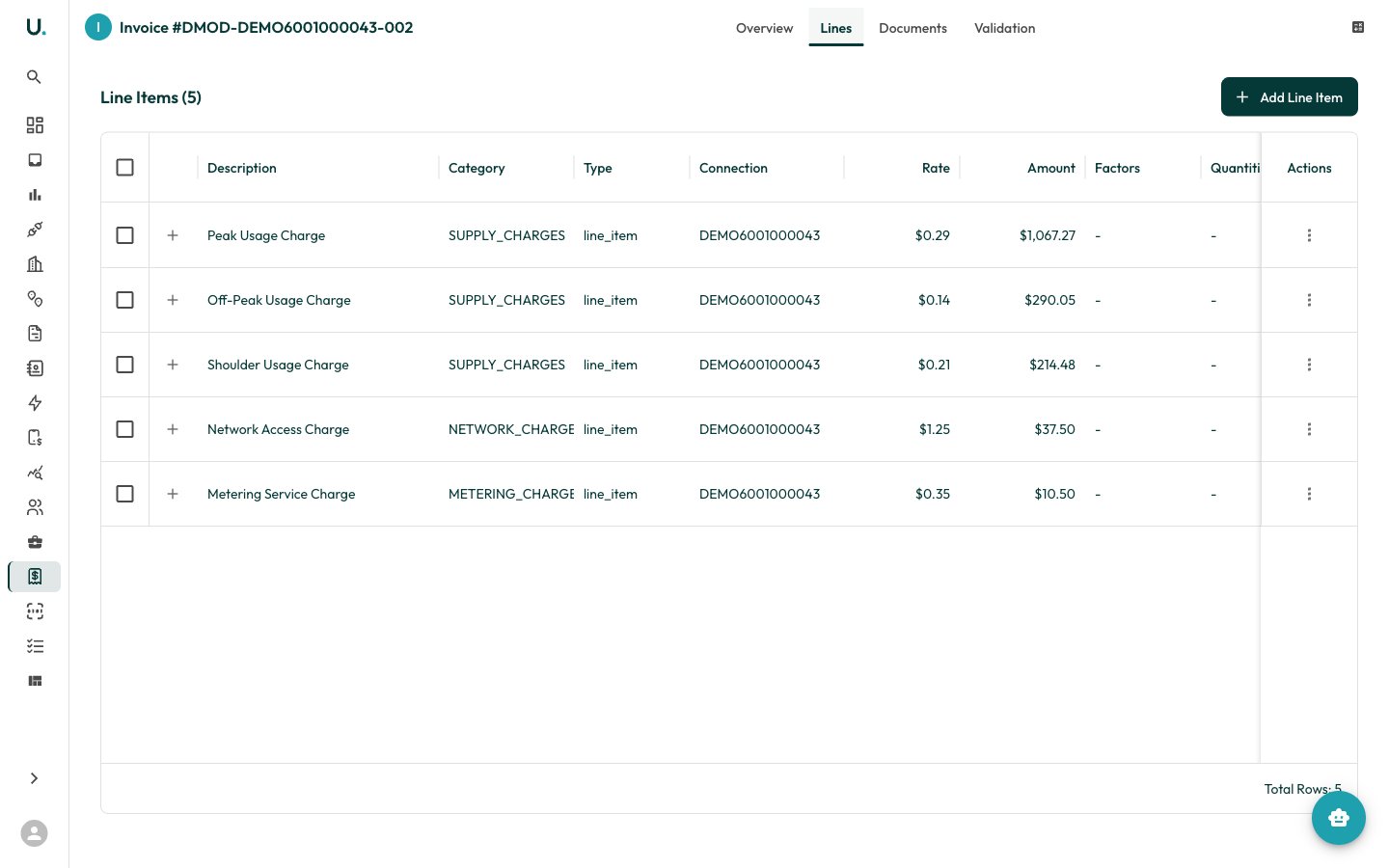 Each line item displays:
* **Description** — What the charge is for (for example, Peak Usage, Network Access)
* **Category** — Charge category
* **Charge Type** — Type of charge
* **Rate** — Unit rate applied
* **Amount** — Total charge amount
* **Tax** — Whether GST applies
* **Connection** — Which meter connection this charge relates to
### Editing a line item
Click the **edit** icon on a line item row.
The edit drawer opens with tabs:
* **Details** — Description, category, charge type, amount, tax flag, and unit rate/currency
* **Quantities** — Associated quantity records (kWh, MJ, kL)
* **Factors** — Tax and conversion factors
Make your changes and click **Save**.
### Adding a line item
Click **Add Line Item** to create a new charge line on the invoice.
## Viewing documents
The **Documents** tab shows any attached files.
Each line item displays:
* **Description** — What the charge is for (for example, Peak Usage, Network Access)
* **Category** — Charge category
* **Charge Type** — Type of charge
* **Rate** — Unit rate applied
* **Amount** — Total charge amount
* **Tax** — Whether GST applies
* **Connection** — Which meter connection this charge relates to
### Editing a line item
Click the **edit** icon on a line item row.
The edit drawer opens with tabs:
* **Details** — Description, category, charge type, amount, tax flag, and unit rate/currency
* **Quantities** — Associated quantity records (kWh, MJ, kL)
* **Factors** — Tax and conversion factors
Make your changes and click **Save**.
### Adding a line item
Click **Add Line Item** to create a new charge line on the invoice.
## Viewing documents
The **Documents** tab shows any attached files.
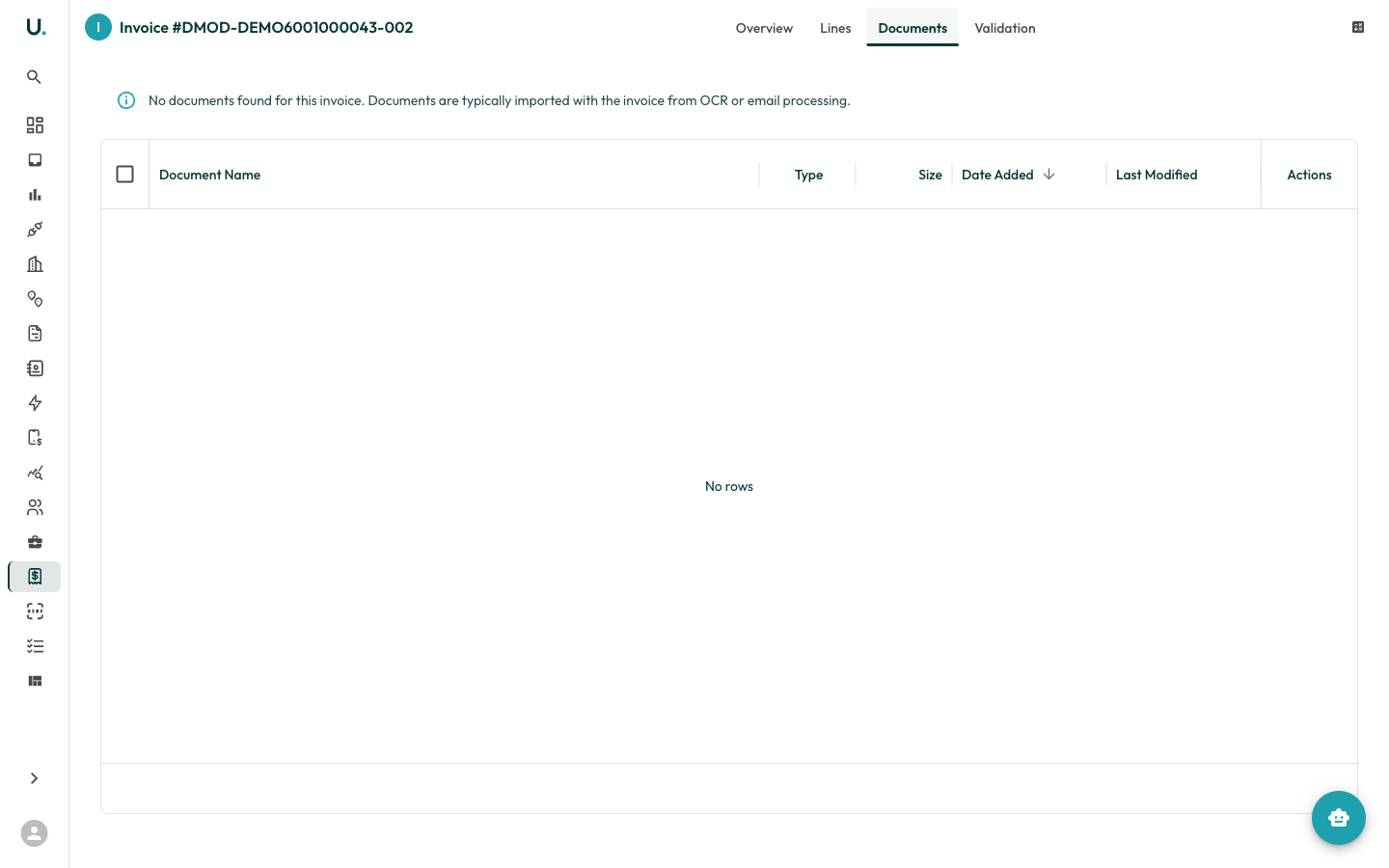 You can:
* **Download** individual documents
* **Preview** PDF invoices directly in the browser
* **Upload** additional documents
## Running validation
From the invoice detail page header, click **Validate** to run the invoice through the validation engine. This checks:
* Amount calculations match line items
* Dates are consistent
* Connection and retail account references are valid
* Rates match expected tariff rates
See the [Invoice Validation & Review](/guides/invoice-validation) guide for more details.
You can:
* **Download** individual documents
* **Preview** PDF invoices directly in the browser
* **Upload** additional documents
## Running validation
From the invoice detail page header, click **Validate** to run the invoice through the validation engine. This checks:
* Amount calculations match line items
* Dates are consistent
* Connection and retail account references are valid
* Rates match expected tariff rates
See the [Invoice Validation & Review](/guides/invoice-validation) guide for more details.