> ## Documentation Index
> Fetch the complete documentation index at: https://docs.utilified.com/llms.txt
> Use this file to discover all available pages before exploring further.
# Invoice Validation & Review
> Validate invoices in UMS, review flagged review items, detect billing gaps and missing invoices, and triage supplier emails from the validation inbox.
The Invoice Validation module provides a complete workflow for validating invoices, reviewing flagged items, detecting billing gaps, managing inbox emails, and excluding problematic entries.
## Validation dashboard
Navigate to **Invoices** from the sidebar and open the **Dashboard** tab.
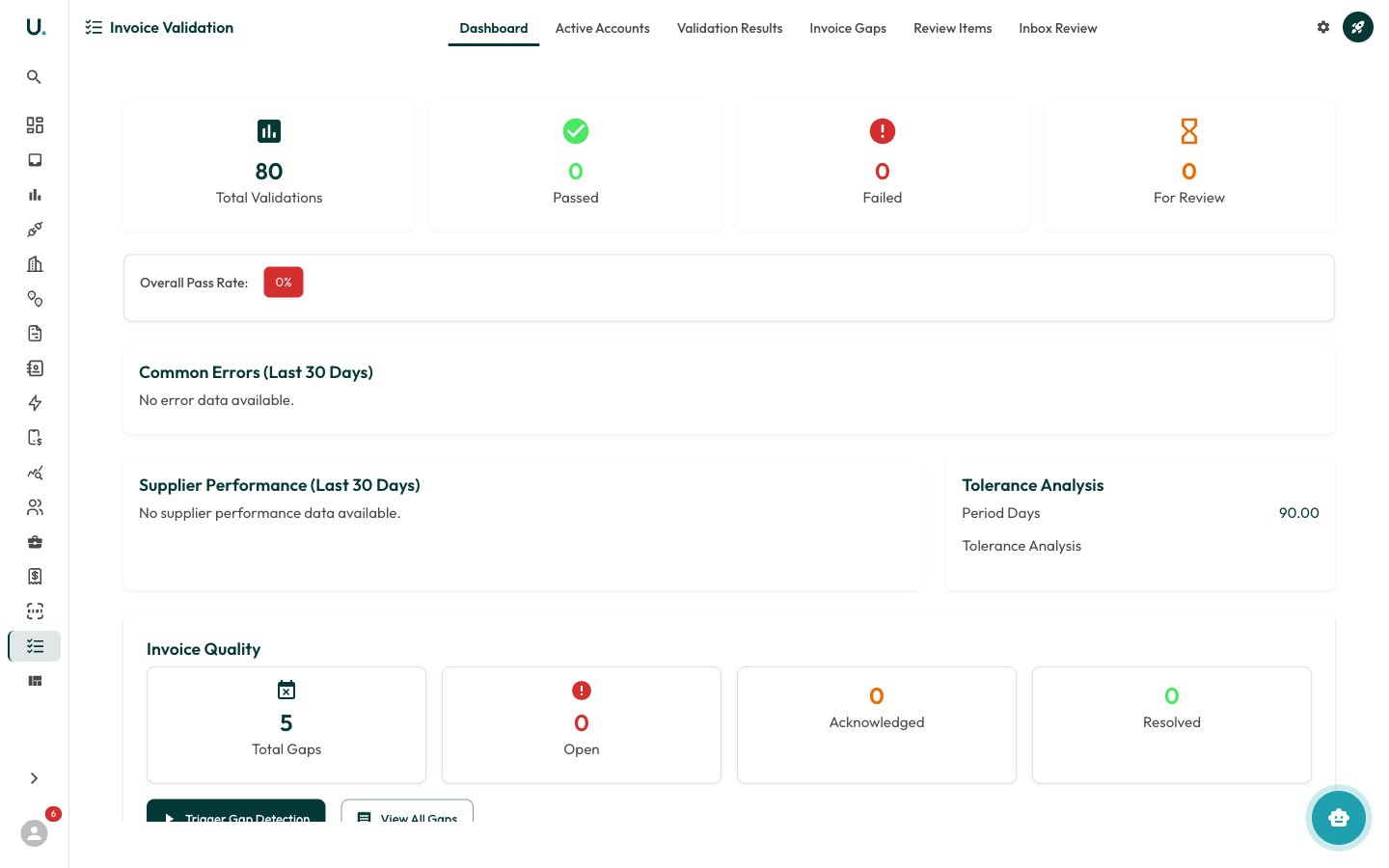 The dashboard provides an at-a-glance view of:
* **Summary Stats** — Total Validations, Passed, Failed, and For Review counts
* **Overall Pass Rate** — Percentage of invoices passing all checks
* **Common Errors** — Most frequent validation failures (last 30 days)
* **Supplier Performance** — How suppliers compare on validation quality
* **Invoice Quality** — Gap detection results (Total Gaps, Open, Acknowledged, Resolved)
## Running validation on an invoice
Open an invoice detail page.
Click the **Validate** button in the header.
The validation engine checks:
* **Amount accuracy** — Do line item totals match the invoice total?
* **Date consistency** — Are billing periods correct and non-overlapping?
* **Connection matching** — Are charges linked to valid connections?
* **Rate verification** — Do rates match the expected tariff?
* **Duplicate detection** — Is this invoice a duplicate of an existing one?
Results appear in the invoice's **Review** tab and the Invoices module's **Review** tab.
## Validation results
The dashboard provides an at-a-glance view of:
* **Summary Stats** — Total Validations, Passed, Failed, and For Review counts
* **Overall Pass Rate** — Percentage of invoices passing all checks
* **Common Errors** — Most frequent validation failures (last 30 days)
* **Supplier Performance** — How suppliers compare on validation quality
* **Invoice Quality** — Gap detection results (Total Gaps, Open, Acknowledged, Resolved)
## Running validation on an invoice
Open an invoice detail page.
Click the **Validate** button in the header.
The validation engine checks:
* **Amount accuracy** — Do line item totals match the invoice total?
* **Date consistency** — Are billing periods correct and non-overlapping?
* **Connection matching** — Are charges linked to valid connections?
* **Rate verification** — Do rates match the expected tariff?
* **Duplicate detection** — Is this invoice a duplicate of an existing one?
Results appear in the invoice's **Review** tab and the Invoices module's **Review** tab.
## Validation results
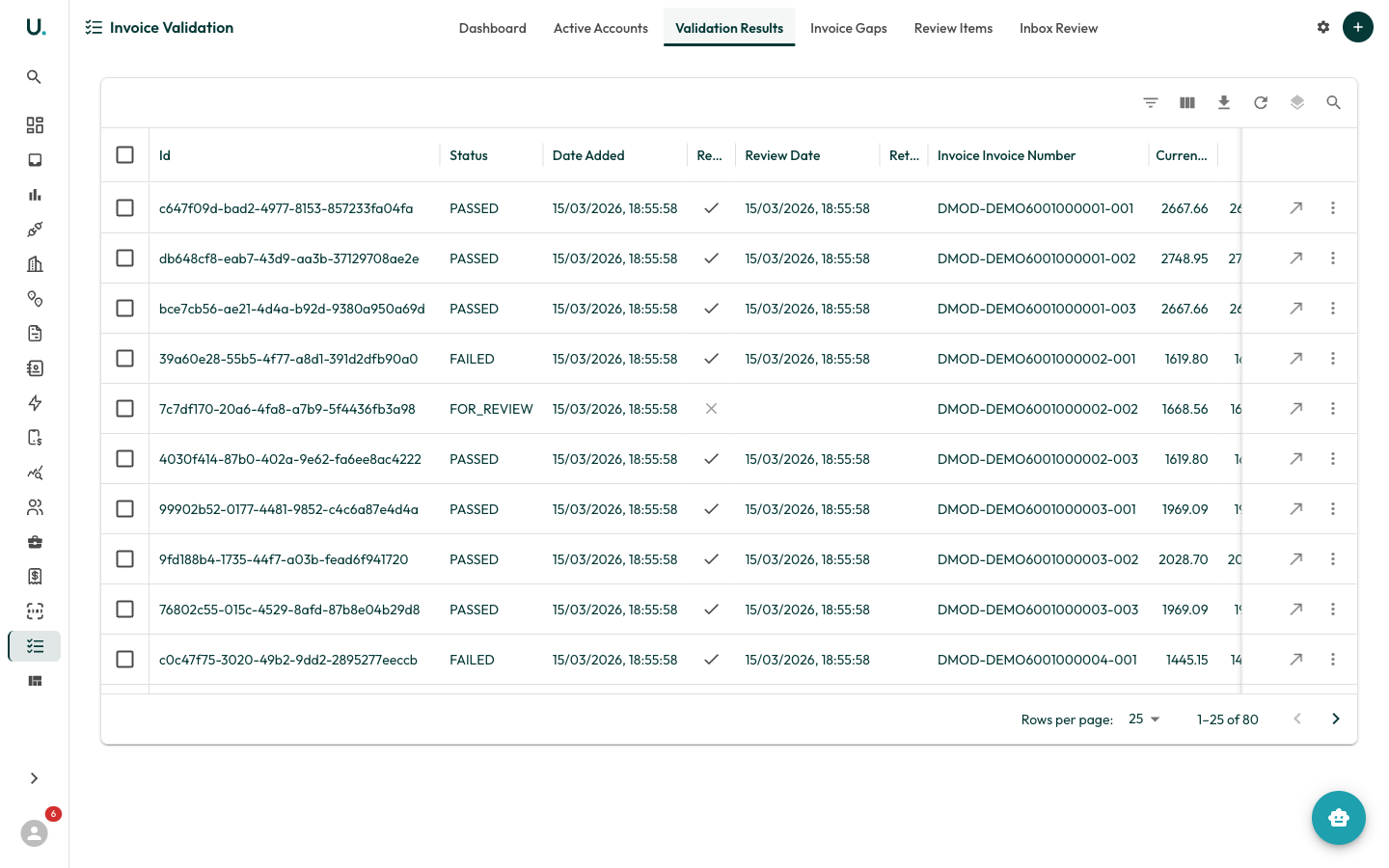 Each row represents a validated invoice showing:
* **Status** — PASSED, FAILED, or FOR\_REVIEW
* **Current Charges** and **Tax** amounts
* **Confidence Score** — System confidence in the result (0-1 scale)
* **Error Source** — What caused the failure (for example, TARIFF\_MISMATCH, QUANTITY\_CALCULATION)
### Completing a review
Find invoices with status **FOR\_REVIEW** or **FAILED**.
Click **See Details** to open the validation detail.
Review the variance breakdown showing where charges diverge from expected tariff rates.
Check the **AI Analysis** section for automated insights and recommendations.
* **Approve** — Mark as reviewed and accept the charges.
* **Reject** — Flag for further investigation.
* **Edit** — Open the source invoice to correct line items.
## Review items
The **Review Items** tab consolidates all issues across the validation pipeline.
Each row represents a validated invoice showing:
* **Status** — PASSED, FAILED, or FOR\_REVIEW
* **Current Charges** and **Tax** amounts
* **Confidence Score** — System confidence in the result (0-1 scale)
* **Error Source** — What caused the failure (for example, TARIFF\_MISMATCH, QUANTITY\_CALCULATION)
### Completing a review
Find invoices with status **FOR\_REVIEW** or **FAILED**.
Click **See Details** to open the validation detail.
Review the variance breakdown showing where charges diverge from expected tariff rates.
Check the **AI Analysis** section for automated insights and recommendations.
* **Approve** — Mark as reviewed and accept the charges.
* **Reject** — Flag for further investigation.
* **Edit** — Open the source invoice to correct line items.
## Review items
The **Review Items** tab consolidates all issues across the validation pipeline.
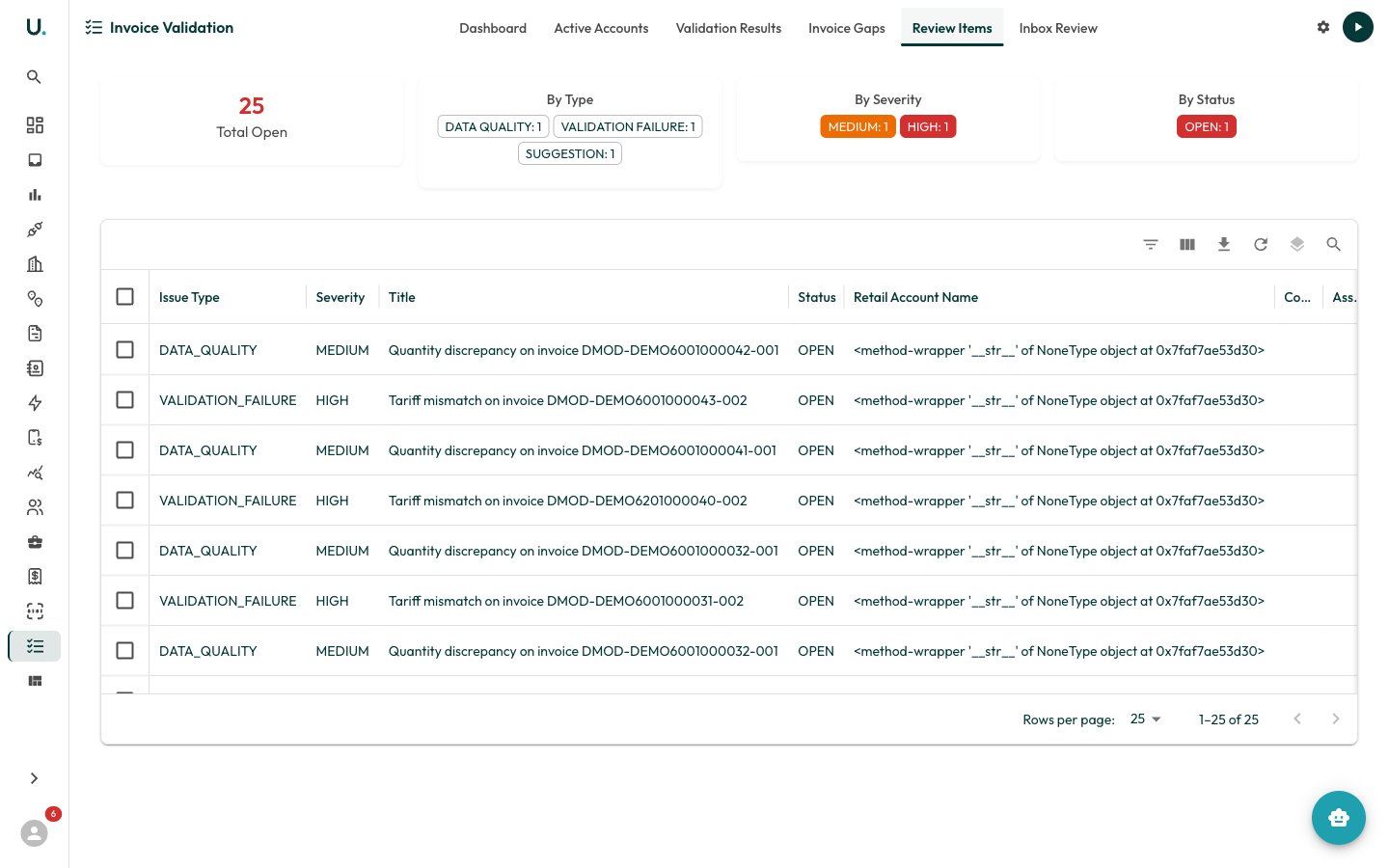 Each item shows:
* **Issue Type** — VALIDATION\_FAILURE, DATA\_QUALITY, DUPLICATE\_INVOICE, GAP, SUGGESTION
* **Severity** — CRITICAL, HIGH, MEDIUM, LOW, INFO
* **Status** — OPEN, ACKNOWLEDGED, IN\_PROGRESS, RESOLVED, DISMISSED
* **Title** — Human-readable summary of the issue
* **Variance** — Dollar amount and percentage difference detected
* **Recommendations** — Suggested actions to resolve
### Working through review items
Filter by severity — start with CRITICAL and HIGH.
Click into a review item for full details.
Review the description and recommendations.
* **Acknowledge** — You have seen it, but it needs further work.
* **Resolve** — Mark as fixed with resolution notes and action taken.
* **Dismiss** — Not a real issue; dismiss with a reason.
* **Assign** — Delegate to another team member with a due date.
## Invoice gap detection
Invoice gaps are periods where an expected invoice is missing.
Each item shows:
* **Issue Type** — VALIDATION\_FAILURE, DATA\_QUALITY, DUPLICATE\_INVOICE, GAP, SUGGESTION
* **Severity** — CRITICAL, HIGH, MEDIUM, LOW, INFO
* **Status** — OPEN, ACKNOWLEDGED, IN\_PROGRESS, RESOLVED, DISMISSED
* **Title** — Human-readable summary of the issue
* **Variance** — Dollar amount and percentage difference detected
* **Recommendations** — Suggested actions to resolve
### Working through review items
Filter by severity — start with CRITICAL and HIGH.
Click into a review item for full details.
Review the description and recommendations.
* **Acknowledge** — You have seen it, but it needs further work.
* **Resolve** — Mark as fixed with resolution notes and action taken.
* **Dismiss** — Not a real issue; dismiss with a reason.
* **Assign** — Delegate to another team member with a due date.
## Invoice gap detection
Invoice gaps are periods where an expected invoice is missing.
 ### Triggering gap detection
Navigate to the Validation Dashboard.
Click **Trigger Gap Detection** at the bottom of the Invoice Quality section.
The system analyses all connections and identifies missing billing periods.
Results appear in the **Invoice Gaps** tab.
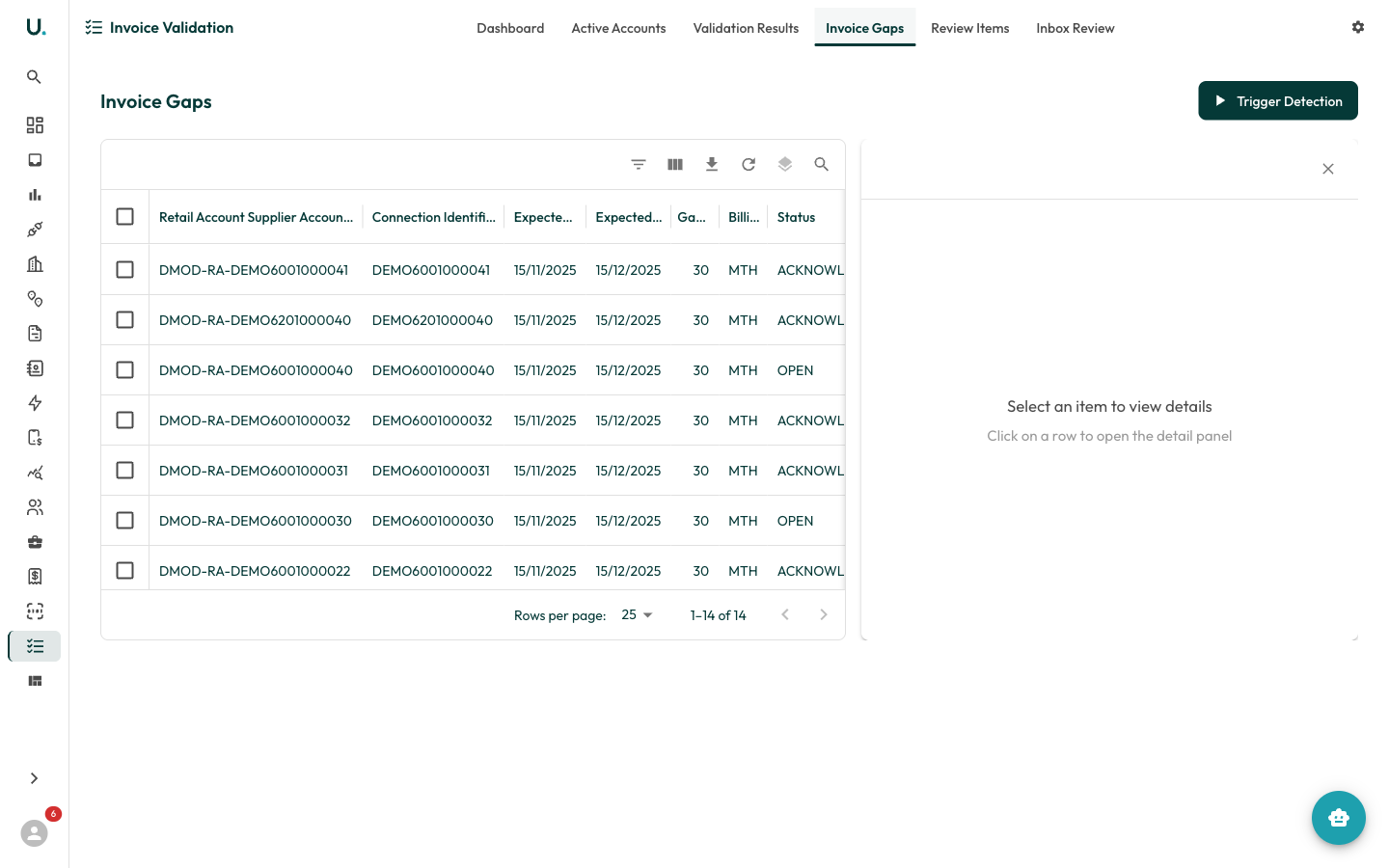
Each gap shows the retail account, connection, expected period, number of gap days, billing frequency, and status:
* **Open** — Not yet addressed
* **Acknowledged** — Noted but awaiting supplier response
* **Resolved** — Invoice received or gap explained
## Inbox review
The **Inbox Review** tab manages email-sourced invoices within the validation workflow.
### Triggering gap detection
Navigate to the Validation Dashboard.
Click **Trigger Gap Detection** at the bottom of the Invoice Quality section.
The system analyses all connections and identifies missing billing periods.
Results appear in the **Invoice Gaps** tab.
Each gap shows the retail account, connection, expected period, number of gap days, billing frequency, and status:
* **Open** — Not yet addressed
* **Acknowledged** — Noted but awaiting supplier response
* **Resolved** — Invoice received or gap explained
## Inbox review
The **Inbox Review** tab manages email-sourced invoices within the validation workflow.
 ### Filtering inbox items
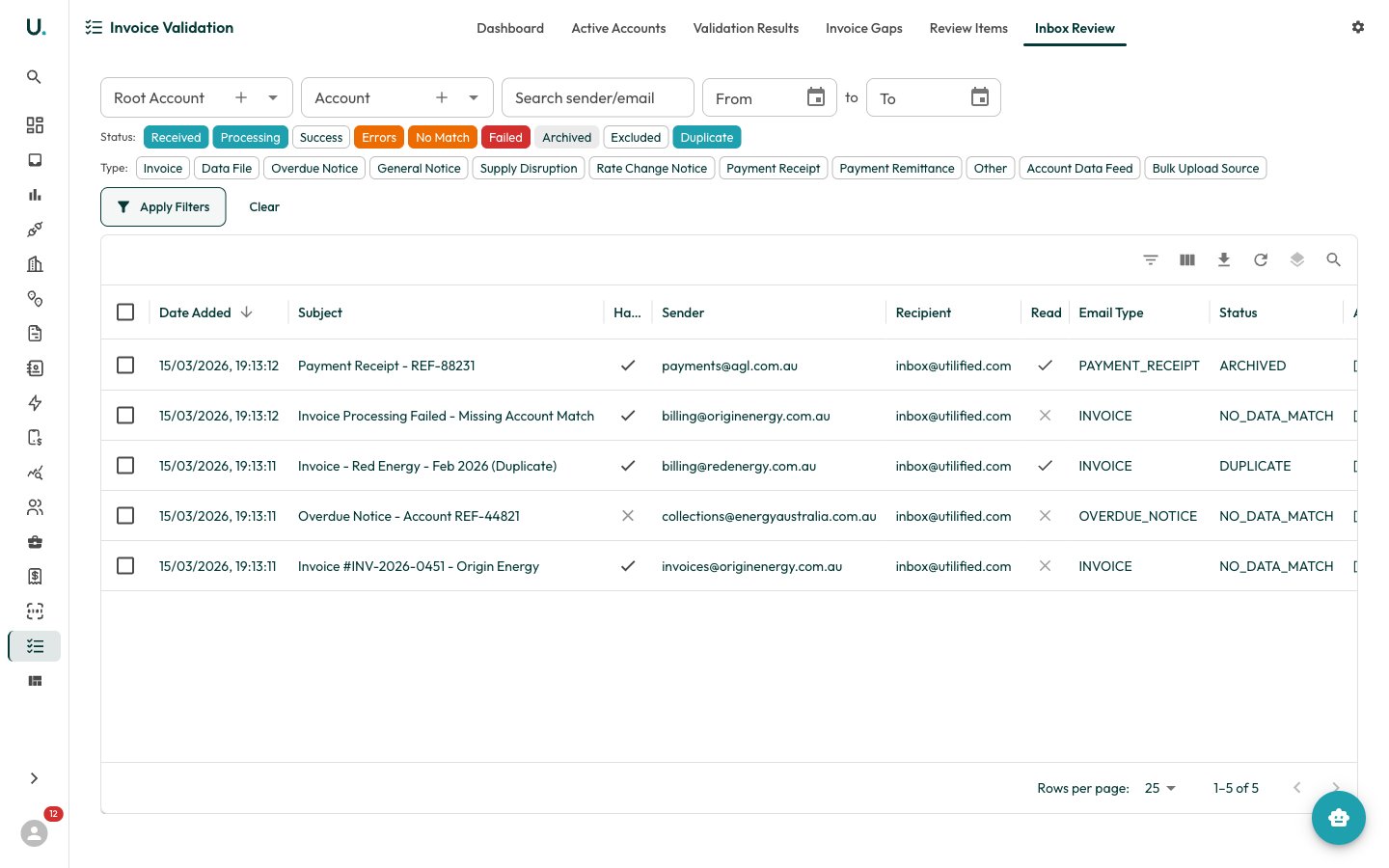
The data grid shows inbox items with columns for Date Added, Subject, Has Attachments, Sender, Recipient, Read status, Email Type, Status, and Account Name. By default, only items matching the active status filters are shown — click **Clear**, then **Apply Filters**, to see all items regardless of status.
The Inbox Review provides filtering by:
* **Root Account** / **Account** — Narrow to specific accounts.
* **Search** — Find by sender or email subject.
* **Date Range** — Filter by received date.
* **Status chips**:
* **Received** — New, unprocessed emails
* **Processing** — Currently being processed by UtiliRead
* **Success** — Successfully processed into invoices
* **Errors** — Processed with some errors
* **Unmatched — No Account** — The inbound email's recipient could not be matched to any account
* **No Data Match** — An account was matched, but the data could not be linked to a specific meter or connection
* **Skipped — Non-Invoice Category** — The classifier tagged the email as a non-invoice type (for example, marketing or rate-change notice) and skipped invoice processing
* **Failed** — Processing failed completely
* **Archived** — Manually archived
* **Excluded** — Deliberately excluded from processing
* **Duplicate** — Detected as a duplicate
* **Type chips** — Invoice, Data File, Overdue Notice, Rate Change Notice, Payment Receipt, and so on.
**Unmatched** and **Skipped** are backend-assigned triage states. They appear as filter chips and status labels in the grid, but you cannot move an email *into* them from the status dropdown — you only move emails *out* of them by re-matching the account or reclassifying the email type and reprocessing.
### Reviewing an inbox item
Click any row in the grid to open the detail panel on the right side.
### Filtering inbox items
The data grid shows inbox items with columns for Date Added, Subject, Has Attachments, Sender, Recipient, Read status, Email Type, Status, and Account Name. By default, only items matching the active status filters are shown — click **Clear**, then **Apply Filters**, to see all items regardless of status.
The Inbox Review provides filtering by:
* **Root Account** / **Account** — Narrow to specific accounts.
* **Search** — Find by sender or email subject.
* **Date Range** — Filter by received date.
* **Status chips**:
* **Received** — New, unprocessed emails
* **Processing** — Currently being processed by UtiliRead
* **Success** — Successfully processed into invoices
* **Errors** — Processed with some errors
* **Unmatched — No Account** — The inbound email's recipient could not be matched to any account
* **No Data Match** — An account was matched, but the data could not be linked to a specific meter or connection
* **Skipped — Non-Invoice Category** — The classifier tagged the email as a non-invoice type (for example, marketing or rate-change notice) and skipped invoice processing
* **Failed** — Processing failed completely
* **Archived** — Manually archived
* **Excluded** — Deliberately excluded from processing
* **Duplicate** — Detected as a duplicate
* **Type chips** — Invoice, Data File, Overdue Notice, Rate Change Notice, Payment Receipt, and so on.
**Unmatched** and **Skipped** are backend-assigned triage states. They appear as filter chips and status labels in the grid, but you cannot move an email *into* them from the status dropdown — you only move emails *out* of them by re-matching the account or reclassifying the email type and reprocessing.
### Reviewing an inbox item
Click any row in the grid to open the detail panel on the right side.
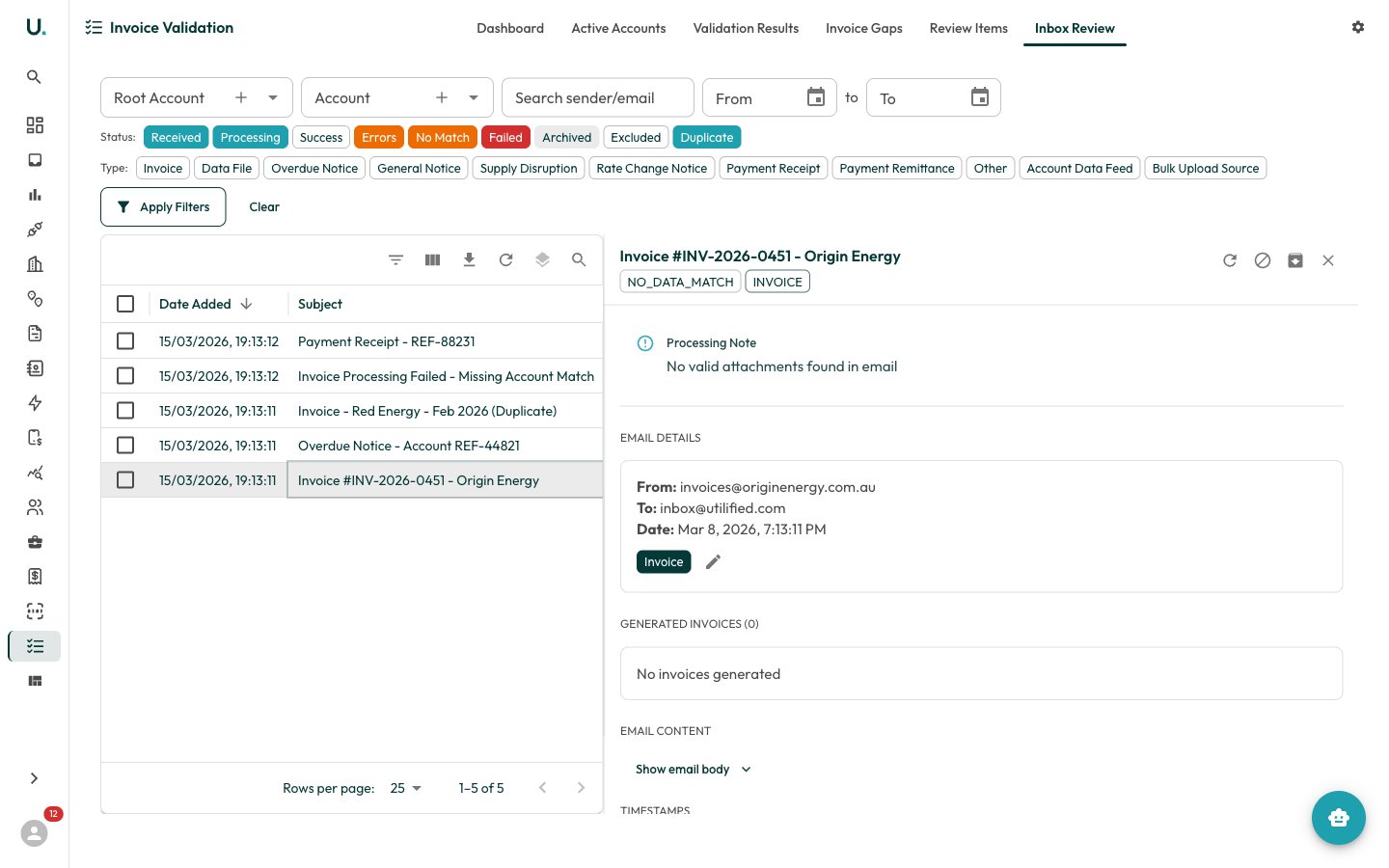 The detail panel shows:
* **Subject and status badges** — The email subject with status (for example, NO\_DATA\_MATCH) and type (for example, INVOICE) badges
* **Processing Note** — Any notes from automated processing (for example, "No valid attachments found in email")
* **Email Details** — From address, To address, received date, and email type, with an edit button to reclassify
* **Generated Invoices** — Any invoices created from this email. Shows count and links to the invoice detail pages
* **Email Content** — Expandable section to view the full email body
* **Timestamps** — When the email was received and processed
The action buttons in the top-right of the detail panel let you:
* **Refresh** — Reprocess the email.
* **Exclude** — Mark the item as excluded from processing.
* **Process** — Send to UtiliRead for OCR processing.
* **Close** — Close the detail panel.
### Processing an inbox email
Click the email row to open the detail panel.
Review the email details and content.
Click the **Process** button (cloud icon) to send the attachment to **UtiliRead** (OCR).
The system extracts invoice data, identifies the supplier and account, creates an invoice record, and links it to the correct connection.
The **Generated Invoices** section updates with a link to the new invoice.
The processed invoice then flows through the validation pipeline.
### Excluding invoices
To exclude an inbox item from processing:
Click the item to open the detail panel.
Click the **Exclude** button (circle with line icon) in the top-right action buttons.
The status changes to **Excluded** and the item will no longer be processed.
Excluded items remain visible when the **Excluded** filter chip is active.
Use exclusion for:
* Duplicate emails that should not create new invoices
* Non-invoice communications (account notices, marketing)
* Items already processed through another channel
* Test or spam emails
The detail panel shows:
* **Subject and status badges** — The email subject with status (for example, NO\_DATA\_MATCH) and type (for example, INVOICE) badges
* **Processing Note** — Any notes from automated processing (for example, "No valid attachments found in email")
* **Email Details** — From address, To address, received date, and email type, with an edit button to reclassify
* **Generated Invoices** — Any invoices created from this email. Shows count and links to the invoice detail pages
* **Email Content** — Expandable section to view the full email body
* **Timestamps** — When the email was received and processed
The action buttons in the top-right of the detail panel let you:
* **Refresh** — Reprocess the email.
* **Exclude** — Mark the item as excluded from processing.
* **Process** — Send to UtiliRead for OCR processing.
* **Close** — Close the detail panel.
### Processing an inbox email
Click the email row to open the detail panel.
Review the email details and content.
Click the **Process** button (cloud icon) to send the attachment to **UtiliRead** (OCR).
The system extracts invoice data, identifies the supplier and account, creates an invoice record, and links it to the correct connection.
The **Generated Invoices** section updates with a link to the new invoice.
The processed invoice then flows through the validation pipeline.
### Excluding invoices
To exclude an inbox item from processing:
Click the item to open the detail panel.
Click the **Exclude** button (circle with line icon) in the top-right action buttons.
The status changes to **Excluded** and the item will no longer be processed.
Excluded items remain visible when the **Excluded** filter chip is active.
Use exclusion for:
* Duplicate emails that should not create new invoices
* Non-invoice communications (account notices, marketing)
* Items already processed through another channel
* Test or spam emails