> ## Documentation Index
> Fetch the complete documentation index at: https://docs.utilified.com/llms.txt
> Use this file to discover all available pages before exploring further.
# Managing Agreements
> View, create, and update energy supply agreements in UMS — set contract terms and dates, attach connections, and link the tariffs used for validation.
Agreements are central to UMS — they link accounts, suppliers, connections, and tariffs together.
## Viewing agreement details
Click **See Details** on any agreement to open the detail page.
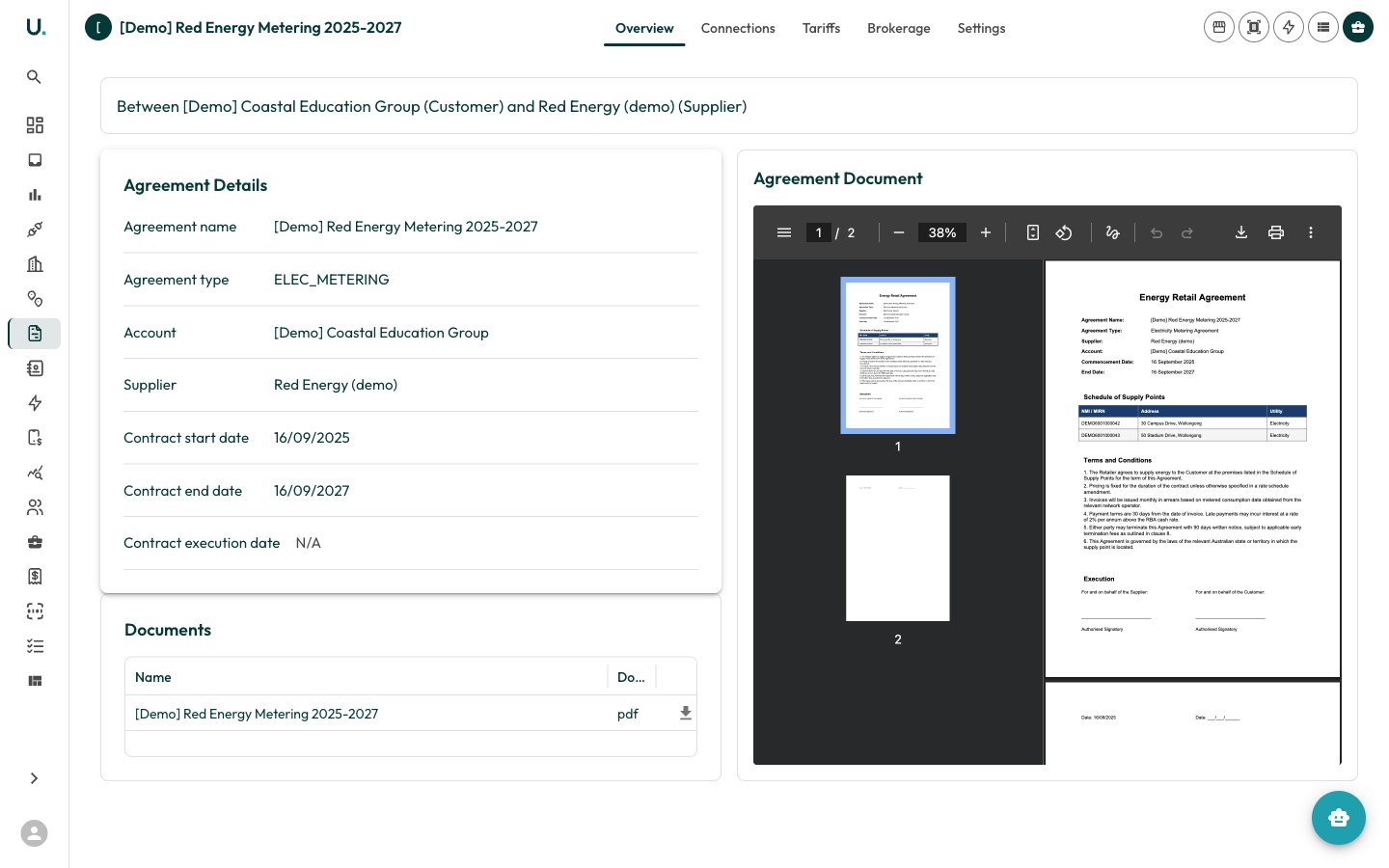 The agreement detail page has tabs for:
* **Overview** — Agreement summary, dates, supplier, and key details
* **Connections** — Connections covered by this agreement
* **Tariffs** — Tariff structures and rates for this agreement
* **Brokerage** — Brokerage records linked to this agreement
* **Settings** — Agreement-specific settings
Creating a retail account or attaching a document are header actions on the agreement detail page (**New Retail Account** and **Add Document**), not separate tabs.
## Managing connections
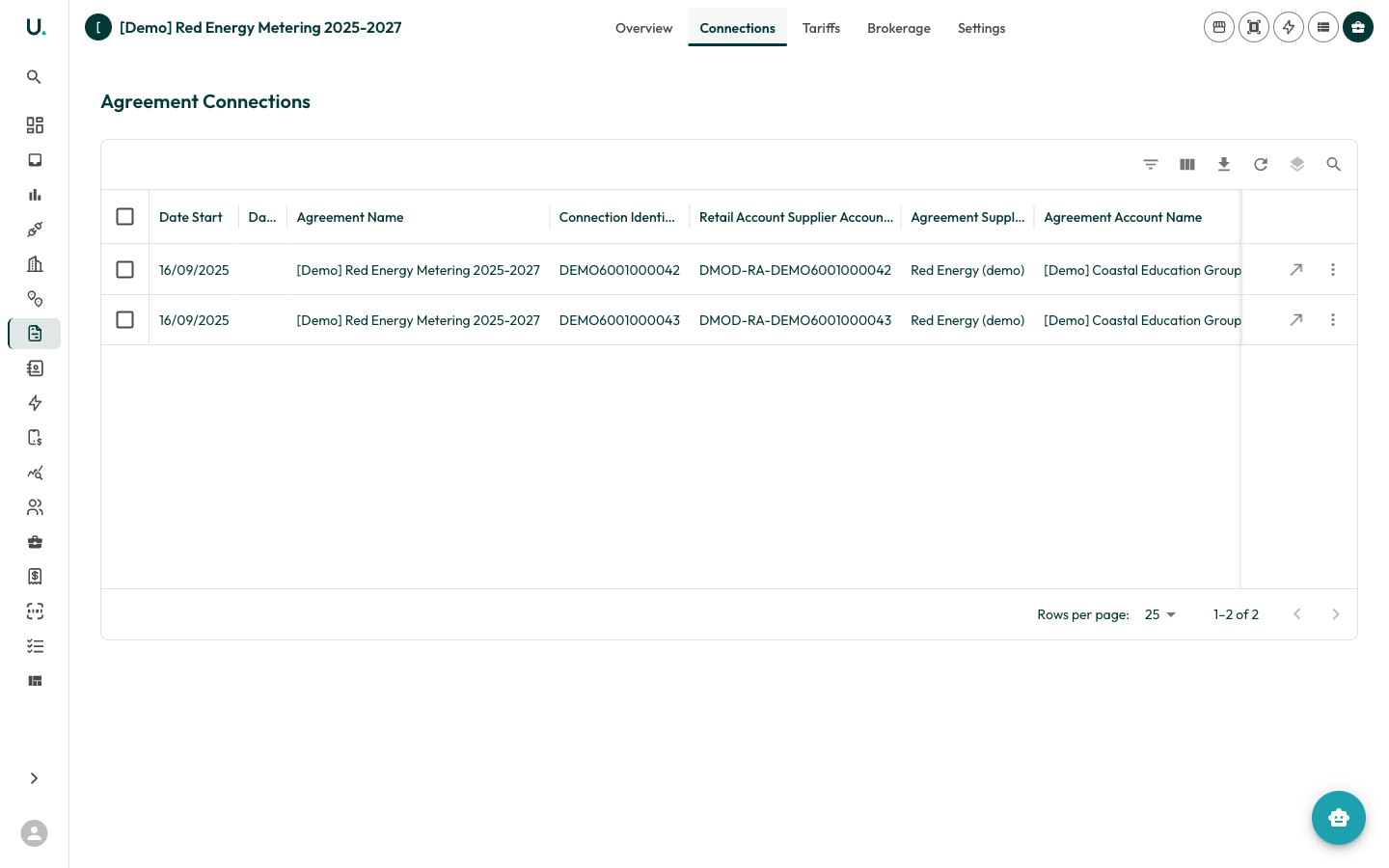
The **Connections** tab shows which meter connections are covered by this agreement.
The agreement detail page has tabs for:
* **Overview** — Agreement summary, dates, supplier, and key details
* **Connections** — Connections covered by this agreement
* **Tariffs** — Tariff structures and rates for this agreement
* **Brokerage** — Brokerage records linked to this agreement
* **Settings** — Agreement-specific settings
Creating a retail account or attaching a document are header actions on the agreement detail page (**New Retail Account** and **Add Document**), not separate tabs.
## Managing connections
The **Connections** tab shows which meter connections are covered by this agreement.
 ### Adding connections
You can add connections individually or in bulk:
* **Individual** — Click **Add a Connection** and search for the connection identifier (NMI, MIRN).
* **Bulk** — Click **Bulk Add Connections** to open the wizard, where you can:
* Enter connection identifiers manually
* Upload a CSV file with identifiers
* Paste identifiers from a spreadsheet
* Set effective dates for all connections at once
## Managing tariffs
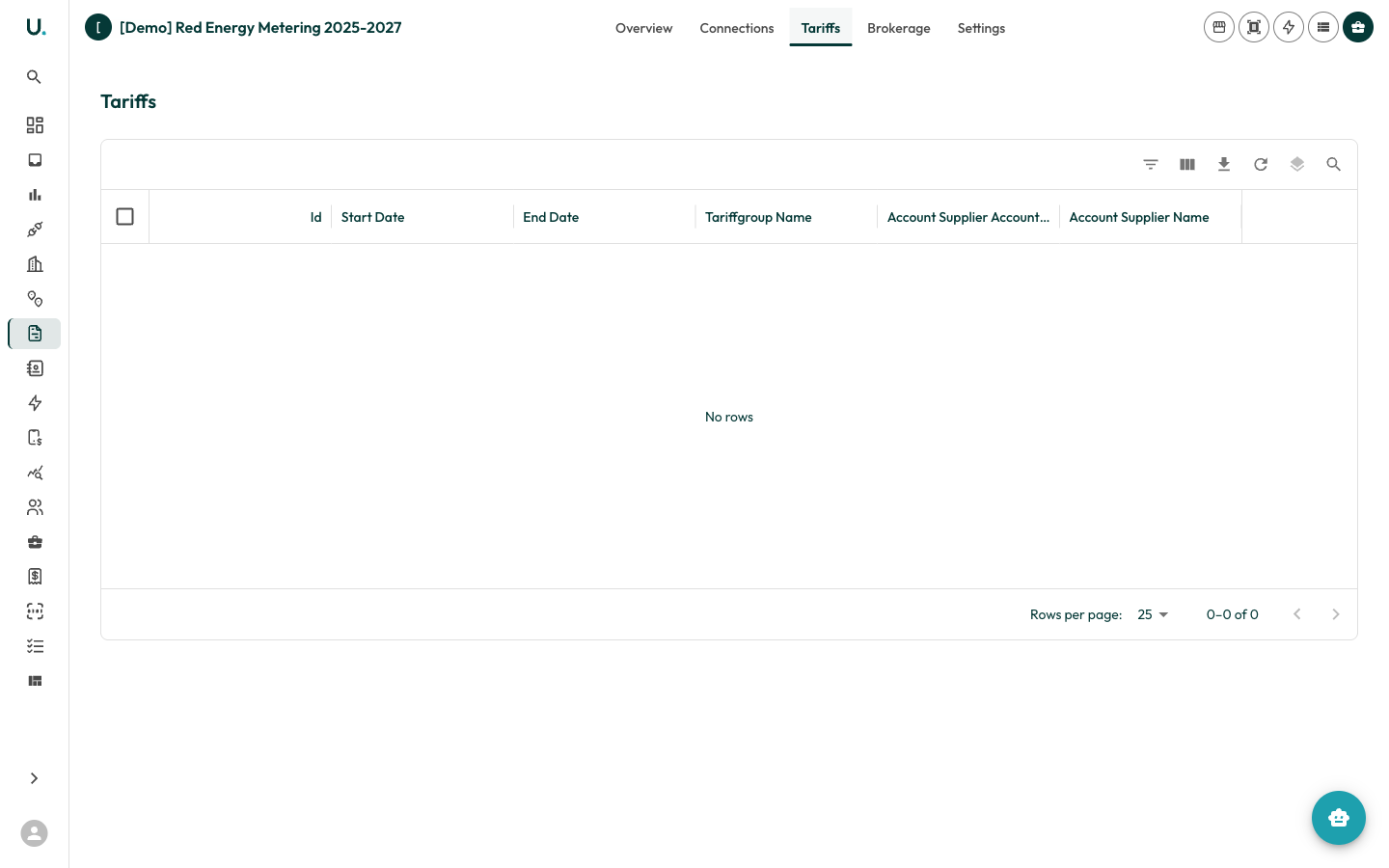
The **Tariffs** tab shows tariff structures linked to this agreement.
### Adding connections
You can add connections individually or in bulk:
* **Individual** — Click **Add a Connection** and search for the connection identifier (NMI, MIRN).
* **Bulk** — Click **Bulk Add Connections** to open the wizard, where you can:
* Enter connection identifiers manually
* Upload a CSV file with identifiers
* Paste identifiers from a spreadsheet
* Set effective dates for all connections at once
## Managing tariffs
The **Tariffs** tab shows tariff structures linked to this agreement.
 See the [Managing Tariffs](/guides/managing-tariffs) guide for detailed instructions on creating and editing tariffs.
## Creating a new agreement
Navigate to the **Agreements** page.
Click the **+** button in the top-right corner.
* **Name** — Descriptive name for the agreement
* **Type** — ELEC\_RETAIL, ELEC\_METERING, NGAS\_RETAIL, and so on
* **Account** — The account this agreement belongs to
* **Supplier** — The energy retailer or metering provider
* **Date Start** / **Date End** — Contract period
Click **Save**.
Add connections and tariffs to complete the setup.
See the [Managing Tariffs](/guides/managing-tariffs) guide for detailed instructions on creating and editing tariffs.
## Creating a new agreement
Navigate to the **Agreements** page.
Click the **+** button in the top-right corner.
* **Name** — Descriptive name for the agreement
* **Type** — ELEC\_RETAIL, ELEC\_METERING, NGAS\_RETAIL, and so on
* **Account** — The account this agreement belongs to
* **Supplier** — The energy retailer or metering provider
* **Date Start** / **Date End** — Contract period
Click **Save**.
Add connections and tariffs to complete the setup.