> ## Documentation Index
> Fetch the complete documentation index at: https://docs.utilified.com/llms.txt
> Use this file to discover all available pages before exploring further.
# Processing Invoice Payments
> Bundle invoices into a payment group, generate and approve a payment file, then send it and mark the payment as made in UMS.
This guide walks through paying invoices in UMS — from bundling them into a payment group to marking the final payment as made. For a reference overview of the Payments area, see [Batches](/batches).
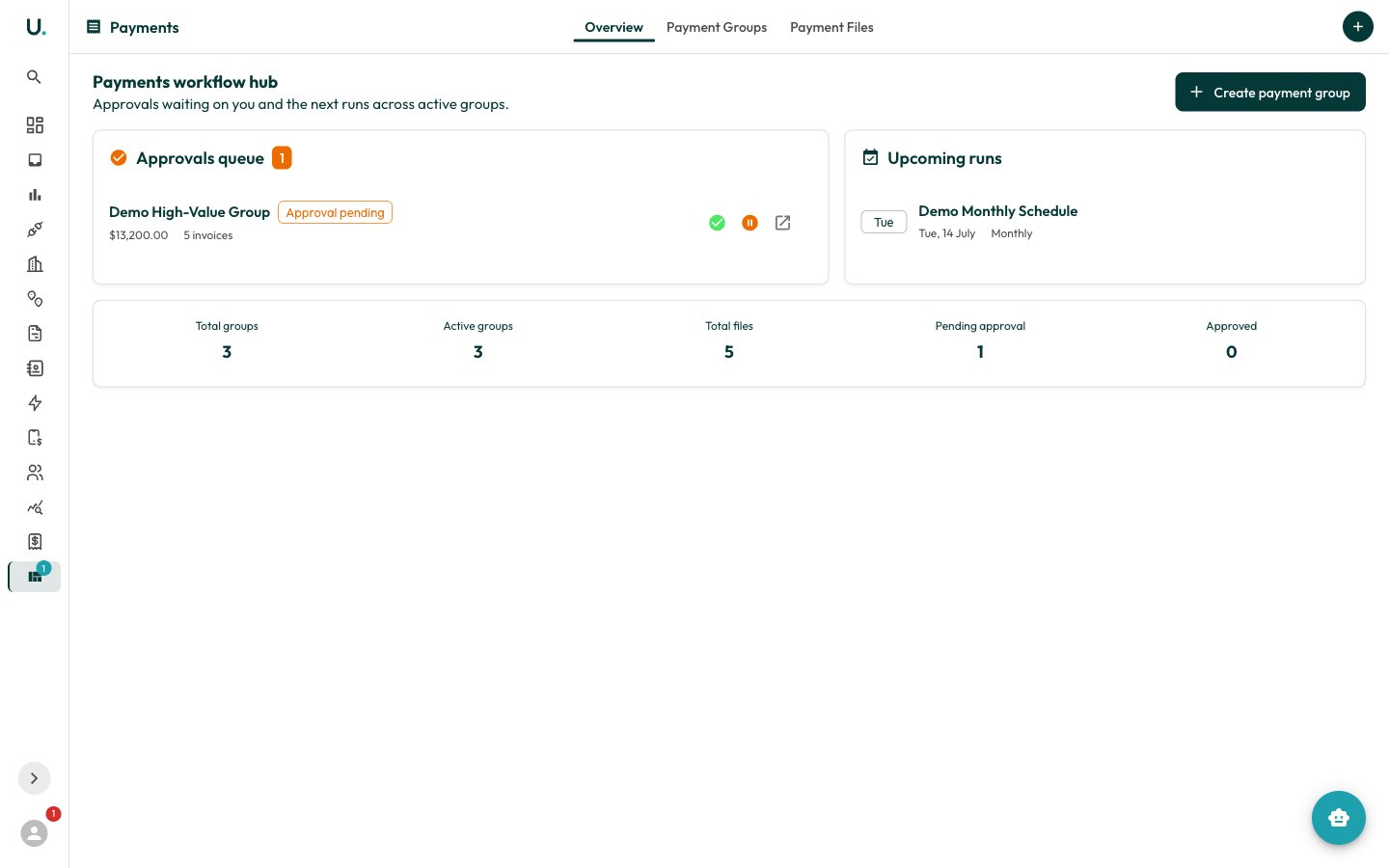
Open the Payments area from the **Payments** item in the **Invoices** nav group (`/invoices/payments`). It has three tabs: **Overview** (an approvals + upcoming-runs hub), **Payment Groups**, and **Payment Files**.
 Click **Create payment group** to open the four-step wizard:
* **Basics** — set a `label`, pick the `account`, choose a `template`, and set the `status`. The template is the export layout (for example **Xero Bills CSV**, **MYOB Service Purchases**, **NetSuite Vendor Bill CSV**, **Australian Standard CSV**, or **Generic CSV**).
* **Schedule** — choose a `frequency` (Weekly, Biweekly, Monthly, Quarterly), a `start` date, and optionally enable scheduling.
* **Filters** — narrow which invoices the group picks up: `suppliers`, `connections`, `min_amount`/`max_amount`, `min_days_old`/`max_days_old`, plus `include_overdue` and `exclude_paid` flags.
* **Review & Distribution** — set `recipients`, an `approver`, and a `dual_approval_threshold`. The summary panel previews the schedule and active filters before you finish.
Click **Create payment group** to open the four-step wizard:
* **Basics** — set a `label`, pick the `account`, choose a `template`, and set the `status`. The template is the export layout (for example **Xero Bills CSV**, **MYOB Service Purchases**, **NetSuite Vendor Bill CSV**, **Australian Standard CSV**, or **Generic CSV**).
* **Schedule** — choose a `frequency` (Weekly, Biweekly, Monthly, Quarterly), a `start` date, and optionally enable scheduling.
* **Filters** — narrow which invoices the group picks up: `suppliers`, `connections`, `min_amount`/`max_amount`, `min_days_old`/`max_days_old`, plus `include_overdue` and `exclude_paid` flags.
* **Review & Distribution** — set `recipients`, an `approver`, and a `dual_approval_threshold`. The summary panel previews the schedule and active filters before you finish.
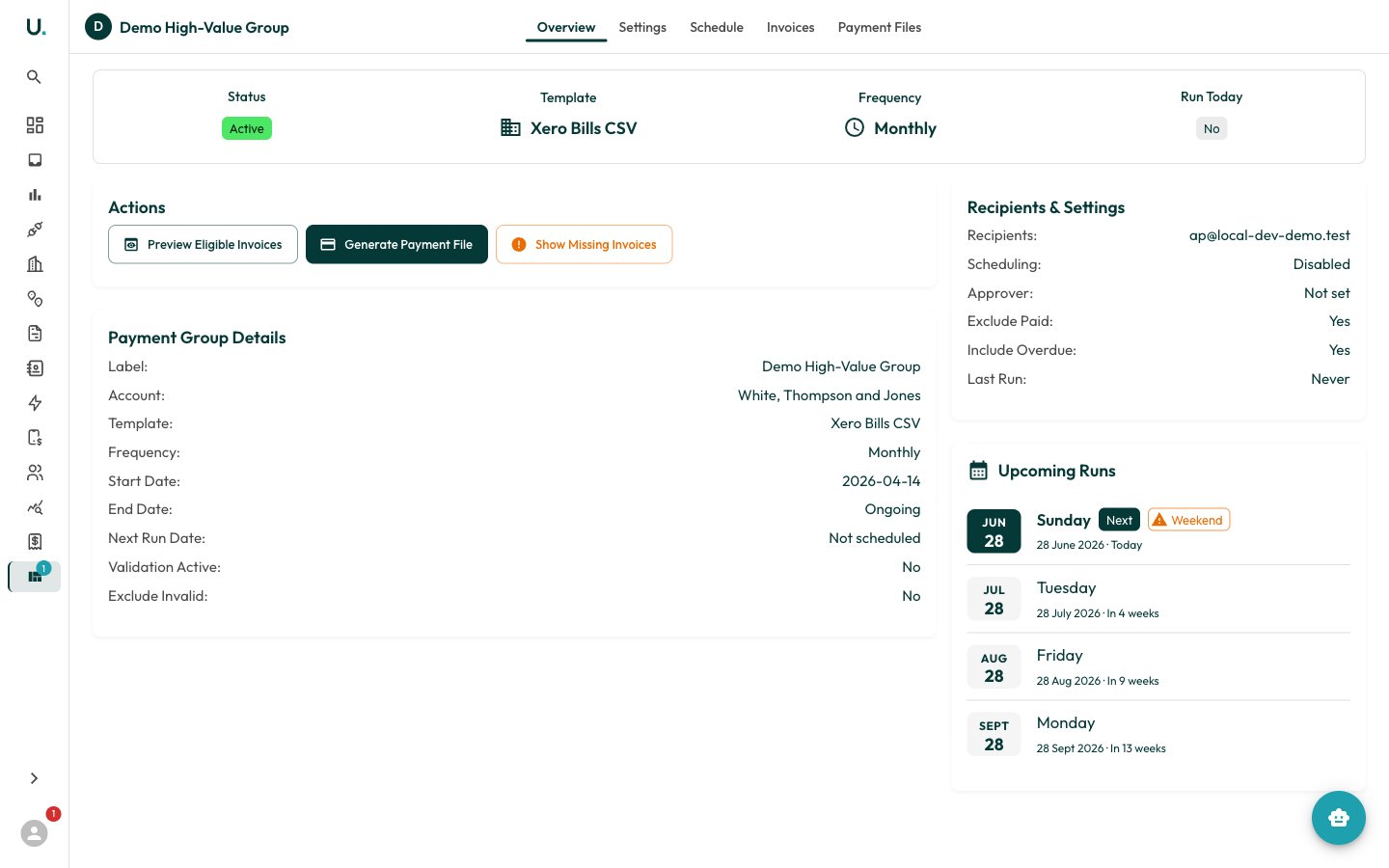 Open the group and go to its **Overview** tab. Click **Preview Eligible Invoices** to see which invoices match the group's account, date window, and filters. Tick or untick rows to include or exclude them for this run only — excluded invoices stay eligible for future runs.
Use **Show Missing Invoices** to see invoices that were skipped and *why* (for example `Already paid`, `Already on a payment file`, `Validation failed`, or `Below minimum amount`).
When the selection looks right, click **Generate Payment File**, choosing a format (**CSV**, **Excel (XLSX)**, **PDF**, or **XML**). This creates a payment file and links the chosen invoices to it.
UMS generates an ERP/accounting export in the format above — not a bank ABA file. The export is shaped by the group's `template`. Hand the downloaded file to your finance system or bank for the actual transfer.
Open the new payment file from the **Payment Files** tab. While it sits in `CREATED` or `INVOICES_LINKED`, click **Process** to render the file content and advance it to `PROCESSED`. If an underlying invoice changes later, use **Refresh Content** to re-render the file without changing its status.
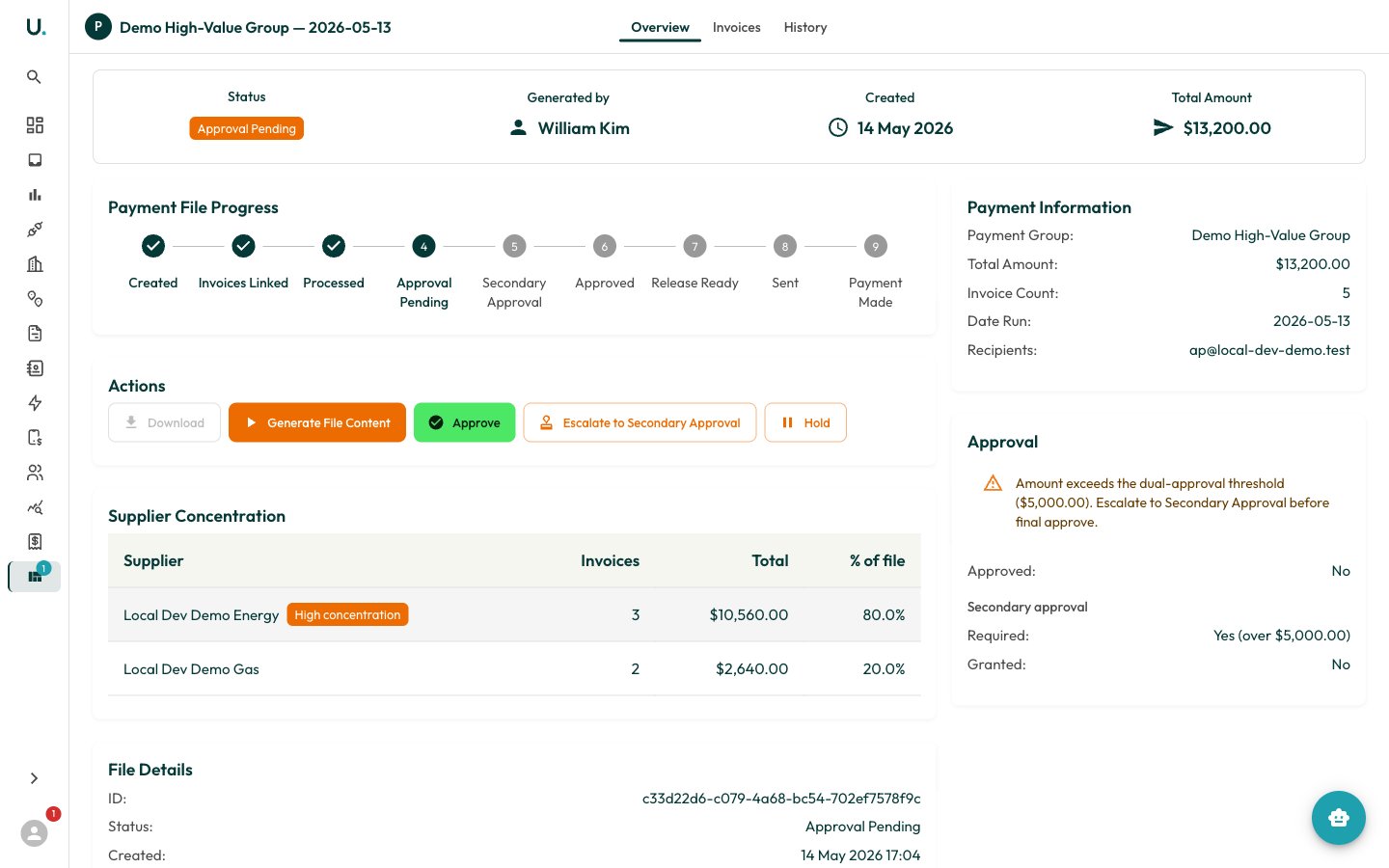
From a `PROCESSED` file, click **Submit for Approval** to move it to `APPROVAL_PENDING`. The approver then clicks **Approve**, optionally adding a comment that is recorded against the file.
If the file total exceeds the group's `dual_approval_threshold`, it must go through **secondary approval**. Click **Escalate to Secondary Approval** to move it to `SECONDARY_APPROVAL_PENDING`; the designated secondary approver grants their sign-off, and only then can the primary approver click **Final Approve**. Approval and secondary approval each record the approver's name and timestamp in the audit log.
Open the group and go to its **Overview** tab. Click **Preview Eligible Invoices** to see which invoices match the group's account, date window, and filters. Tick or untick rows to include or exclude them for this run only — excluded invoices stay eligible for future runs.
Use **Show Missing Invoices** to see invoices that were skipped and *why* (for example `Already paid`, `Already on a payment file`, `Validation failed`, or `Below minimum amount`).
When the selection looks right, click **Generate Payment File**, choosing a format (**CSV**, **Excel (XLSX)**, **PDF**, or **XML**). This creates a payment file and links the chosen invoices to it.
UMS generates an ERP/accounting export in the format above — not a bank ABA file. The export is shaped by the group's `template`. Hand the downloaded file to your finance system or bank for the actual transfer.
Open the new payment file from the **Payment Files** tab. While it sits in `CREATED` or `INVOICES_LINKED`, click **Process** to render the file content and advance it to `PROCESSED`. If an underlying invoice changes later, use **Refresh Content** to re-render the file without changing its status.
From a `PROCESSED` file, click **Submit for Approval** to move it to `APPROVAL_PENDING`. The approver then clicks **Approve**, optionally adding a comment that is recorded against the file.
If the file total exceeds the group's `dual_approval_threshold`, it must go through **secondary approval**. Click **Escalate to Secondary Approval** to move it to `SECONDARY_APPROVAL_PENDING`; the designated secondary approver grants their sign-off, and only then can the primary approver click **Final Approve**. Approval and secondary approval each record the approver's name and timestamp in the audit log.
 Once the file is `APPROVED` (or `RELEASE_READY`), click **Send** to dispatch it to the configured recipients and move it to `SENT`. Sending records the run date. If no recipients are set on the group, the dialog warns you before you proceed.
**Download** the generated file at any point after processing to grab the export directly. The button is disabled until the file content has been generated.
After your bank or ERP confirms the transfer, open the file and click **Mark Payment Made** (optionally adding notes) to close it out at `PAYMENT_MADE`. If the downstream system rejects the payment instead, click **Mark Rejected** — the file moves to `PAYMENT_REJECTED`, and you can use **Reissue Rejected Lines** to spin up a fresh payment file containing only the rejected invoices.
## Payment file statuses
The file's **Overview** tab shows a progress stepper tracking the lifecycle: `CREATED` → `INVOICES_LINKED` → `PROCESSED` → `APPROVAL_PENDING` → `APPROVED` → `RELEASE_READY` → `SENT` → `PAYMENT_MADE`. A file can also be placed on `MANUAL_HOLD` (with a required reason) at any point before payment, then released with **Release Hold**.
## Working the approvals queue
The Payments **Overview** tab surfaces every file in `APPROVAL_PENDING` or `SECONDARY_APPROVAL_PENDING` across the organisation. Approve or hold each item inline, or open it to act on the full file detail. Use this as your daily worklist rather than scanning the **Payment Files** tab manually.
Once the file is `APPROVED` (or `RELEASE_READY`), click **Send** to dispatch it to the configured recipients and move it to `SENT`. Sending records the run date. If no recipients are set on the group, the dialog warns you before you proceed.
**Download** the generated file at any point after processing to grab the export directly. The button is disabled until the file content has been generated.
After your bank or ERP confirms the transfer, open the file and click **Mark Payment Made** (optionally adding notes) to close it out at `PAYMENT_MADE`. If the downstream system rejects the payment instead, click **Mark Rejected** — the file moves to `PAYMENT_REJECTED`, and you can use **Reissue Rejected Lines** to spin up a fresh payment file containing only the rejected invoices.
## Payment file statuses
The file's **Overview** tab shows a progress stepper tracking the lifecycle: `CREATED` → `INVOICES_LINKED` → `PROCESSED` → `APPROVAL_PENDING` → `APPROVED` → `RELEASE_READY` → `SENT` → `PAYMENT_MADE`. A file can also be placed on `MANUAL_HOLD` (with a required reason) at any point before payment, then released with **Release Hold**.
## Working the approvals queue
The Payments **Overview** tab surfaces every file in `APPROVAL_PENDING` or `SECONDARY_APPROVAL_PENDING` across the organisation. Approve or hold each item inline, or open it to act on the full file detail. Use this as your daily worklist rather than scanning the **Payment Files** tab manually.