> ## Documentation Index
> Fetch the complete documentation index at: https://docs.utilified.com/llms.txt
> Use this file to discover all available pages before exploring further.
# Running Brokerage Calculations
> Run brokerage calculations in UMS to work out commission revenue from your energy brokerage agreements, then review, group, and export the results.
Brokerage calculations determine commission revenue from your energy brokerage agreements.
## Brokerage overview
The Brokerage page has six tabs: **Dashboard**, **Records**, **Status Review**, **Calculations**, **Revenue**, and **Grouped Revenue**. The main ones for running calculations are below.
### Records tab
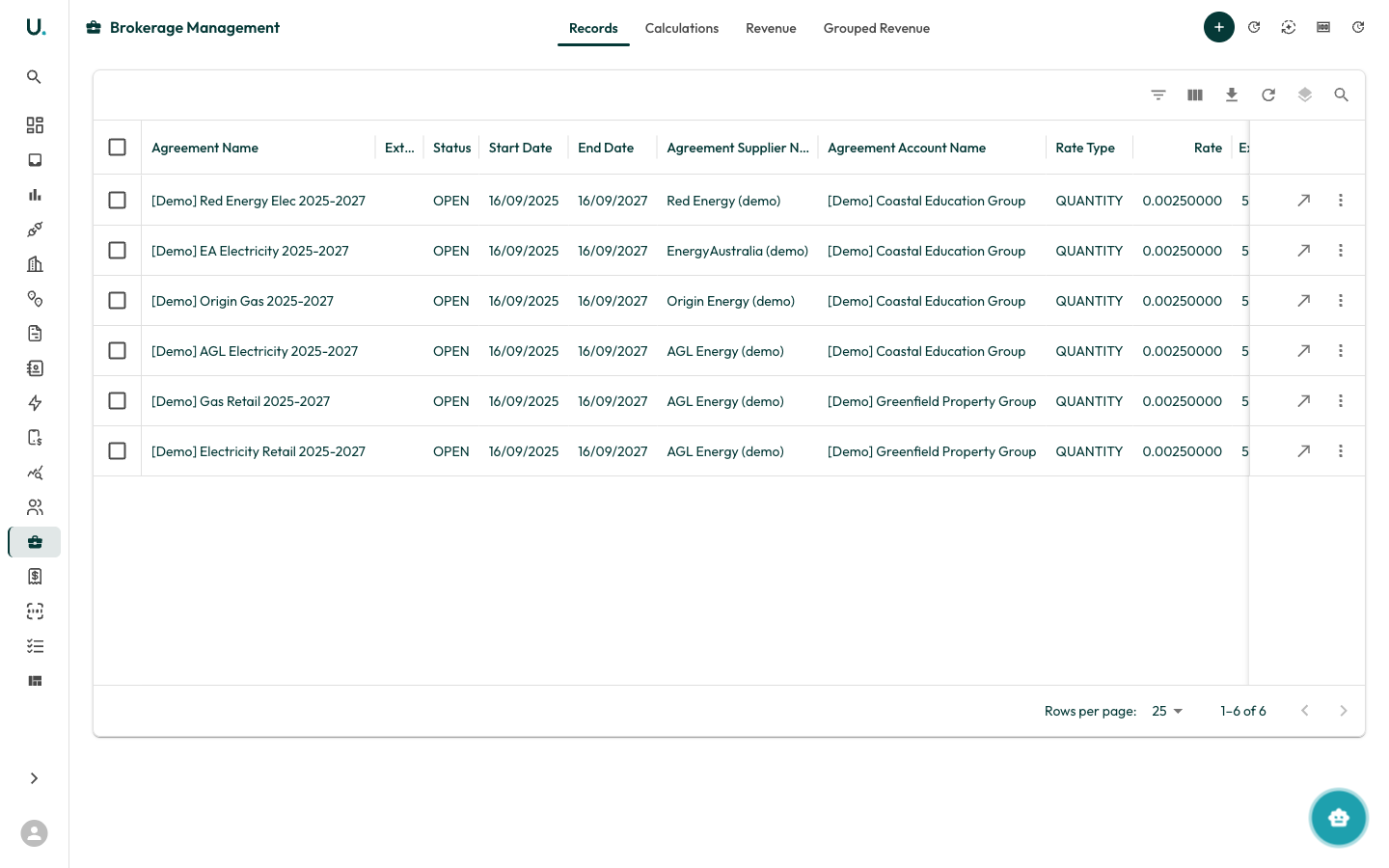 Brokerage records are linked to agreements and define the commission structure. Each record shows:
* Agreement name and supplier
* Status (OPEN or PENDING)
* Contract period (start/end dates)
### Calculations tab
Brokerage records are linked to agreements and define the commission structure. Each record shows:
* Agreement name and supplier
* Status (OPEN or PENDING)
* Contract period (start/end dates)
### Calculations tab
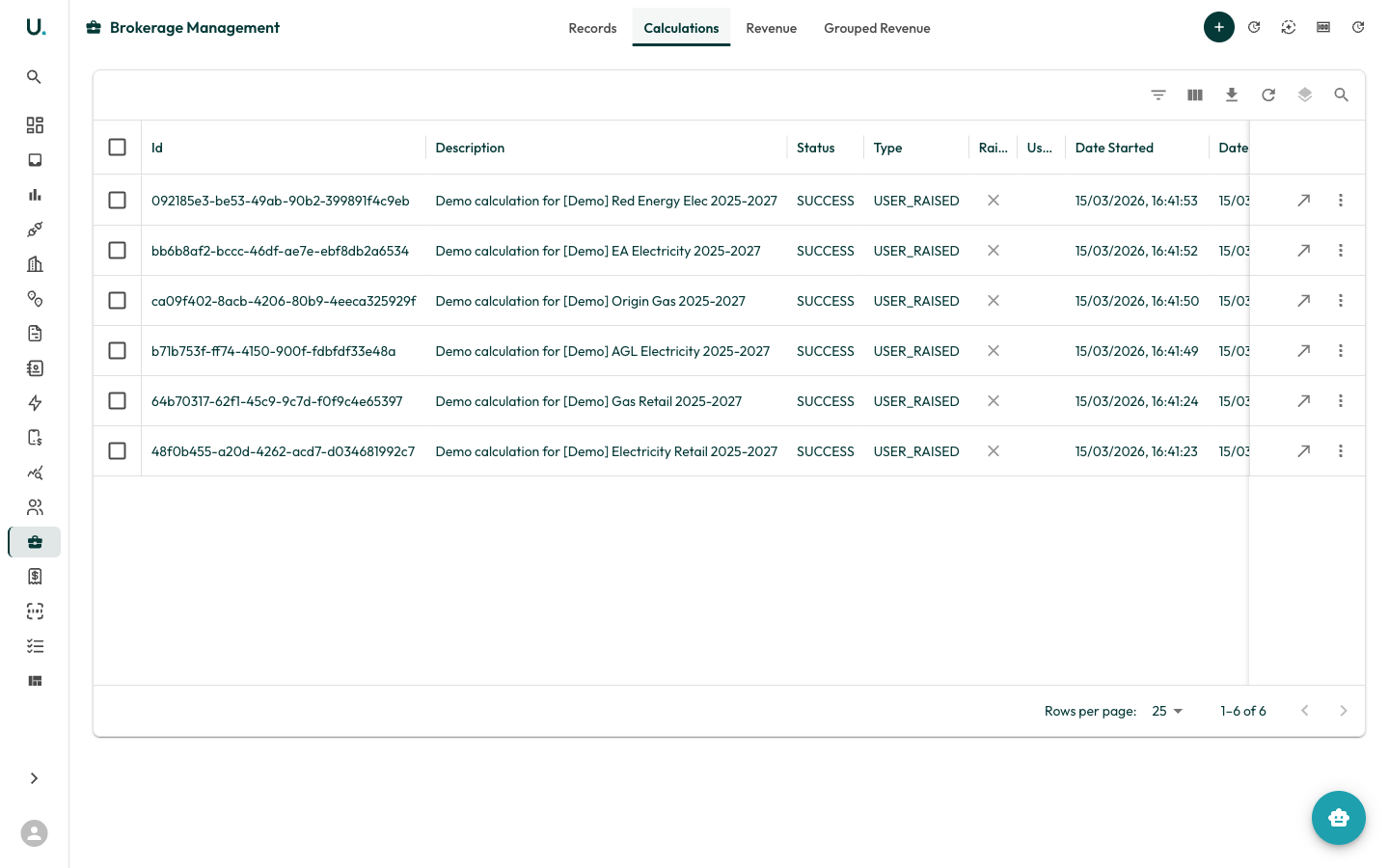 Shows all calculation runs with their status, date, and the number of records processed.
### Revenue tab
Shows all calculation runs with their status, date, and the number of records processed.
### Revenue tab
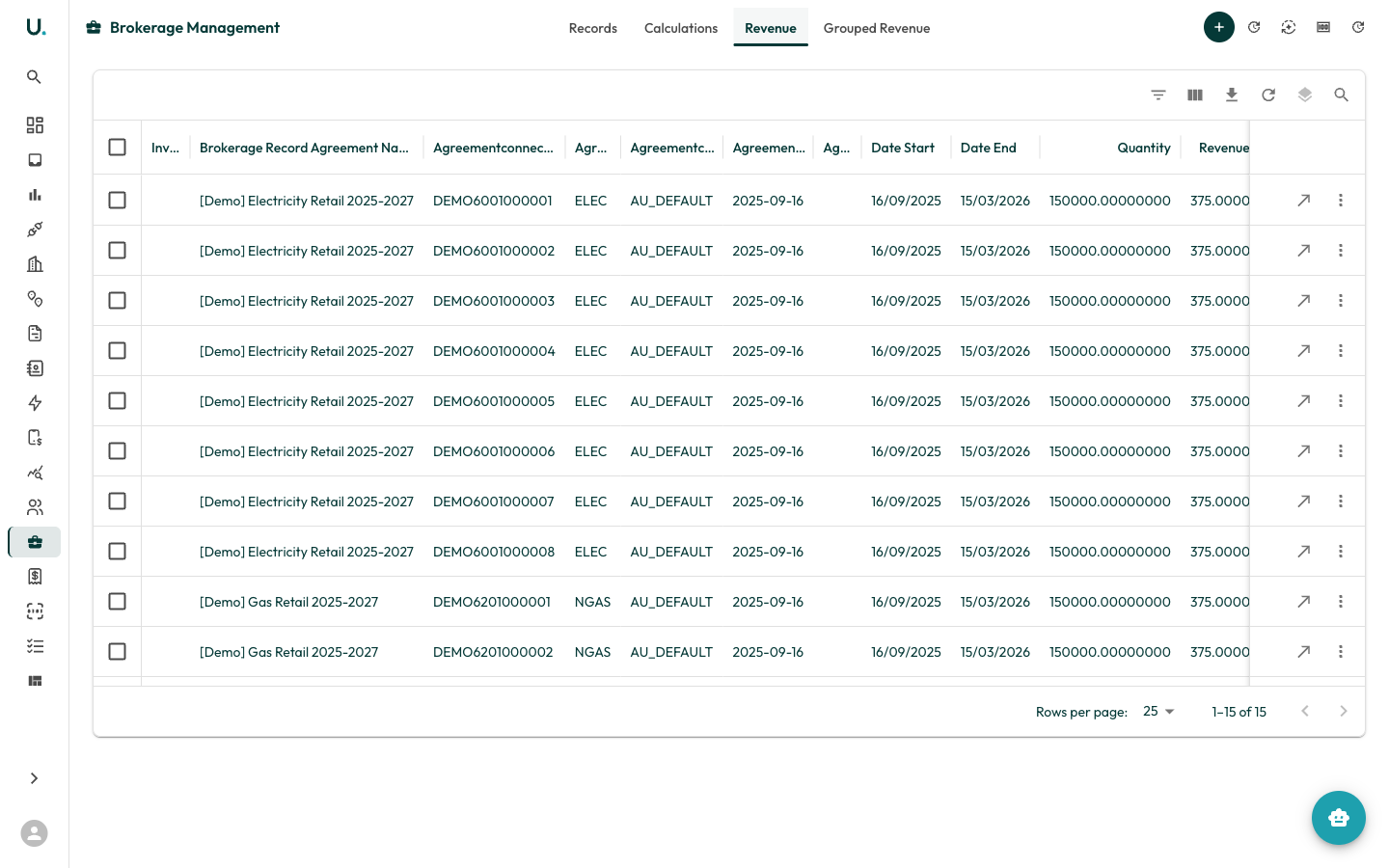 Displays the actual revenue generated from calculations, with amounts per connection and agreement.
## Running a calculation
To run a new brokerage calculation, navigate to the **Brokerage** page and click the **Create Calculation** button to open the **Brokerage Calculation Wizard**. (The **+** button creates a new brokerage *record*, not a calculation.)
* Use filters to narrow down brokerage records by agreement, supplier, status, rate type, or date range.
* Select the records you want to include in the calculation.
* Review the selected records summary showing counts and status breakdown.
* Verify your selections.
* Set a description and end date for the calculation.
* Check for warnings — records missing tariff rates will block the calculation.
* Optionally enable **Generate Missing Revenue** to create revenue records for gaps.
* Click **Generate** to start the calculation.
* The system processes selected records against tariff rates and consumption data.
* A progress indicator shows the calculation status.
* View the generated revenue records.
* Edit individual revenue values if needed.
* Export results as CSV for further analysis.
## Viewing a calculation
Click **See Details** on any calculation to view its results:
Displays the actual revenue generated from calculations, with amounts per connection and agreement.
## Running a calculation
To run a new brokerage calculation, navigate to the **Brokerage** page and click the **Create Calculation** button to open the **Brokerage Calculation Wizard**. (The **+** button creates a new brokerage *record*, not a calculation.)
* Use filters to narrow down brokerage records by agreement, supplier, status, rate type, or date range.
* Select the records you want to include in the calculation.
* Review the selected records summary showing counts and status breakdown.
* Verify your selections.
* Set a description and end date for the calculation.
* Check for warnings — records missing tariff rates will block the calculation.
* Optionally enable **Generate Missing Revenue** to create revenue records for gaps.
* Click **Generate** to start the calculation.
* The system processes selected records against tariff rates and consumption data.
* A progress indicator shows the calculation status.
* View the generated revenue records.
* Edit individual revenue values if needed.
* Export results as CSV for further analysis.
## Viewing a calculation
Click **See Details** on any calculation to view its results:
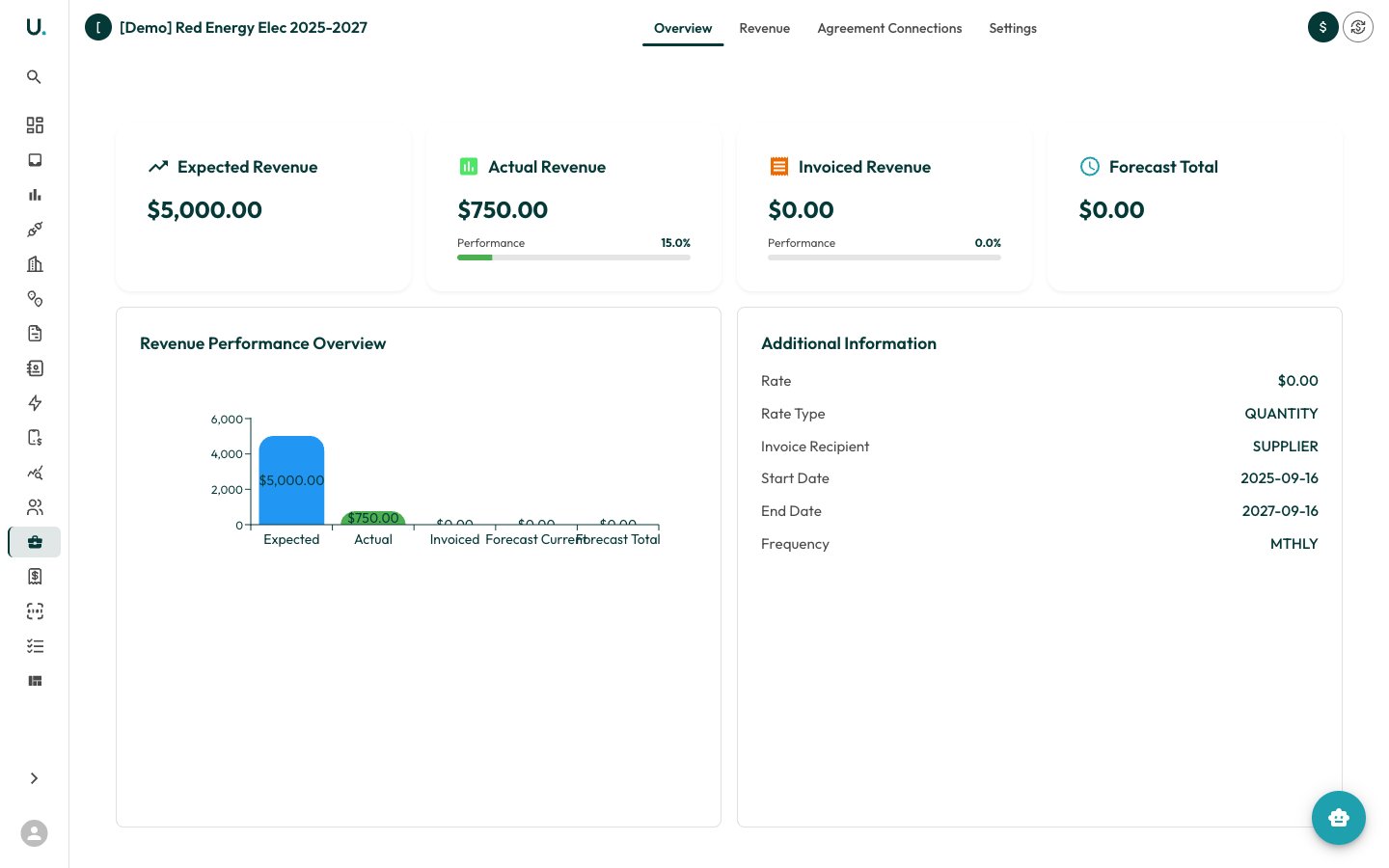 The detail page shows:
* **Overview** — Calculation status, dates, and total revenue
* **Revenue** — Generated revenue records with amounts
* **Brokerage Records** — The input records used for this calculation
The detail page shows:
* **Overview** — Calculation status, dates, and total revenue
* **Revenue** — Generated revenue records with amounts
* **Brokerage Records** — The input records used for this calculation