> ## Documentation Index
> Fetch the complete documentation index at: https://docs.utilified.com/llms.txt
> Use this file to discover all available pages before exploring further.
# Running Reports
> Generate, download, and schedule recurring reports in UMS — covering agreements, consumption, invoices, gaps, connections, and brokerage revenue.
UMS provides 14 pre-built reports covering agreements, consumption, invoices, and connections.
## Selecting a report
Navigate to the **Reports** page from the sidebar.
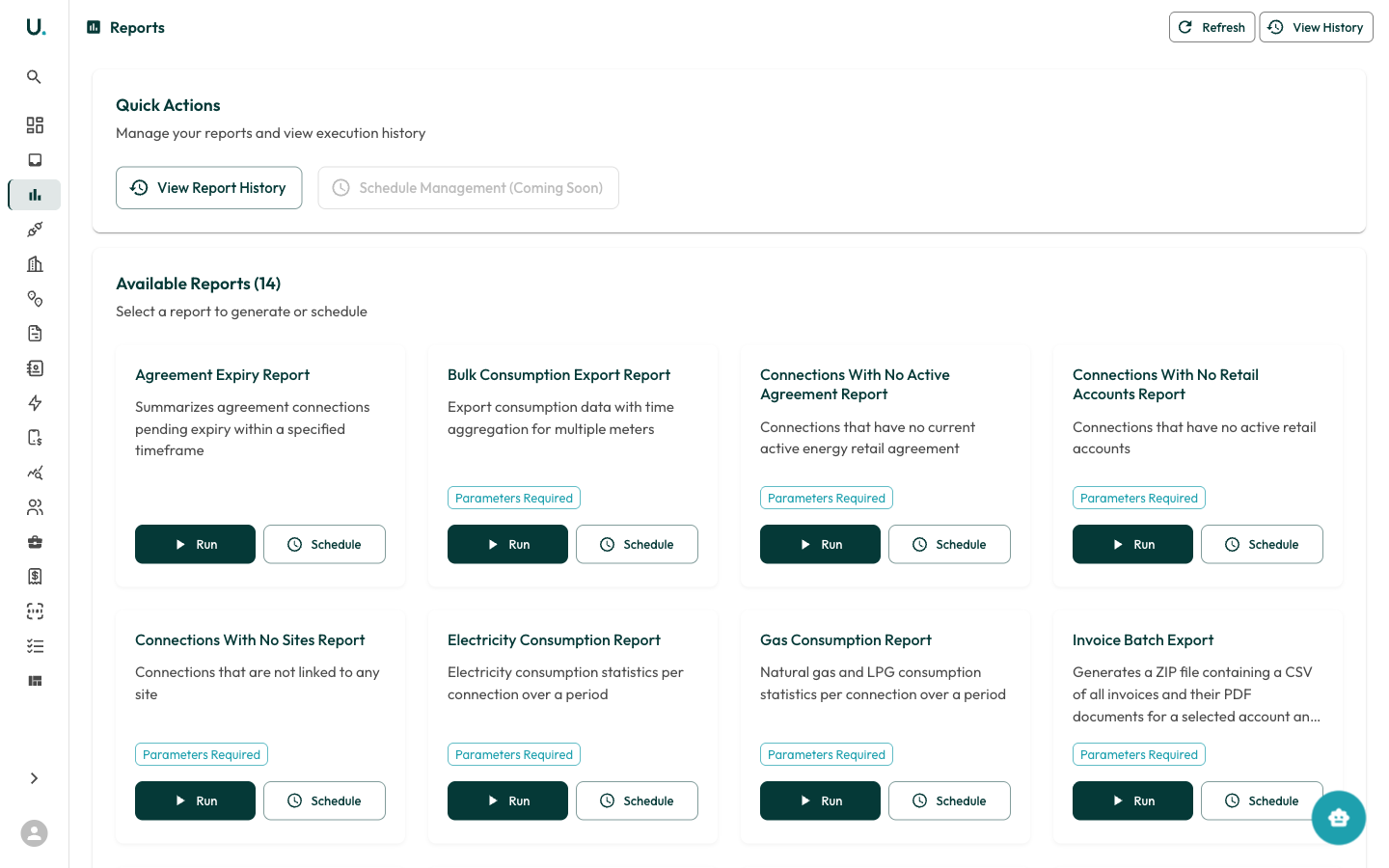 Each report card shows:
* **Report name** and description
* **Parameters Required** badge (if the report needs configuration)
* **Run** button — Generate the report immediately
* **Schedule** button — Set up recurring generation
## Running a report
Locate the report you want to run on the Reports page.
Click **Run** on the report card.
If the report requires parameters, a configuration form appears:
* **Date range** — Start and end dates for the report period
* **Accounts** — Filter to specific accounts
* **Connections** — Filter to specific meter connections
Click **Generate** to start the report. The report runs in the background.
You receive a **notification** when it is ready.
## Downloading results
Click **View Report History** or the **View History** button in the top-right.
Find your report in the history list.
Click **Download** to get the report file (CSV or ZIP).
## Available reports
| Report | What it shows |
| ------------------------------------------------- | -------------------------------------------------------------- |
| **Agreement Expiry Report** | Connections with agreements expiring in a specified timeframe |
| **Bulk Consumption Export** | Consumption data across multiple meters with time aggregation |
| **Connections With No Active Agreement** | Connections missing a current energy agreement |
| **Connections With No Retail Accounts** | Connections without active retail accounts |
| **Connections With No Sites** | Connections not linked to any site |
| **Electricity Consumption Report** | Electricity usage statistics per connection |
| **Gas Consumption Report** | Gas usage statistics per connection |
| **Invoice Batch Export** | ZIP of all invoices (CSV + PDFs) for an account and date range |
| **Invoice Gap Report** | Missing invoices detected per retail account |
| **Invoice Report** | Invoice summary over a period for specific accounts |
| **Metering and Energy Agreement End Date Report** | Agreement end dates grouped by connection |
| **Monthly Spend Accrual Report** | Monthly spend with projections for incomplete months |
| **Retail Account Transfer Report** | Retail accounts in transfer or pending states |
| **Water Consumption Report** | Water usage statistics per connection |
## Scheduling a report
Click **Schedule** on any report card.
* **Frequency** — How often to run (for example, weekly, monthly)
* **Parameters** — Pre-configure the report filters
Scheduled reports run automatically and deliver results via notification.
Each report card shows:
* **Report name** and description
* **Parameters Required** badge (if the report needs configuration)
* **Run** button — Generate the report immediately
* **Schedule** button — Set up recurring generation
## Running a report
Locate the report you want to run on the Reports page.
Click **Run** on the report card.
If the report requires parameters, a configuration form appears:
* **Date range** — Start and end dates for the report period
* **Accounts** — Filter to specific accounts
* **Connections** — Filter to specific meter connections
Click **Generate** to start the report. The report runs in the background.
You receive a **notification** when it is ready.
## Downloading results
Click **View Report History** or the **View History** button in the top-right.
Find your report in the history list.
Click **Download** to get the report file (CSV or ZIP).
## Available reports
| Report | What it shows |
| ------------------------------------------------- | -------------------------------------------------------------- |
| **Agreement Expiry Report** | Connections with agreements expiring in a specified timeframe |
| **Bulk Consumption Export** | Consumption data across multiple meters with time aggregation |
| **Connections With No Active Agreement** | Connections missing a current energy agreement |
| **Connections With No Retail Accounts** | Connections without active retail accounts |
| **Connections With No Sites** | Connections not linked to any site |
| **Electricity Consumption Report** | Electricity usage statistics per connection |
| **Gas Consumption Report** | Gas usage statistics per connection |
| **Invoice Batch Export** | ZIP of all invoices (CSV + PDFs) for an account and date range |
| **Invoice Gap Report** | Missing invoices detected per retail account |
| **Invoice Report** | Invoice summary over a period for specific accounts |
| **Metering and Energy Agreement End Date Report** | Agreement end dates grouped by connection |
| **Monthly Spend Accrual Report** | Monthly spend with projections for incomplete months |
| **Retail Account Transfer Report** | Retail accounts in transfer or pending states |
| **Water Consumption Report** | Water usage statistics per connection |
## Scheduling a report
Click **Schedule** on any report card.
* **Frequency** — How often to run (for example, weekly, monthly)
* **Parameters** — Pre-configure the report filters
Scheduled reports run automatically and deliver results via notification.