> ## Documentation Index
> Fetch the complete documentation index at: https://docs.utilified.com/llms.txt
> Use this file to discover all available pages before exploring further.
# Imports
> Bulk-import accounts, sites, connections, tariffs, meter reads, and more into UMS from CSV files or email, then monitor and review each upload task.
The **Imports** page is where you bring large volumes of data into UMS at once. You can upload CSV files manually through the **Bulk Import Wizard**, or send them in by email to trigger automatic imports. Every import is validated against a template before the data is committed, so you can catch and fix errors before they reach your records.
For a step-by-step walkthrough of running an import, see the [Bulk Importing Data](/guides/bulk-importing-data) guide. This page explains what the Imports page is, where it lives, and what each import status means.
 ## Where Imports lives
Imports is a settings-area page at `/imports`, not part of the main sidebar. Open it from your avatar menu in the top-right corner by selecting **Bulk Imports**. The page is permission-gated — it requires administrator access, and the menu item is disabled for non-admin users.
## The Imports page
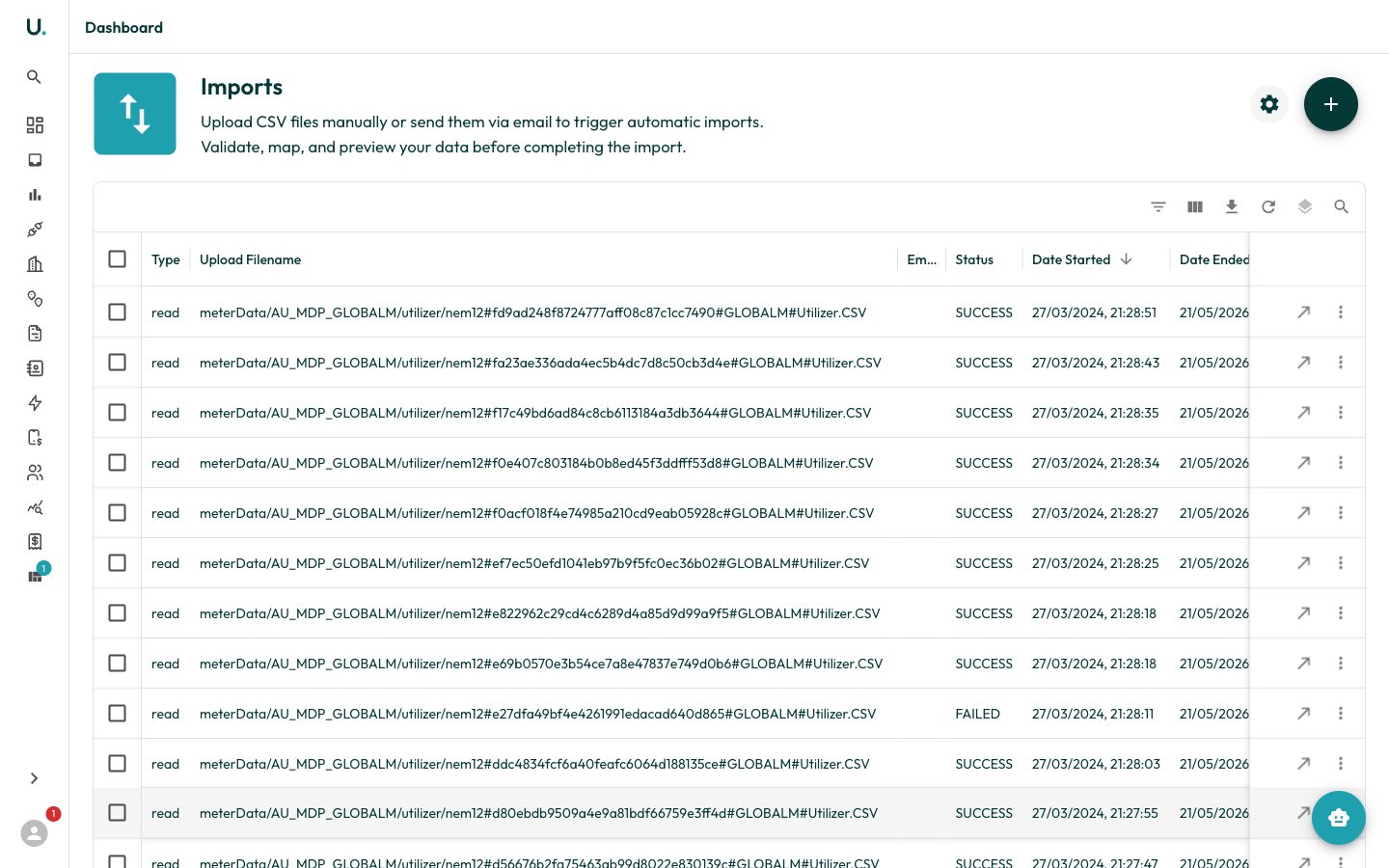
The page lists your previous upload tasks in a data grid, sorted with the most recent first. Each row covers one uploaded file:
| Column | Description |
| ------------------- | ------------------------------------------------ |
| **Type** | The template the file was imported against |
| **Upload Filename** | The original file name |
| **Email Record** | The source email, when the file arrived by email |
| **Status** | The current processing state (see below) |
| **Date Started** | When processing began |
| **Date Ended** | When processing finished |
| **User Added** | The user who started the import |
| **Success Count** | Rows imported successfully |
| **Error Count** | Rows that failed |
Use the **+** button in the top-right to open the **Bulk Import Wizard**, and the **settings** (gear) icon to open **Email Import Settings**, where you configure importing data by email.
## Import status lifecycle
As UMS processes a file, its **Status** moves through these states:
| Status | Meaning |
| ------------------- | ---------------------------------------------------------- |
| `Pending` | Queued, waiting for processing to start |
| `Validating` | Checking the file's columns and rows against the template |
| `Processing` | Importing rows in the background |
| `Completed` | Every row imported successfully |
| `Partial Success` | Some rows imported and some failed — review the exceptions |
| `Failed` | The import failed and no rows were committed |
| `Validation Failed` | The file did not pass validation, so it was not imported |
Processing runs in the background. The wizard shows live per-file progress while you watch, and the grid keeps the latest status once you leave.
## Reviewing results and errors
Each row in the grid has a menu for reviewing the outcome:
* **Download** — Retrieve the original file you uploaded.
* **Exceptions** — Download a CSV of the rows that failed, each with its error type and message.
* **Result Data** — Download a CSV showing the per-row outcome (`SUCCESS` or `FAILED`, with a failure reason) for the whole file.
* **Refresh** — Re-check the status of an in-progress task.
Invalid rows are reported rather than silently dropped. Use the **Exceptions** report to see exactly which rows were rejected and why, fix them, then re-import just those rows.
Ready to import? Follow the [Bulk Importing Data](/guides/bulk-importing-data) guide for the full wizard walkthrough, including choosing a template, downloading a sample CSV, and uploading your data.
## Where Imports lives
Imports is a settings-area page at `/imports`, not part of the main sidebar. Open it from your avatar menu in the top-right corner by selecting **Bulk Imports**. The page is permission-gated — it requires administrator access, and the menu item is disabled for non-admin users.
## The Imports page
The page lists your previous upload tasks in a data grid, sorted with the most recent first. Each row covers one uploaded file:
| Column | Description |
| ------------------- | ------------------------------------------------ |
| **Type** | The template the file was imported against |
| **Upload Filename** | The original file name |
| **Email Record** | The source email, when the file arrived by email |
| **Status** | The current processing state (see below) |
| **Date Started** | When processing began |
| **Date Ended** | When processing finished |
| **User Added** | The user who started the import |
| **Success Count** | Rows imported successfully |
| **Error Count** | Rows that failed |
Use the **+** button in the top-right to open the **Bulk Import Wizard**, and the **settings** (gear) icon to open **Email Import Settings**, where you configure importing data by email.
## Import status lifecycle
As UMS processes a file, its **Status** moves through these states:
| Status | Meaning |
| ------------------- | ---------------------------------------------------------- |
| `Pending` | Queued, waiting for processing to start |
| `Validating` | Checking the file's columns and rows against the template |
| `Processing` | Importing rows in the background |
| `Completed` | Every row imported successfully |
| `Partial Success` | Some rows imported and some failed — review the exceptions |
| `Failed` | The import failed and no rows were committed |
| `Validation Failed` | The file did not pass validation, so it was not imported |
Processing runs in the background. The wizard shows live per-file progress while you watch, and the grid keeps the latest status once you leave.
## Reviewing results and errors
Each row in the grid has a menu for reviewing the outcome:
* **Download** — Retrieve the original file you uploaded.
* **Exceptions** — Download a CSV of the rows that failed, each with its error type and message.
* **Result Data** — Download a CSV showing the per-row outcome (`SUCCESS` or `FAILED`, with a failure reason) for the whole file.
* **Refresh** — Re-check the status of an in-progress task.
Invalid rows are reported rather than silently dropped. Use the **Exceptions** report to see exactly which rows were rejected and why, fix them, then re-import just those rows.
Ready to import? Follow the [Bulk Importing Data](/guides/bulk-importing-data) guide for the full wizard walkthrough, including choosing a template, downloading a sample CSV, and uploading your data.