> ## Documentation Index
> Fetch the complete documentation index at: https://docs.utilified.com/llms.txt
> Use this file to discover all available pages before exploring further.
# Inbox
> The Inbox is where emails from energy retailers arrive, get matched to an account, and feed the invoice pipeline — triage, classify, and reprocess email-sourced invoices from one place.
The **Inbox** is where emails sent by energy retailers land. Each account has its own email address; messages addressed to it are captured, matched to the account, classified, and fed into the [UtiliRead](/utiliread) OCR pipeline so their PDF attachments become [invoices](/invoices). Open it from **Inbox** in the **General** section of the sidebar.
 ## From email to invoice
A retailer sends an email to an account's inbox address. UMS captures it and matches it to the account by the recipient. If no account matches, it is marked `Unmatched — No Account`.
The message is tagged with an `email_type` such as `Invoice`, `Statement`, `Overdue Notice`, or `Data File`. Non-invoice categories are marked `Skipped — Non-Invoice Category`.
For invoice emails, [UtiliRead](/utiliread) runs OCR over the PDF attachments to extract line items, totals, and meter data.
A matched, extracted attachment becomes an [Invoice](/invoices) record, ready for [Validation](/validation).
## The inbox list
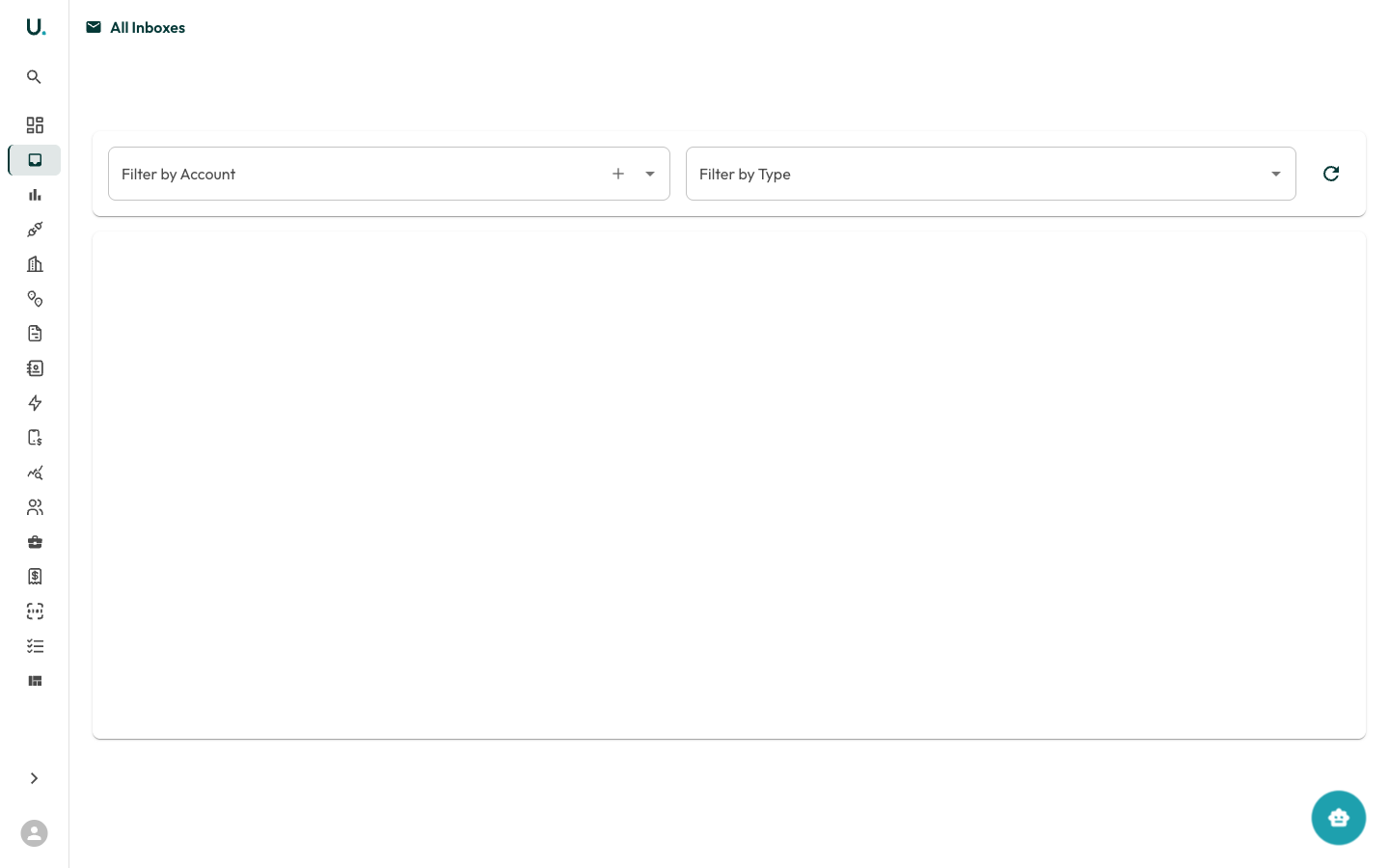
The Inbox is a split-pane review surface: a filterable list on the left, the selected message on the right. Status **filter tabs** group items for triage — **Needs Review**, **Skipped**, **Duplicates**, **In Progress**, **Processed**, **Archived**, and **All** — each with a live count. Above the list, filter by **Account**, **Type**, or a **Search** across subject and sender.
Each row shows the **subject** (bold when unread), **sender**, the received **date**, an attachment icon, and chips for the message's **type**, **status**, and pipeline outcome (for example, `2 invoices`, `OCR failed`, or `OCR review`). Tick the checkboxes to **Exclude** or **Archive** items in bulk. The list auto-refreshes every 30 seconds, and **Load more** pages through older messages.
Keyboard shortcuts speed up triage: `j`/`k` move through the list, `a` archives, `x` excludes, `r` reprocesses, and `Enter` marks an item read.
## Message statuses
A message's `status` reflects where it sits in the pipeline:
| Status | Meaning |
| -------------------------------- | ------------------------------------------------------------ |
| `Received` | Captured and awaiting processing |
| `Processing` | UtiliRead OCR is running |
| `Processed Successfully` | An invoice was created from the email |
| `Processed with Errors` | Processed, but with issues to review |
| `No Data Match` | Couldn't match the content to a connection or retail account |
| `Unmatched — No Account` | No account matched the recipient address |
| `Skipped — Non-Invoice Category` | Classifier tagged it as a non-invoice type |
| `Duplicate` | Matches an invoice already in UMS |
| `Failed` | Processing failed |
| `Archived` / `Excluded` | Triaged out of the active queue |
## Message detail
## From email to invoice
A retailer sends an email to an account's inbox address. UMS captures it and matches it to the account by the recipient. If no account matches, it is marked `Unmatched — No Account`.
The message is tagged with an `email_type` such as `Invoice`, `Statement`, `Overdue Notice`, or `Data File`. Non-invoice categories are marked `Skipped — Non-Invoice Category`.
For invoice emails, [UtiliRead](/utiliread) runs OCR over the PDF attachments to extract line items, totals, and meter data.
A matched, extracted attachment becomes an [Invoice](/invoices) record, ready for [Validation](/validation).
## The inbox list
The Inbox is a split-pane review surface: a filterable list on the left, the selected message on the right. Status **filter tabs** group items for triage — **Needs Review**, **Skipped**, **Duplicates**, **In Progress**, **Processed**, **Archived**, and **All** — each with a live count. Above the list, filter by **Account**, **Type**, or a **Search** across subject and sender.
Each row shows the **subject** (bold when unread), **sender**, the received **date**, an attachment icon, and chips for the message's **type**, **status**, and pipeline outcome (for example, `2 invoices`, `OCR failed`, or `OCR review`). Tick the checkboxes to **Exclude** or **Archive** items in bulk. The list auto-refreshes every 30 seconds, and **Load more** pages through older messages.
Keyboard shortcuts speed up triage: `j`/`k` move through the list, `a` archives, `x` excludes, `r` reprocesses, and `Enter` marks an item read.
## Message statuses
A message's `status` reflects where it sits in the pipeline:
| Status | Meaning |
| -------------------------------- | ------------------------------------------------------------ |
| `Received` | Captured and awaiting processing |
| `Processing` | UtiliRead OCR is running |
| `Processed Successfully` | An invoice was created from the email |
| `Processed with Errors` | Processed, but with issues to review |
| `No Data Match` | Couldn't match the content to a connection or retail account |
| `Unmatched — No Account` | No account matched the recipient address |
| `Skipped — Non-Invoice Category` | Classifier tagged it as a non-invoice type |
| `Duplicate` | Matches an invoice already in UMS |
| `Failed` | Processing failed |
| `Archived` / `Excluded` | Triaged out of the active queue |
## Message detail
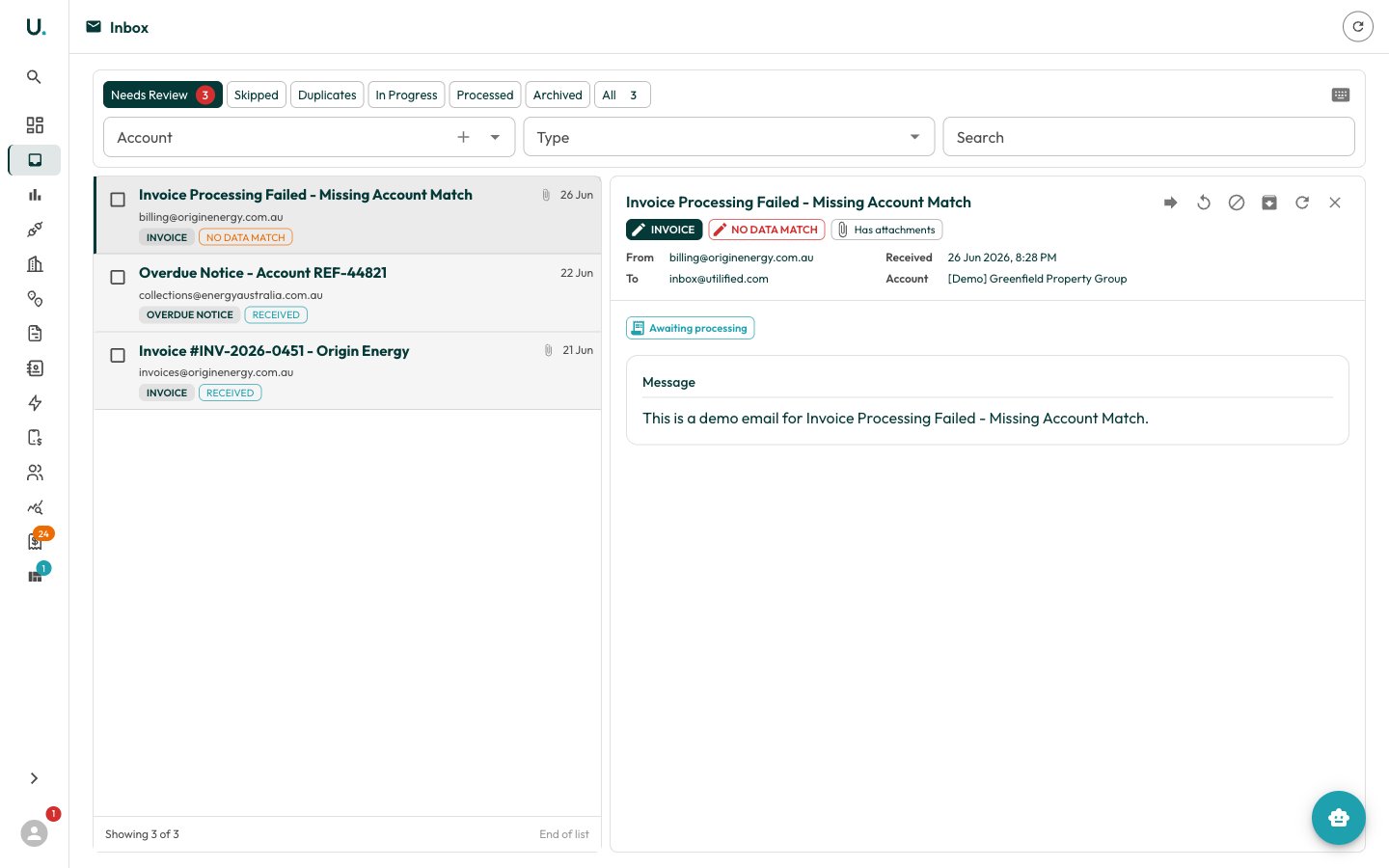 Selecting a message opens it as a single card: the **From**, **To**, **Cc**, **Date**, and a linked **Account** header, the rendered email body, and an attachments strip. Three chips below the header are editable in place — click to change the **classification** (`email_type`) or **status**, or toggle **Read**/**Unread**. The context rail shows an **AI Summary** of the message and the OCR result, including any duplicates detected and invoices created.
Header actions let you **Download all attachments**, **Forward** the email to yourself, or **Reprocess with OCR** to re-run the pipeline. The three-dots menu holds **Archive** and **Delete**.
The same inbox appears as an **Inbox** tab on an account's detail page (scoped to that account), and as the **Inbox review** tab in [Validation](/validation) for triaging email-sourced invoices across your portfolio.
Selecting a message opens it as a single card: the **From**, **To**, **Cc**, **Date**, and a linked **Account** header, the rendered email body, and an attachments strip. Three chips below the header are editable in place — click to change the **classification** (`email_type`) or **status**, or toggle **Read**/**Unread**. The context rail shows an **AI Summary** of the message and the OCR result, including any duplicates detected and invoices created.
Header actions let you **Download all attachments**, **Forward** the email to yourself, or **Reprocess with OCR** to re-run the pipeline. The three-dots menu holds **Archive** and **Delete**.
The same inbox appears as an **Inbox** tab on an account's detail page (scoped to that account), and as the **Inbox review** tab in [Validation](/validation) for triaging email-sourced invoices across your portfolio.