> ## Documentation Index
> Fetch the complete documentation index at: https://docs.utilified.com/llms.txt
> Use this file to discover all available pages before exploring further.
# Invoices
> Manage the full lifecycle of energy invoices in UMS — upload, OCR processing with UtiliRead, validation, editing, and payment — from one data grid.
The Invoices module manages the full lifecycle of energy invoices — from upload through processing, validation, and payment.
 ## Page tabs
The Invoices page is a tabbed workspace. Each tab owns its own toolbar actions:
| Tab | What it shows |
| ------------- | --------------------------------------------------------------------------------------------------------------------------- |
| **Dashboard** | Validation health, invoice stats, and quick upload — the landing tab. See [Validation](/validation). |
| **Invoices** | The full invoice data grid (described below). |
| **Review** | The exception queue of invoices flagged for manual review. See [Invoice Validation and Review](/guides/invoice-validation). |
| **Uploads** | Drag-and-drop bulk upload into the OCR pipeline. |
| **Activity** | An audit log of review actions taken on invoices. |
Invoice **Validation** is not a separate menu item — it lives on the **Dashboard** and **Review** tabs here, and on the **Review** tab of each invoice's detail page.
## Invoices list
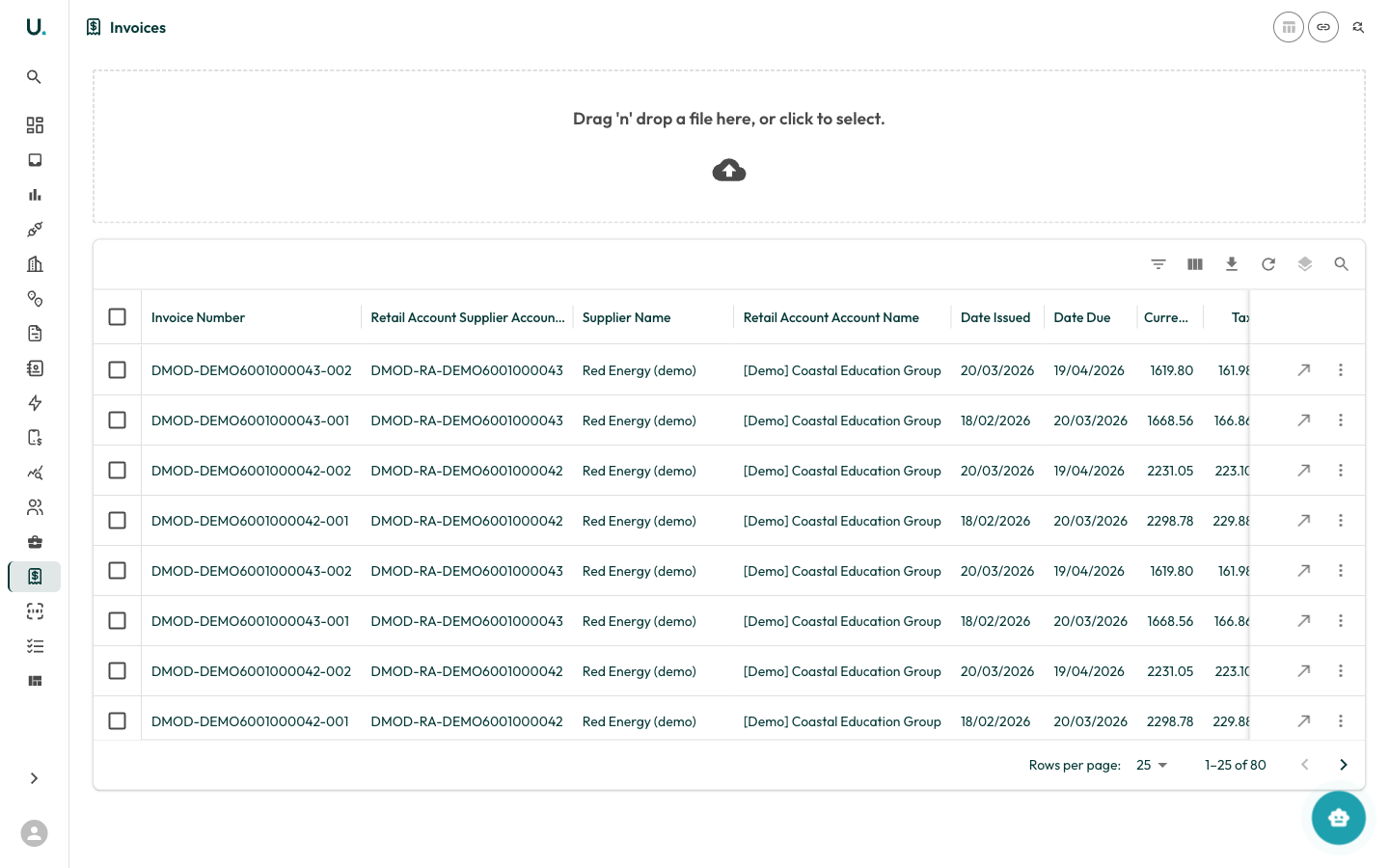
The **Invoices** tab displays all invoices in a data grid:
| Column | Description |
| ----------------------------------- | -------------------------------------------- |
| **Invoice Number** | The unique invoice reference |
| **Retail Account Supplier Account** | The supplier's retail account reference |
| **Supplier Name** | The energy supplier that issued the invoice |
| **Retail Account Account Name** | The customer account this invoice belongs to |
| **Date Issued** | When the invoice was issued |
| **Date Due** | Payment due date |
| **Currency** | Invoice amount in the local currency |
| **Tax** | Tax amount (GST) |
| **Pre-Tax** | Pre-tax amount |
### Uploading invoices
Open the **Uploads** tab on the Invoices page, which provides a drag-and-drop upload zone. You can:
* **Drag and drop** invoice files (PDF, CSV) directly onto the upload area
* **Click** the upload area to open a file browser and select files
Uploaded invoices are automatically processed through the OCR pipeline ([UtiliRead](/utiliread)) and matched to the appropriate account and connection.
### Row actions
* **See Details** (arrow icon) — Navigate to the invoice detail page with Overview, Lines, Ledger, Documents, Review, and History tabs
* **More** (three dots) — Additional actions
## Page tabs
The Invoices page is a tabbed workspace. Each tab owns its own toolbar actions:
| Tab | What it shows |
| ------------- | --------------------------------------------------------------------------------------------------------------------------- |
| **Dashboard** | Validation health, invoice stats, and quick upload — the landing tab. See [Validation](/validation). |
| **Invoices** | The full invoice data grid (described below). |
| **Review** | The exception queue of invoices flagged for manual review. See [Invoice Validation and Review](/guides/invoice-validation). |
| **Uploads** | Drag-and-drop bulk upload into the OCR pipeline. |
| **Activity** | An audit log of review actions taken on invoices. |
Invoice **Validation** is not a separate menu item — it lives on the **Dashboard** and **Review** tabs here, and on the **Review** tab of each invoice's detail page.
## Invoices list
The **Invoices** tab displays all invoices in a data grid:
| Column | Description |
| ----------------------------------- | -------------------------------------------- |
| **Invoice Number** | The unique invoice reference |
| **Retail Account Supplier Account** | The supplier's retail account reference |
| **Supplier Name** | The energy supplier that issued the invoice |
| **Retail Account Account Name** | The customer account this invoice belongs to |
| **Date Issued** | When the invoice was issued |
| **Date Due** | Payment due date |
| **Currency** | Invoice amount in the local currency |
| **Tax** | Tax amount (GST) |
| **Pre-Tax** | Pre-tax amount |
### Uploading invoices
Open the **Uploads** tab on the Invoices page, which provides a drag-and-drop upload zone. You can:
* **Drag and drop** invoice files (PDF, CSV) directly onto the upload area
* **Click** the upload area to open a file browser and select files
Uploaded invoices are automatically processed through the OCR pipeline ([UtiliRead](/utiliread)) and matched to the appropriate account and connection.
### Row actions
* **See Details** (arrow icon) — Navigate to the invoice detail page with Overview, Lines, Ledger, Documents, Review, and History tabs
* **More** (three dots) — Additional actions