> ## Documentation Index
> Fetch the complete documentation index at: https://docs.utilified.com/llms.txt
> Use this file to discover all available pages before exploring further.
# Organisation Settings
> Configure organisation-wide settings in UMS — general profile, users, invoice Auto-Pilot automation, and billing.
The **Organisation** group in [Settings](/settings) holds the controls that affect everyone in your organisation: your business profile, user accounts, invoice automation, and billing.
These sections require **manager** or **admin** access. The Settings rail is permission-aware — sections you can't access are **hidden**, not greyed out. If a section described here is missing from your rail, ask your organisation administrator to check your role.
Looking for **Portal & Domain** or **Single Sign-On**? Those are covered separately in [Portal & Single Sign-On](/settings/white-label).
## General
The **General** section manages your organisation's profile and business information.
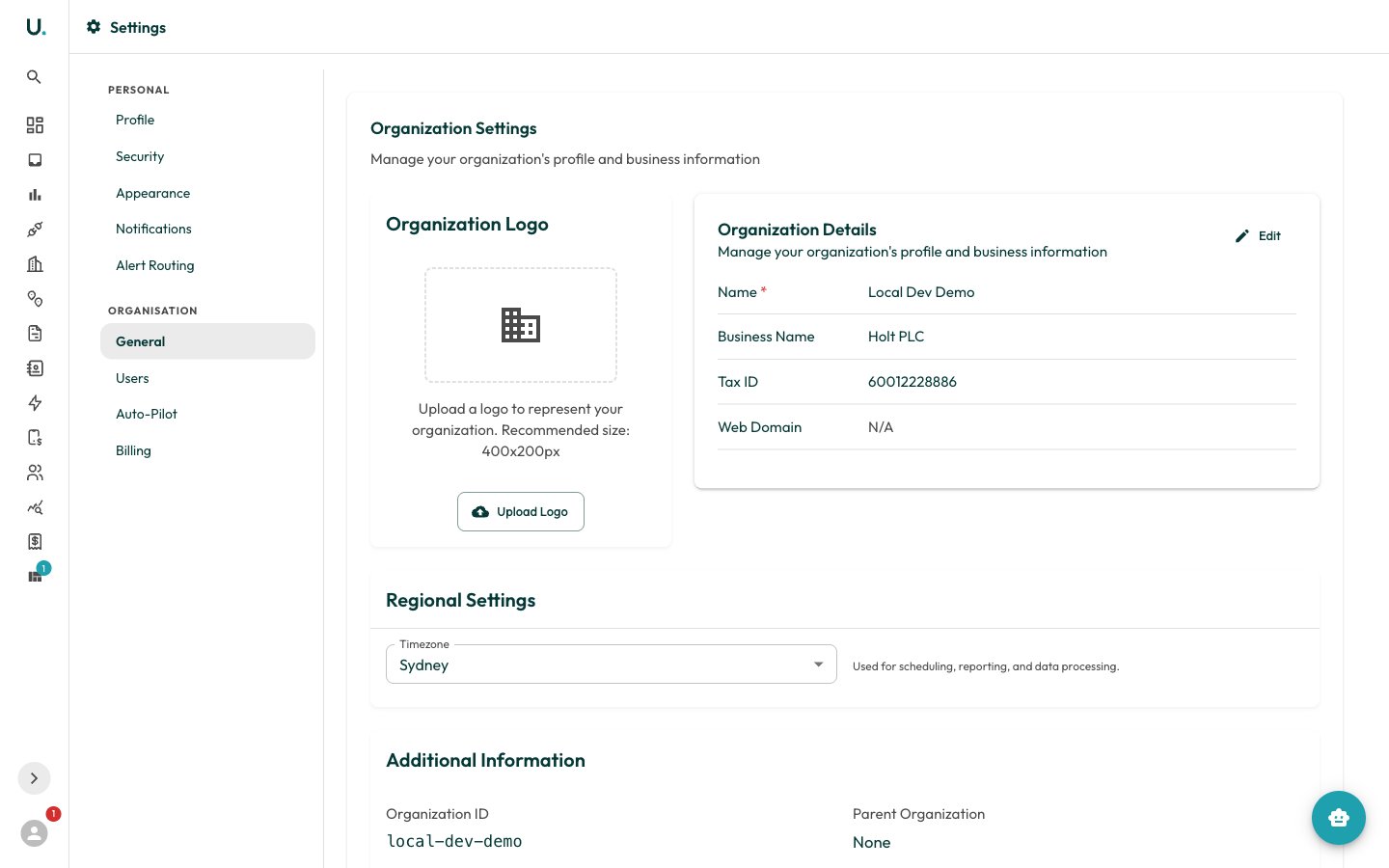 * **Organisation Logo** — Upload a logo to represent your organisation. Use an image file up to 5 MB; the recommended size is 400×200 px.
* **Organisation Details** — Edit your organisation's name and business details inline. Changes save per field.
* **Regional Settings** — Set your **Timezone** (Australian timezones only). This is used for scheduling, reporting, and data processing.
* **Additional Information** — Read-only reference values: your `Organisation ID` and `Parent Organisation`.
Platform administrators see a **Danger Zone** with a **Deactivate Organisation** action. Deactivating immediately revokes access for every user in the organisation. Data is preserved and a platform administrator can reactivate later, but you must type the organisation name to confirm.
## Users
The **Users** section is where you invite team members, assign roles, and deactivate access. Because the rail is permission-aware, this section appears only for managers and admins.
For the full walkthrough, see [Setting Up a User](/guides/setting-up-a-user).
## Auto-Pilot
The **Auto-Pilot** section configures AI-powered automation for the invoice pipeline — letting high-confidence invoices flow from intake through validation without manual handling. Low-confidence items still surface in your Inbox for review.
Toggle **Enable Auto-Pilot** to switch automation on. When it's off, items continue through the pipeline manually via the Inbox and Invoices pages. The section also shows live **Auto-processed**, **Manual overrides**, and **Automation rate** stats once items have flowed through.
**Inbox stage**
* **OCR confidence threshold** — Records below this confidence (50–100%) are sent to manual review or AI re-extraction.
* **Auto-create invoices from high-confidence OCR** — Create invoices automatically when OCR confidence clears the threshold.
* **Auto-archive email types** — Select email types (for example, **Overdue Notice**, **Payment Receipt**) to auto-archive without entering the inbox queue.
**Validation stage**
* **Auto-run validation** — Run validation automatically after an invoice is created.
* **Variance tolerance for auto-pass** — Invoices within this variance (0–20%) of expected charges auto-pass.
* **Require AI PASS recommendation** — The AI must also recommend PASS before an invoice auto-passes.
Edits are staged until you click **Save changes**; **Discard changes** reverts to the last saved configuration.
## Billing
The **Billing** section manages your plan, usage, and payments.
* **Organisation Logo** — Upload a logo to represent your organisation. Use an image file up to 5 MB; the recommended size is 400×200 px.
* **Organisation Details** — Edit your organisation's name and business details inline. Changes save per field.
* **Regional Settings** — Set your **Timezone** (Australian timezones only). This is used for scheduling, reporting, and data processing.
* **Additional Information** — Read-only reference values: your `Organisation ID` and `Parent Organisation`.
Platform administrators see a **Danger Zone** with a **Deactivate Organisation** action. Deactivating immediately revokes access for every user in the organisation. Data is preserved and a platform administrator can reactivate later, but you must type the organisation name to confirm.
## Users
The **Users** section is where you invite team members, assign roles, and deactivate access. Because the rail is permission-aware, this section appears only for managers and admins.
For the full walkthrough, see [Setting Up a User](/guides/setting-up-a-user).
## Auto-Pilot
The **Auto-Pilot** section configures AI-powered automation for the invoice pipeline — letting high-confidence invoices flow from intake through validation without manual handling. Low-confidence items still surface in your Inbox for review.
Toggle **Enable Auto-Pilot** to switch automation on. When it's off, items continue through the pipeline manually via the Inbox and Invoices pages. The section also shows live **Auto-processed**, **Manual overrides**, and **Automation rate** stats once items have flowed through.
**Inbox stage**
* **OCR confidence threshold** — Records below this confidence (50–100%) are sent to manual review or AI re-extraction.
* **Auto-create invoices from high-confidence OCR** — Create invoices automatically when OCR confidence clears the threshold.
* **Auto-archive email types** — Select email types (for example, **Overdue Notice**, **Payment Receipt**) to auto-archive without entering the inbox queue.
**Validation stage**
* **Auto-run validation** — Run validation automatically after an invoice is created.
* **Variance tolerance for auto-pass** — Invoices within this variance (0–20%) of expected charges auto-pass.
* **Require AI PASS recommendation** — The AI must also recommend PASS before an invoice auto-passes.
Edits are staged until you click **Save changes**; **Discard changes** reverts to the last saved configuration.
## Billing
The **Billing** section manages your plan, usage, and payments.
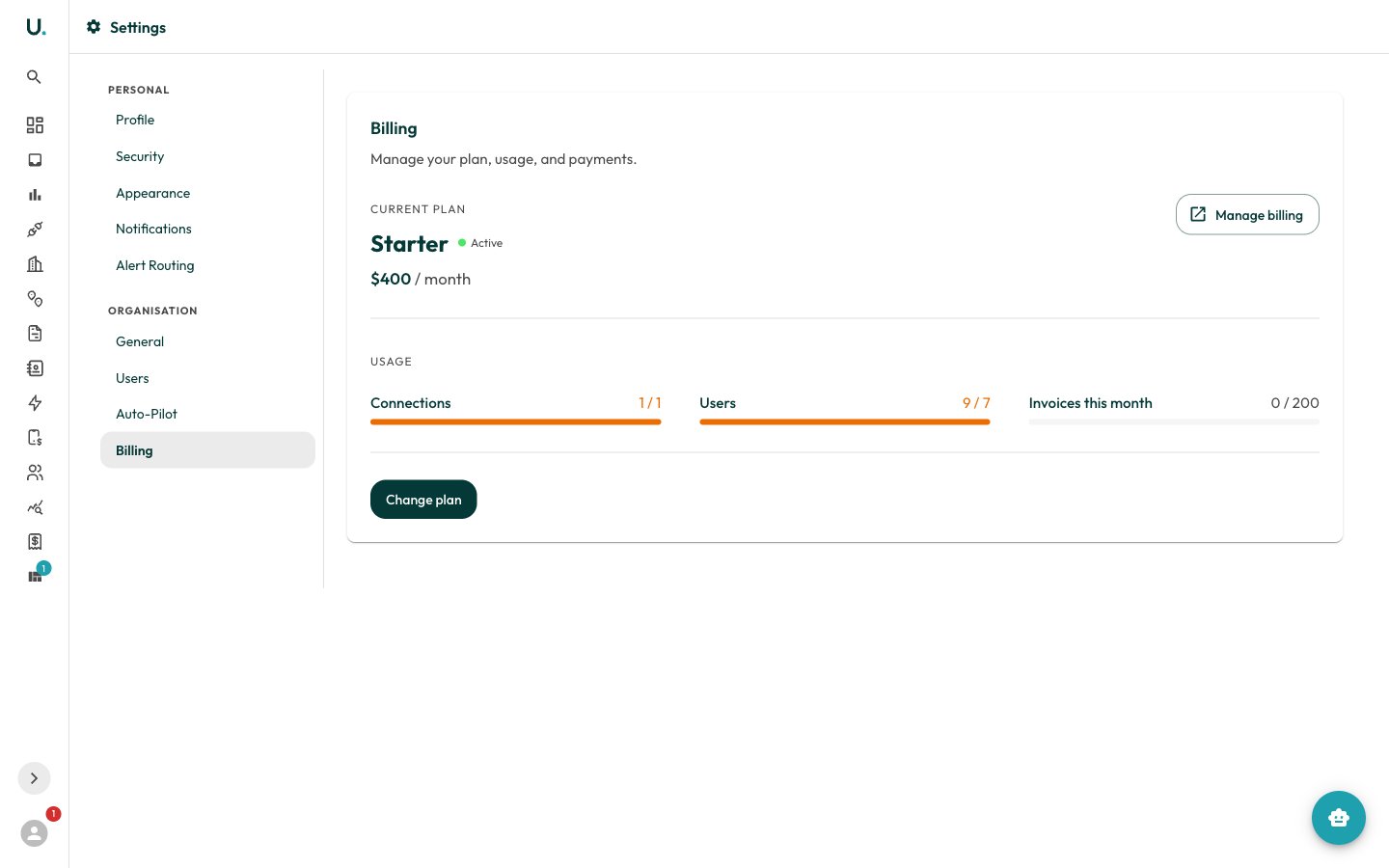 * **Current plan** — Your plan name, status (Active, Trial, or Cancelled), monthly price, and renewal date. Plans on a 12-month commitment show the commitment end date.
* **Usage** — Live meters for **Connections**, **Users**, and **Invoices this month** against your plan limits.
* **Change plan** — Open the plan picker to upgrade or switch plans.
* **Manage billing** — Open the Stripe billing portal in a new tab to update your payment method and view invoices.
Plan changes and cancellations take effect through Stripe and may change what you're charged. Organisations on a 12-month commitment can upgrade anytime, but downgrades and cancellation are only available once the term ends.
If your organisation is **billed directly by Utilified** (manual billing), self-serve checkout and the Stripe portal are hidden. Contact us to change your plan.
* **Current plan** — Your plan name, status (Active, Trial, or Cancelled), monthly price, and renewal date. Plans on a 12-month commitment show the commitment end date.
* **Usage** — Live meters for **Connections**, **Users**, and **Invoices this month** against your plan limits.
* **Change plan** — Open the plan picker to upgrade or switch plans.
* **Manage billing** — Open the Stripe billing portal in a new tab to update your payment method and view invoices.
Plan changes and cancellations take effect through Stripe and may change what you're charged. Organisations on a 12-month commitment can upgrade anytime, but downgrades and cancellation are only available once the term ends.
If your organisation is **billed directly by Utilified** (manual billing), self-serve checkout and the Stripe portal are hidden. Contact us to change your plan.