> ## Documentation Index
> Fetch the complete documentation index at: https://docs.utilified.com/llms.txt
> Use this file to discover all available pages before exploring further.
# Personal Settings
> Manage your own profile, security, appearance, notification preferences, and alert routing rules from the Personal group of Settings.
Personal settings cover the preferences that apply to you as an individual user — separate from organisation-wide configuration. To reach them, click your avatar in the top-right corner and select **My account** (or **Organisation**), then open any item in the **Personal** group of the left nav rail at `/settings`.
## Profile
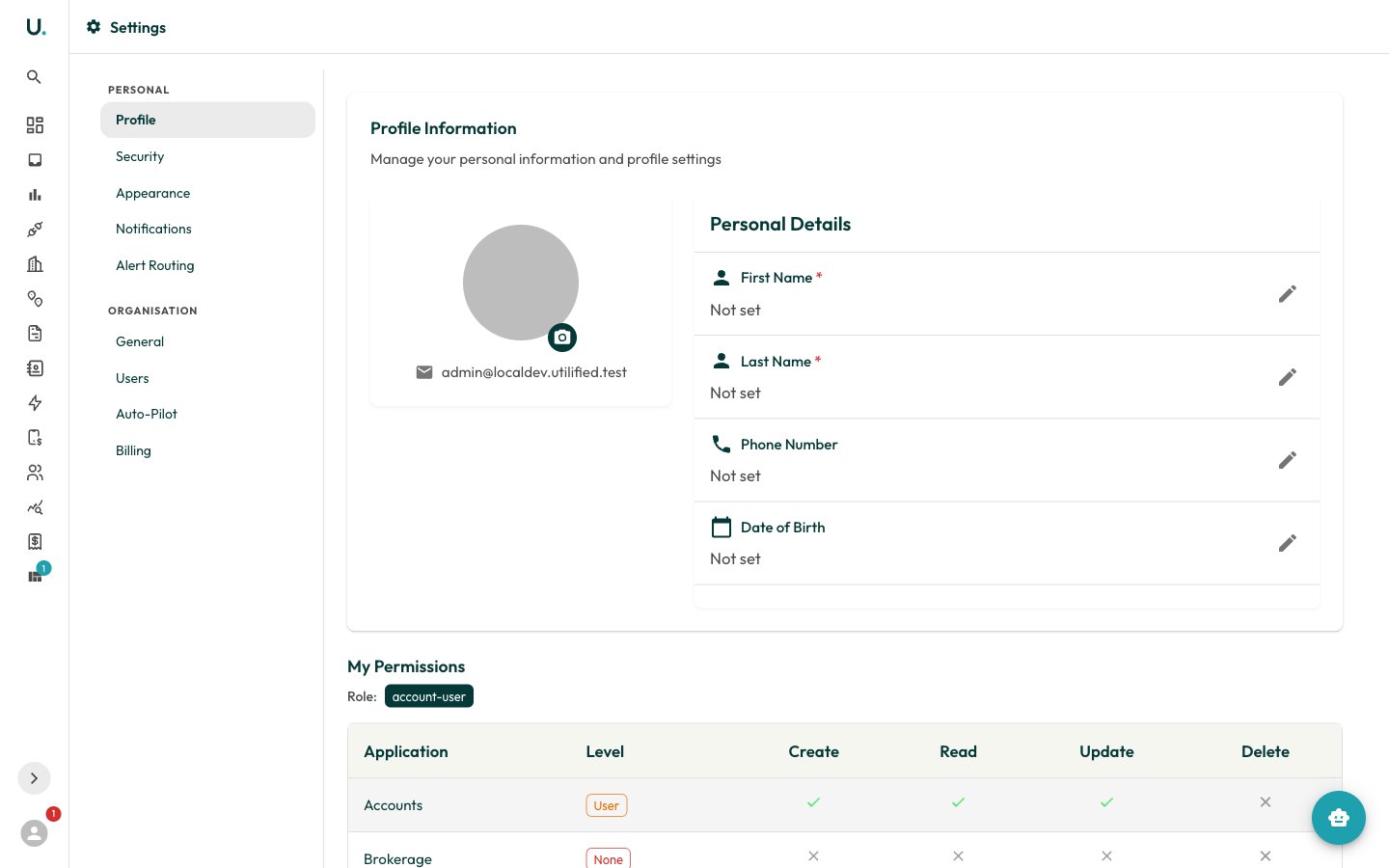
The **Profile** section manages your personal details and profile picture.
* **Profile picture** — Click the camera badge on your avatar to upload an image. Files must be a valid image type and under 5 MB.
* **Personal details** — Each field has a pencil icon to edit inline; click the save icon to confirm or cancel to discard:
* `first_name` and `last_name` — required, up to 150 characters.
* `phone_number` — optional.
* `date_of_birth` — optional.
Your `email` is shown alongside your avatar but is not editable here. Below the form, **My Permissions** displays a read-only matrix of what your access group can create, read, update, and delete across each application.
 ## Security
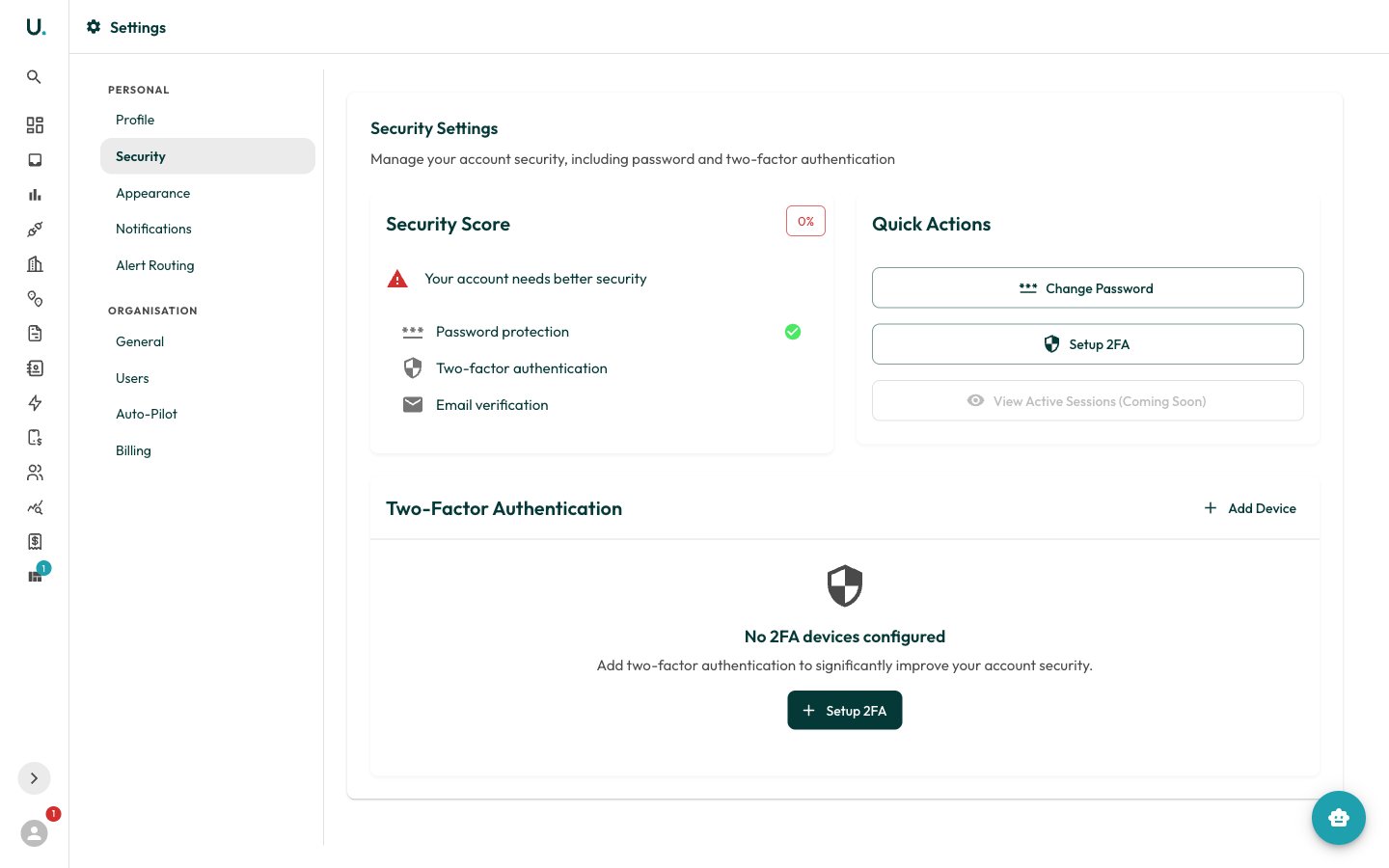
The **Security** section manages your password and two-factor authentication (2FA). A **Security Score** at the top reflects which protections you have enabled.
* **Change Password** — Enter your **Current Password**, then a **New Password** (at least 8 characters, and different from the current one) and confirm it.
* **Two-Factor Authentication** — Add one or more methods: **Authenticator App** (recommended), **Email Verification**, or **Backup Codes**. Each active method is listed as a device you can remove (password required) or, for backup codes, regenerate.
### Enable two-factor authentication
Click **Setup 2FA** or **Add Device** in the Two-Factor Authentication card.
Select **Authenticator App**, **Email Verification**, or **Backup Codes**, then click **Continue**.
For an authenticator app, scan the displayed **QR code** with your app (for example Google Authenticator or Authy), then enter the **6-digit code** it generates. For email, click **Send Verification Email** and enter the code sent to your inbox.
Click **Verify & Complete**. The new method then appears in your list of active 2FA devices.
## Security
The **Security** section manages your password and two-factor authentication (2FA). A **Security Score** at the top reflects which protections you have enabled.
* **Change Password** — Enter your **Current Password**, then a **New Password** (at least 8 characters, and different from the current one) and confirm it.
* **Two-Factor Authentication** — Add one or more methods: **Authenticator App** (recommended), **Email Verification**, or **Backup Codes**. Each active method is listed as a device you can remove (password required) or, for backup codes, regenerate.
### Enable two-factor authentication
Click **Setup 2FA** or **Add Device** in the Two-Factor Authentication card.
Select **Authenticator App**, **Email Verification**, or **Backup Codes**, then click **Continue**.
For an authenticator app, scan the displayed **QR code** with your app (for example Google Authenticator or Authy), then enter the **6-digit code** it generates. For email, click **Send Verification Email** and enter the code sent to your inbox.
Click **Verify & Complete**. The new method then appears in your list of active 2FA devices.
 Regenerating backup codes invalidates your existing codes. Save the new codes somewhere secure — they are shown only once.
## Appearance
The **Appearance** section controls the application theme for your device. Choose a **Theme Mode**:
* **System** — Follow your operating system's light or dark setting.
* **Light** — Always use the light theme.
* **Dark** — Always use the dark theme.
Your choice takes effect immediately and is remembered on this device.
## Notifications
The **Notifications** section manages your notification *preferences*. This is distinct from the in-app **Notifications** drawer, which lists the messages you have received — see [Notifications](/notifications) for that.
* **Browser Notifications** — Enable real-time browser notifications, and use the test button to confirm they work.
* **Notification Overview** — See your unread count, notifications from the last 24 hours, and browser-notification status, with a **Mark All as Read** action.
* **Priority Breakdown** — A count of notifications by **Urgent**, **High**, **Normal**, and **Low** priority.
* **Notification Subscriptions** — Toggle a switch for each subscribable notification type to opt in or out. Subscriptions are delivered both by email and in-app.
## Alert Routing
The **Alert Routing** section defines rules that forward incoming alerts and notifications to specific contacts based on event type and filters. Existing rules are listed in a table showing each rule's **Name**, **Account**, **Event Type**, **Enabled** state, recipient count, and filter summary.
### Create a routing rule
Click **Create Rule** and complete:
* **Name** — required.
* **Account** — scope the rule to a single account, or leave as **All accounts (org-wide)**.
* **Event Type** — required; the event that triggers the rule.
* **Enabled** — toggle the rule on or off.
* **Filter Criteria** — narrow which messages match:
* **Email Types** — one or more types (for example `INVOICE`, `OVERDUE_NOTICE`, `RATE_CHANGE_NOTICE`).
* **Sender Contains** — comma-separated patterns matched against the sender (for example `origin.com.au, agl.com.au`).
* **Subject Contains** — comma-separated patterns matched against the subject (for example `overdue, reminder`).
### Manage recipients
Use the **Manage Recipients** action on a rule to add or remove the contacts that receive its alerts. Pick a contact from the search field and click **Add**; remove a recipient with the delete icon. You can edit or delete a rule from its row actions — deleting a rule also removes its recipients.
Regenerating backup codes invalidates your existing codes. Save the new codes somewhere secure — they are shown only once.
## Appearance
The **Appearance** section controls the application theme for your device. Choose a **Theme Mode**:
* **System** — Follow your operating system's light or dark setting.
* **Light** — Always use the light theme.
* **Dark** — Always use the dark theme.
Your choice takes effect immediately and is remembered on this device.
## Notifications
The **Notifications** section manages your notification *preferences*. This is distinct from the in-app **Notifications** drawer, which lists the messages you have received — see [Notifications](/notifications) for that.
* **Browser Notifications** — Enable real-time browser notifications, and use the test button to confirm they work.
* **Notification Overview** — See your unread count, notifications from the last 24 hours, and browser-notification status, with a **Mark All as Read** action.
* **Priority Breakdown** — A count of notifications by **Urgent**, **High**, **Normal**, and **Low** priority.
* **Notification Subscriptions** — Toggle a switch for each subscribable notification type to opt in or out. Subscriptions are delivered both by email and in-app.
## Alert Routing
The **Alert Routing** section defines rules that forward incoming alerts and notifications to specific contacts based on event type and filters. Existing rules are listed in a table showing each rule's **Name**, **Account**, **Event Type**, **Enabled** state, recipient count, and filter summary.
### Create a routing rule
Click **Create Rule** and complete:
* **Name** — required.
* **Account** — scope the rule to a single account, or leave as **All accounts (org-wide)**.
* **Event Type** — required; the event that triggers the rule.
* **Enabled** — toggle the rule on or off.
* **Filter Criteria** — narrow which messages match:
* **Email Types** — one or more types (for example `INVOICE`, `OVERDUE_NOTICE`, `RATE_CHANGE_NOTICE`).
* **Sender Contains** — comma-separated patterns matched against the sender (for example `origin.com.au, agl.com.au`).
* **Subject Contains** — comma-separated patterns matched against the subject (for example `overdue, reminder`).
### Manage recipients
Use the **Manage Recipients** action on a rule to add or remove the contacts that receive its alerts. Pick a contact from the search field and click **Add**; remove a recipient with the delete icon. You can edit or delete a rule from its row actions — deleting a rule also removes its recipients.