> ## Documentation Index
> Fetch the complete documentation index at: https://docs.utilified.com/llms.txt
> Use this file to discover all available pages before exploring further.
# Sites
> Manage the physical locations linked to your accounts — offices, warehouses, retail stores, or any premises with energy connections.
Sites represent the physical locations associated with your accounts — offices, warehouses, retail stores, or any premises with energy connections. Each site sits under an [account](/accounts) and contains the [connections](/connections) (electricity, gas, water meters) at that location. Sites also appear on the dashboard and account map.
 ## Sites list
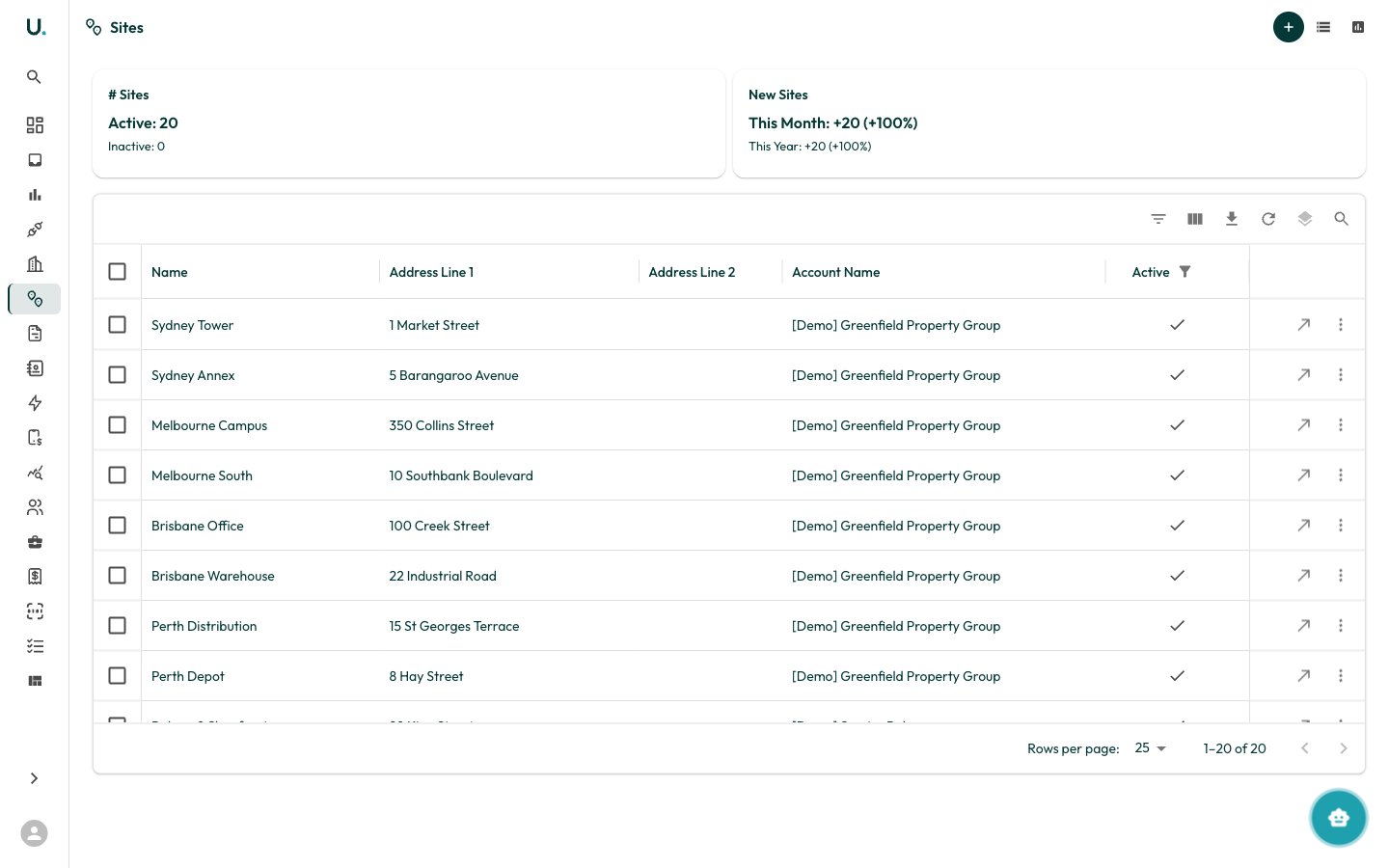
The Sites page displays all sites across your organisation in a data grid:
| Column | Description |
| ------------------ | ---------------------------------------------- |
| **Name** | The site name or description |
| **Address Line 1** | Street address |
| **Address Line 2** | Additional address details (unit, level, etc.) |
| **Account Name** | The parent account this site belongs to |
| **Active** | Whether the site is currently active |
Summary cards at the top show:
* **# Sites** — Total active and inactive sites
* **New Sites** — Sites added this month and this year, with percentage growth
### Toolbar actions
Alongside the standard grid toolbar (filter, column visibility, export, density, search), the header provides:
* **New Site** (**+** icon) — Create a new site
* **Site Data** — Jump to the site data records across all sites
* **Data Types** — Manage the site data type definitions
### Creating a site
Click the **+** button in the top-right corner to create a new site. The drawer asks for a `name` and parent `account` (both required), then an address. Typing into the address field uses Google Places autocomplete to populate `address_line_1`, `address_line_2`, `city`, `state`, `postcode`, `country`, and the `latitude`/`longitude` coordinates. You can also add sites from within an [account's](/accounts) Sites tab.
## Site detail page
## Sites list
The Sites page displays all sites across your organisation in a data grid:
| Column | Description |
| ------------------ | ---------------------------------------------- |
| **Name** | The site name or description |
| **Address Line 1** | Street address |
| **Address Line 2** | Additional address details (unit, level, etc.) |
| **Account Name** | The parent account this site belongs to |
| **Active** | Whether the site is currently active |
Summary cards at the top show:
* **# Sites** — Total active and inactive sites
* **New Sites** — Sites added this month and this year, with percentage growth
### Toolbar actions
Alongside the standard grid toolbar (filter, column visibility, export, density, search), the header provides:
* **New Site** (**+** icon) — Create a new site
* **Site Data** — Jump to the site data records across all sites
* **Data Types** — Manage the site data type definitions
### Creating a site
Click the **+** button in the top-right corner to create a new site. The drawer asks for a `name` and parent `account` (both required), then an address. Typing into the address field uses Google Places autocomplete to populate `address_line_1`, `address_line_2`, `city`, `state`, `postcode`, `country`, and the `latitude`/`longitude` coordinates. You can also add sites from within an [account's](/accounts) Sites tab.
## Site detail page
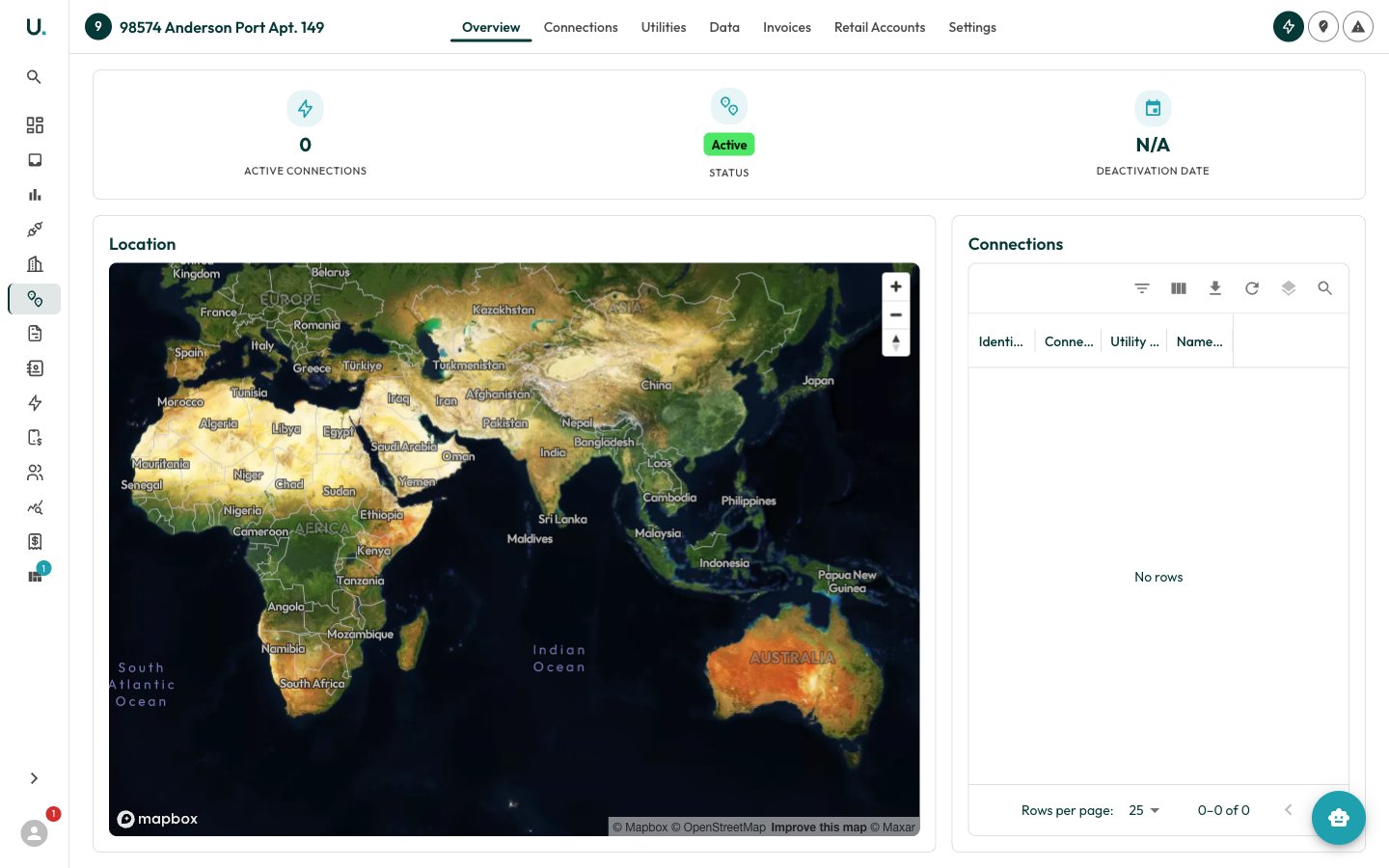 Clicking **See Details** on a site opens the detail page with a tabbed interface. The header also exposes quick actions: **Add a Connection**, **Change Location** (edit the address and map pin), and **Deactivate Site**. A banner is shown when a site has been deactivated.
| Tab | Description |
| ------------------- | ----------------------------------------------------------------------------------------------- |
| **Overview** | Summary stats, a location map, and the active connections at this site |
| **Connections** | All [connections](/connections) (site connections) at this location |
| **Utilities** | The underlying energy connections by utility (electricity, gas, water) |
| **Data** | Site data records, with a toggle between **Site Data** (add or bulk-upload) and **Consumption** |
| **Invoices** | Invoices for connections at this site |
| **Retail Accounts** | The [retailer account](/retail-accounts) references tied to this site's connections |
| **Settings** | Edit site details, location, custom fields, and deactivate or delete the site |
### Overview tab
The Overview tab gives an at-a-glance summary of the site:
* **Stats row** — **Active Connections** count, a **Status** chip (Active or Inactive), and the **Deactivation Date** (or N/A)
* **Location** — An interactive map centred on the site's coordinates
* **Connections** — A grid of the active connections at the site, showing identifier, connection address, utility, and namespace
### Settings tab
The Settings tab is where site data is maintained:
* **Site Details** — Name, parent account, active status, and active/inactive dates
* **Location Details** — The full address, coordinates, and an **Edit Site** action to update the map pin
* **Custom Fields** — Organisation-defined fields stored against the site
* **Danger Zone** — Archive (deactivate) or permanently delete the site
For more on what connects to a site, see [Connections](/connections) and [Agreements](/agreements).
Clicking **See Details** on a site opens the detail page with a tabbed interface. The header also exposes quick actions: **Add a Connection**, **Change Location** (edit the address and map pin), and **Deactivate Site**. A banner is shown when a site has been deactivated.
| Tab | Description |
| ------------------- | ----------------------------------------------------------------------------------------------- |
| **Overview** | Summary stats, a location map, and the active connections at this site |
| **Connections** | All [connections](/connections) (site connections) at this location |
| **Utilities** | The underlying energy connections by utility (electricity, gas, water) |
| **Data** | Site data records, with a toggle between **Site Data** (add or bulk-upload) and **Consumption** |
| **Invoices** | Invoices for connections at this site |
| **Retail Accounts** | The [retailer account](/retail-accounts) references tied to this site's connections |
| **Settings** | Edit site details, location, custom fields, and deactivate or delete the site |
### Overview tab
The Overview tab gives an at-a-glance summary of the site:
* **Stats row** — **Active Connections** count, a **Status** chip (Active or Inactive), and the **Deactivation Date** (or N/A)
* **Location** — An interactive map centred on the site's coordinates
* **Connections** — A grid of the active connections at the site, showing identifier, connection address, utility, and namespace
### Settings tab
The Settings tab is where site data is maintained:
* **Site Details** — Name, parent account, active status, and active/inactive dates
* **Location Details** — The full address, coordinates, and an **Edit Site** action to update the map pin
* **Custom Fields** — Organisation-defined fields stored against the site
* **Danger Zone** — Archive (deactivate) or permanently delete the site
For more on what connects to a site, see [Connections](/connections) and [Agreements](/agreements).