

Creating your organisation
If you’re brand new to UMS, start by creating your account.1
Sign up
On the sign-up page, enter your name, Organisation Name, email, and a password, then click Sign Up.
2
Verify your email
UMS sends a verification email. Open it and click the link to activate your account (check spam/junk if it doesn’t arrive within a few minutes).
3
Choose a plan and get set up
After verifying, you’re guided through choosing a plan and the guided onboarding wizard to load your portfolio.
Accessing UMS
1
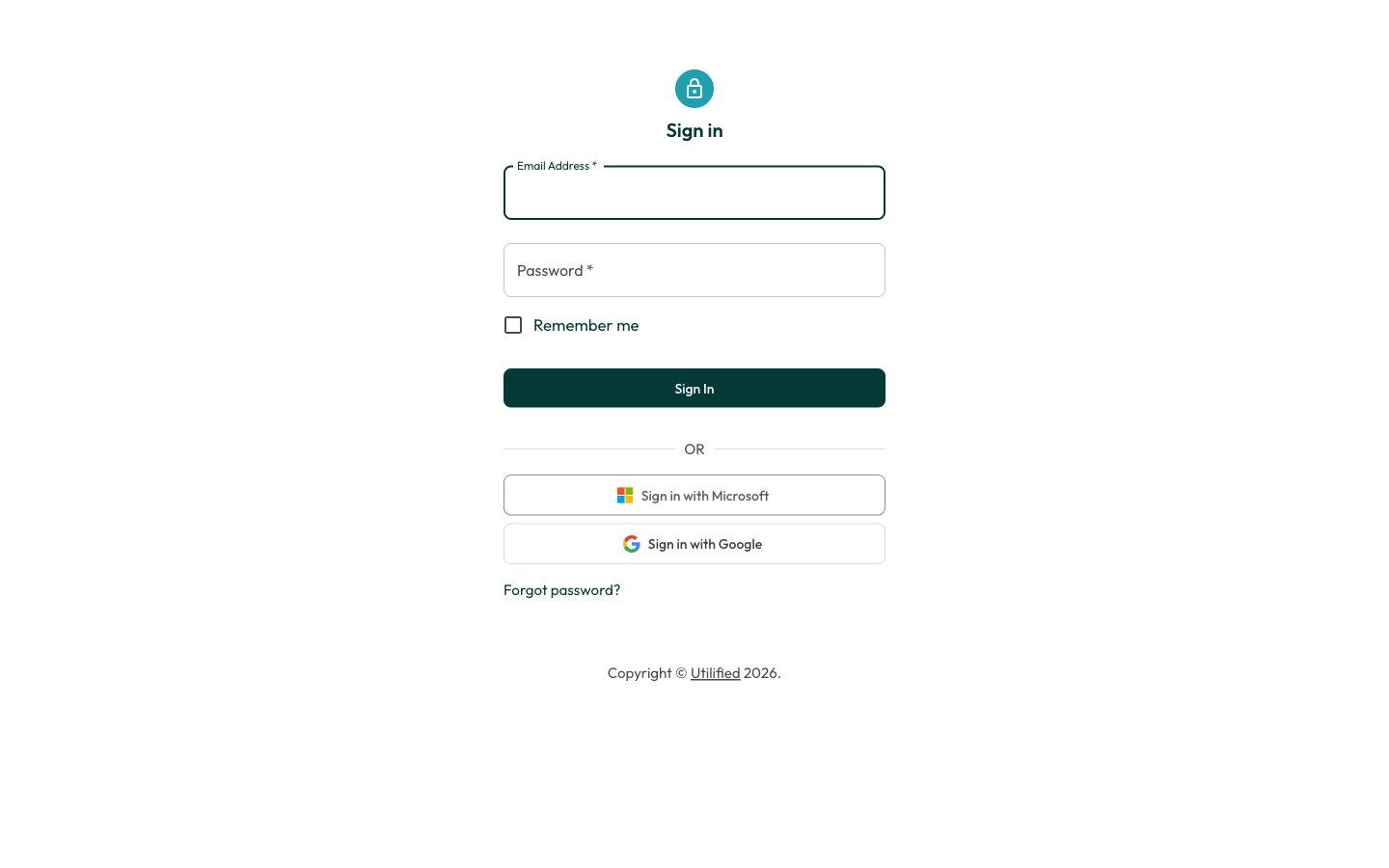
Open your UMS URL
Navigate to your organisation’s UMS URL in a web browser.
2
Enter your credentials
Enter your email address and password.
3
Sign in
Click Sign In.
Single sign-on (SSO)
If your organisation has SSO configured, you can also sign in using:- Sign in with Microsoft 365 — Use your corporate Microsoft account
- Sign in with Google — Use your Google Workspace account
SSO leverages your organisation’s existing security policies and multi-factor authentication.
Two-factor authentication (2FA)
If your organisation requires 2FA, you will be prompted for a verification code after entering your password.Setting up 2FA
1
Open security settings
Navigate to Settings then Security.
2
Start setup
Click Set up Two-Factor Authentication.
3
Scan the QR code
Scan the QR code with your authenticator app (Google Authenticator, Authy, Microsoft Authenticator, or any TOTP-compatible app).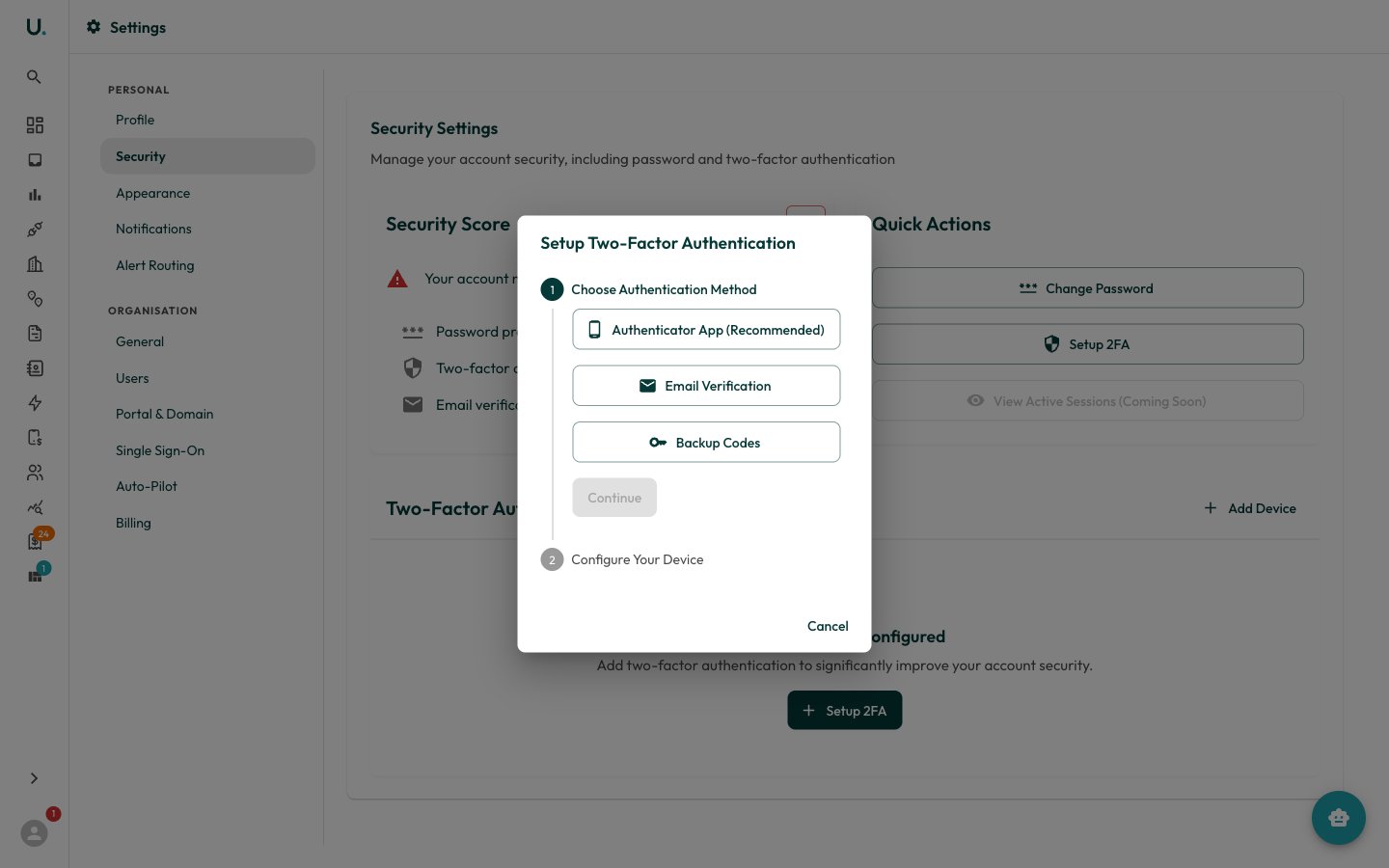
4
Confirm the code
Enter the 6-digit code from your app to confirm.
5
Save your recovery codes
Save your backup recovery codes in a secure location — you will need these if you lose access to your authenticator.
Signing in with 2FA
1
Enter your credentials
Enter your email and password as normal.
2
Open your authenticator
When prompted, open your authenticator app.
3
Enter the code
Enter the current 6-digit code.
4
Verify
Click Verify.
Resetting your password
1
Start the reset
On the login page, click Forgot Password.
2
Enter your email
Enter your email address.
3
Check your inbox
Check your email for a reset link (check spam/junk if it does not arrive within a few minutes).
4
Set a new password
Click the link and set a new password.
5
Sign in
Sign in with your new password.
Session management
- Your session remains active while you are using UMS
- After a period of inactivity, you may be asked to sign in again
- Tokens refresh automatically in the background — you should rarely need to re-authenticate during a working session