

Validations tab
The Validations tab is the Needs attention queue. It lists validation runs, not invoices.Views
The tiles at the top switch the queue’s view and count what’s in each:
A fourth view, All runs, shows every run. You reach it from the Pass rate and Validated tiles on the Overview tab, or from a saved view.
The Views rail on the left holds saved views. It starts with Errors over $500, Awaiting tariff confirmation, Awaiting review and Passed this week, and you can save, rename and delete your own. Below it, filter by Supplier, Status, Method, Tariff, Namespace, Added on or after, Added on or before and Error variance at least.
Queue columns include Invoice, Supplier, Retail account, Invoice date, Invoiced, Error variance, Findings, Tariff, Method, Age, Status and Reviewed.
Review panel
Click a run to open its review panel beside the queue. It shows the status, whether the tariff is confirmed, the Error variance, Age and Tariff basis, then the run’s findings. Outcomes:Actions
- Select rows for Accept selected, Re-run selected or Hold selected. Each asks you to confirm.
- Run validation for these invoices (header icon): re-runs every invoice the current view and filters match.
- Billing errors (header button): opens the billing errors tracker. See Invoice exceptions.
- Keyboard shortcuts (header icon): j/k to step through runs, a to accept, f to fix the tariff, h to hold or release, r to re-run, Esc to close the panel and ? for the full list.
Overview dashboard
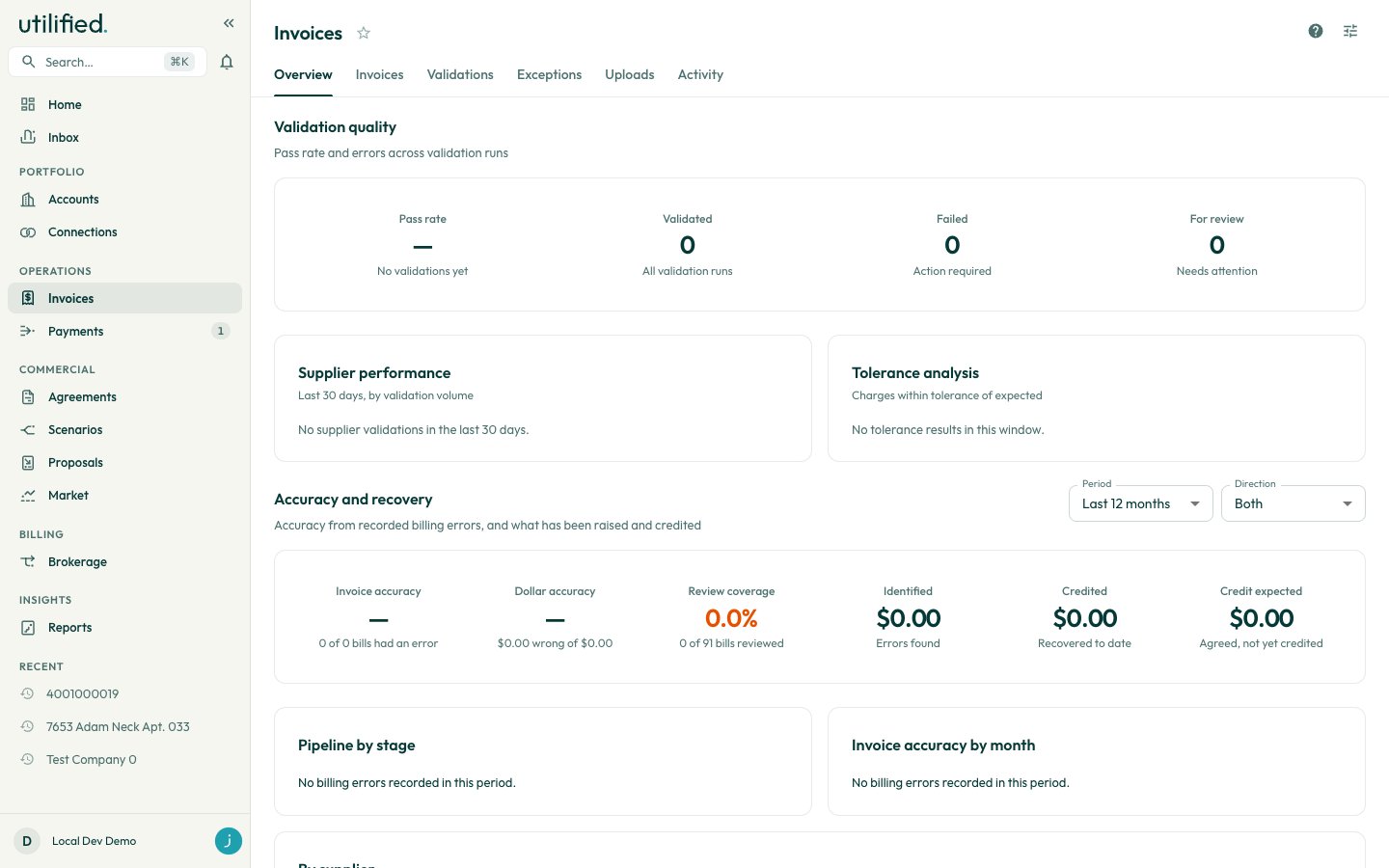
Bulk update retail account validation settings (header icon) changes validation settings across many retail accounts at once.
Validation run detail
Open a run from Validation runs on an invoice’s Review tab. The page title isValidation: followed by the invoice number, and the subtitle links back to the invoice.
Header actions: Accept as billed (failed or needs-review runs), Re-run AI analysis, Export Report (a PDF) and Refresh.