The Invoices module manages the full lifecycle of energy invoices — from upload through processing, validation, and payment.
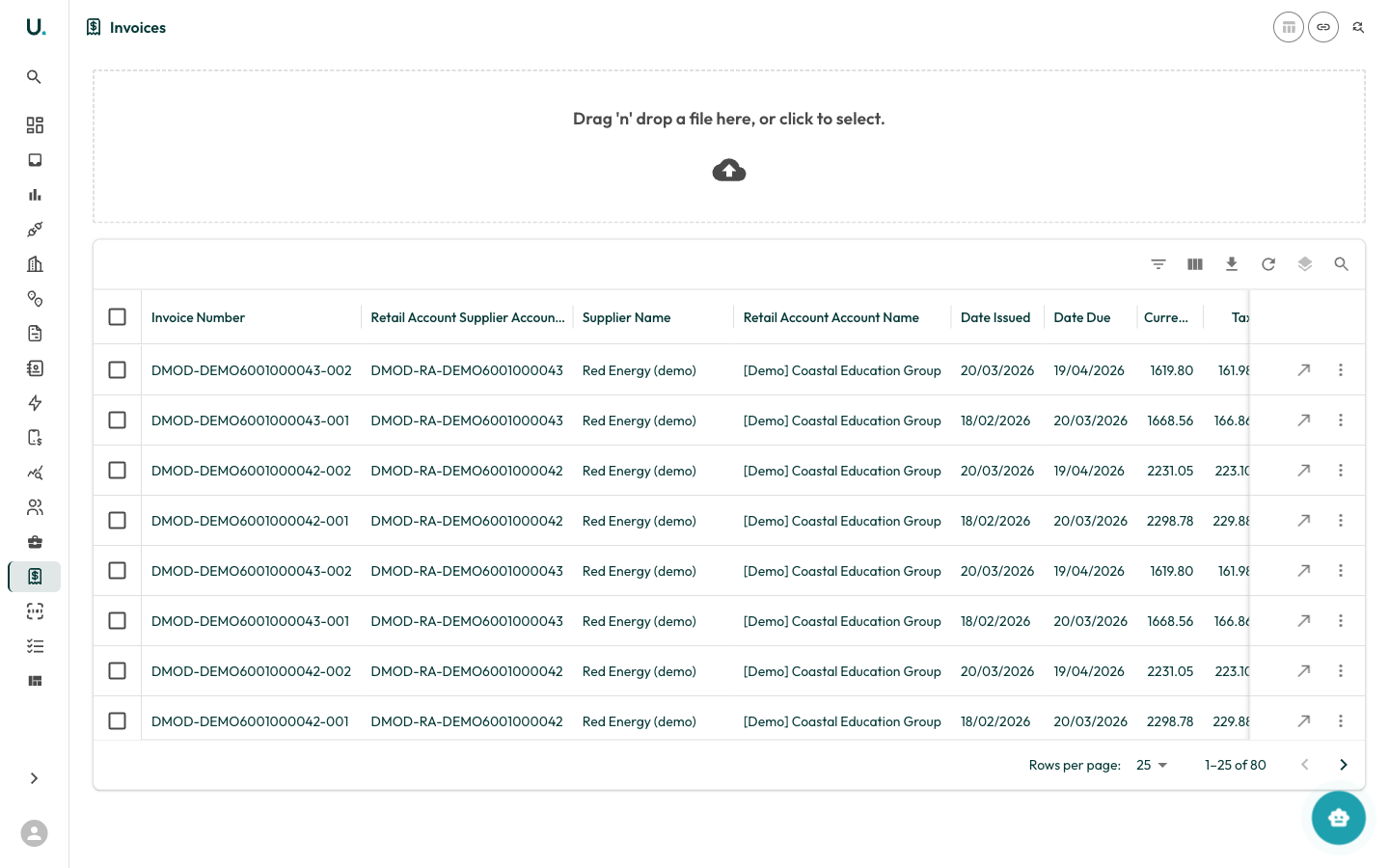
UMS Invoices list showing invoices in a data grid

Page tabs

The Invoices page is a tabbed workspace. Each tab owns its own toolbar actions:
TabWhat it shows
DashboardValidation health, invoice stats, and quick upload — the landing tab. See Validation.
InvoicesThe full invoice data grid (described below).
ReviewThe exception queue of invoices flagged for manual review. See Invoice Validation and Review.
UploadsDrag-and-drop bulk upload into the OCR pipeline.
ActivityAn audit log of review actions taken on invoices.
Invoice Validation is not a separate menu item — it lives on the Dashboard and Review tabs here, and on the Review tab of each invoice’s detail page.

Invoices list

The Invoices tab displays all invoices in a data grid:
ColumnDescription
Invoice NumberThe unique invoice reference
Retail Account Supplier AccountThe supplier’s retail account reference
Supplier NameThe energy supplier that issued the invoice
Retail Account Account NameThe customer account this invoice belongs to
Date IssuedWhen the invoice was issued
Date DuePayment due date
CurrencyInvoice amount in the local currency
TaxTax amount (GST)
Pre-TaxPre-tax amount

Uploading invoices

Open the Uploads tab on the Invoices page, which provides a drag-and-drop upload zone. You can:
  • Drag and drop invoice files (PDF, CSV) directly onto the upload area
  • Click the upload area to open a file browser and select files
Uploaded invoices are automatically processed through the OCR pipeline (UtiliRead) and matched to the appropriate account and connection.

Row actions

  • See Details (arrow icon) — Navigate to the invoice detail page with Overview, Lines, Ledger, Documents, Review, and History tabs
  • More (three dots) — Additional actions