

These sections require manager or admin access. The Settings rail is permission-aware — sections you can’t access are hidden, not greyed out. If a section described here is missing from your rail, ask your organisation administrator to check your role.
General
The General section manages your organisation’s profile and business information.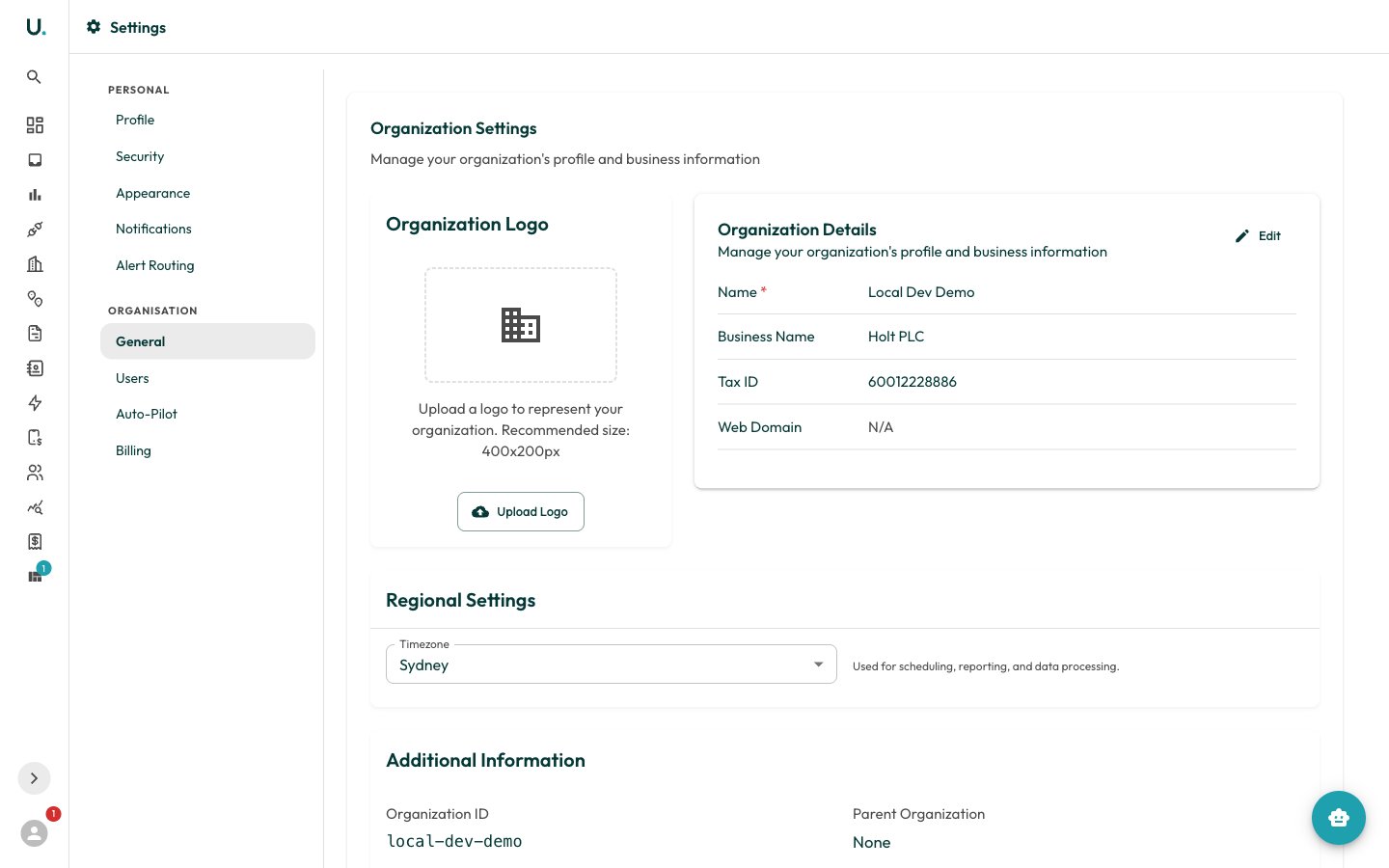
- Organisation Logo — Upload a logo to represent your organisation. Use an image file up to 5 MB; the recommended size is 400×200 px.
- Organisation Details — Edit your organisation’s name and business details inline. Changes save per field.
- Regional Settings — Set your Timezone (Australian timezones only). This is used for scheduling, reporting, and data processing.
- Additional Information — Read-only reference values: your
Organisation IDandParent Organisation.
Users
The Users section is where you invite team members, assign roles, and deactivate access. Because the rail is permission-aware, this section appears only for managers and admins. For the full walkthrough, see Setting Up a User.Auto-Pilot
The Auto-Pilot section configures AI-powered automation for the invoice pipeline — letting high-confidence invoices flow from intake through validation without manual handling. Low-confidence items still surface in your Inbox for review. Toggle Enable Auto-Pilot to switch automation on. When it’s off, items continue through the pipeline manually via the Inbox and Invoices pages. The section also shows live Auto-processed, Manual overrides, and Automation rate stats once items have flowed through. Inbox stage- OCR confidence threshold — Records below this confidence (50–100%) are sent to manual review or AI re-extraction.
- Auto-create invoices from high-confidence OCR — Create invoices automatically when OCR confidence clears the threshold.
- Auto-archive email types — Select email types (for example, Overdue Notice, Payment Receipt) to auto-archive without entering the inbox queue.
- Auto-run validation — Run validation automatically after an invoice is created.
- Variance tolerance for auto-pass — Invoices within this variance (0–20%) of expected charges auto-pass.
- Require AI PASS recommendation — The AI must also recommend PASS before an invoice auto-passes.
Integrations
The Integrations section connects accounting systems so you can raise brokerage invoices from UMS. Xero is available now; MYOB, QuickBooks, and NetSuite are listed as coming soon. Once Xero is connected, an Invoice field mapping panel appears where you set the description template, account code, tax type, invoice reference, and tracking categories used for every brokerage invoice. See Customising Xero Brokerage Invoicing.Billing
The Billing section manages your plan, usage, and payments.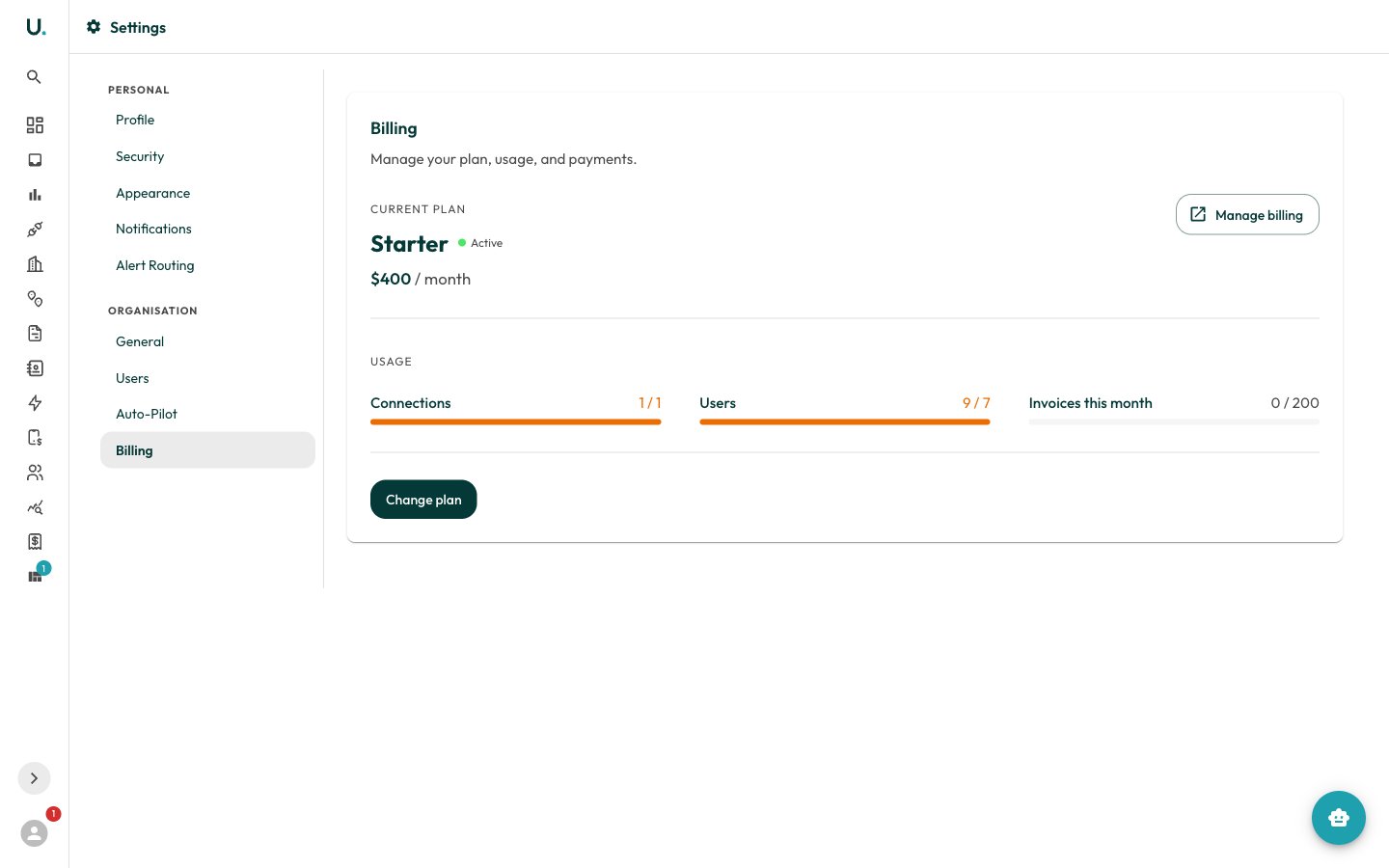
- Current plan — Your plan name, status (Active, Trial, or Cancelled), monthly price, and renewal date. Plans on a 12-month commitment show the commitment end date.
- Usage — Live meters for Connections, Users, and Invoices this month against your plan limits.
- Change plan — Open the plan picker to upgrade or switch plans.
- Manage billing — Open the Stripe billing portal in a new tab to update your payment method and view invoices.
If your organisation is billed directly by Utilified (manual billing), self-serve checkout and the Stripe portal are hidden. Contact us to change your plan.