

Selecting a report
Navigate to the Reports page from the sidebar.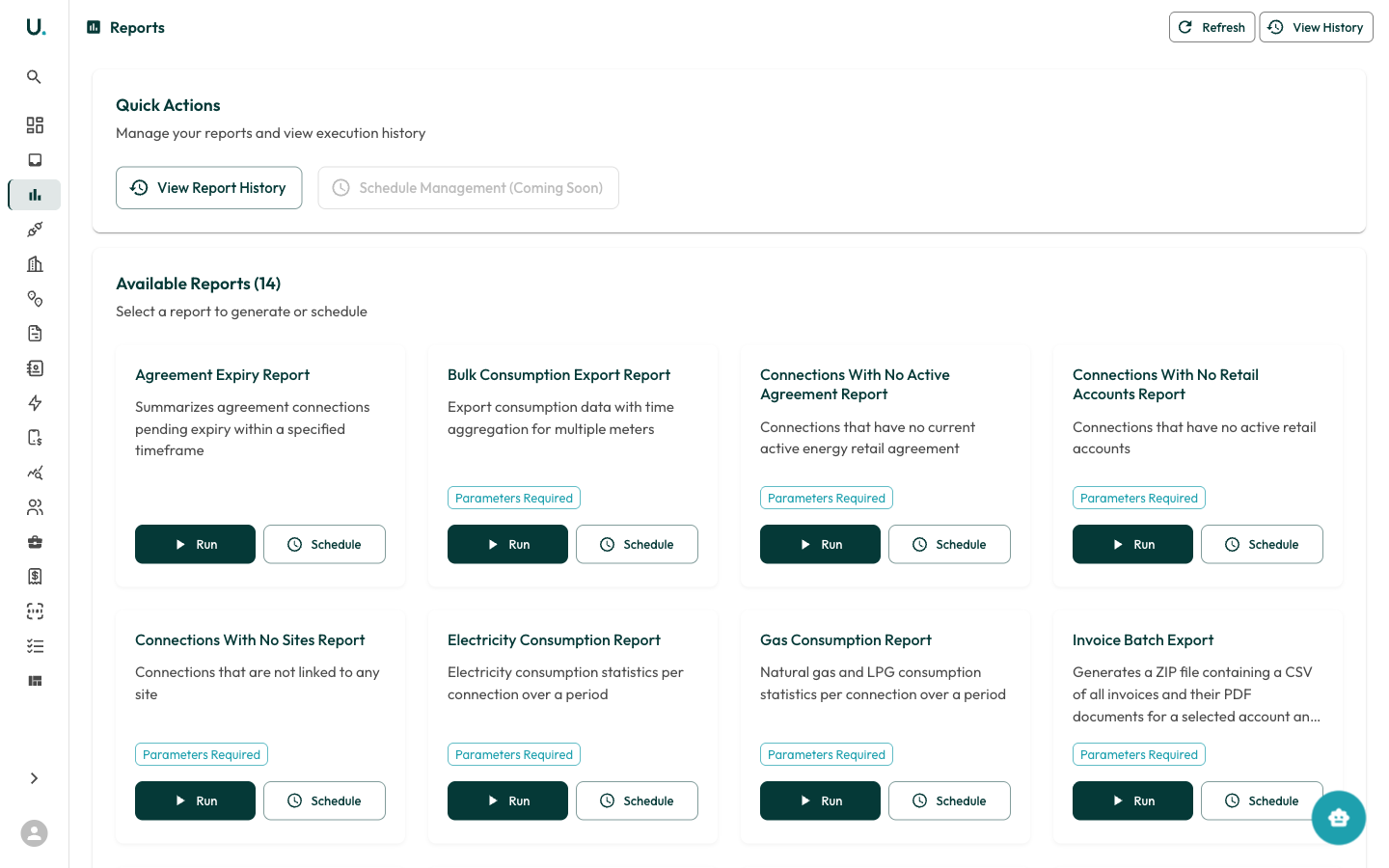
- Report name and description
- Parameters Required badge (if the report needs configuration)
- Run button — Generate the report immediately
- Schedule button — Set up recurring generation
Running a report
1
Find the report you need
Locate the report you want to run on the Reports page.
2
Click Run
Click Run on the report card.
3
Configure parameters
If the report requires parameters, a configuration form appears:
- Date range — Start and end dates for the report period
- Accounts — Filter to specific accounts
- Connections — Filter to specific meter connections
4
Generate the report
Click Generate to start the report. The report runs in the background.
5
Wait for the notification
You receive a notification when it is ready.
Downloading results
1
Open the report history
Click View Report History or the View History button in the top-right.
2
Find your report
Find your report in the history list.
3
Download the file
Click Download to get the report file (CSV or ZIP).
Available reports
Scheduling a report
1
Open the schedule dialog
Click Schedule on any report card.
2
Configure the schedule
- Frequency — How often to run (for example, weekly, monthly)
- Parameters — Pre-configure the report filters
3
Save
Scheduled reports run automatically and deliver results via notification.