

From email to invoice
1
An email arrives
A retailer sends an email to an account’s inbox address. UMS captures it and matches it to the account by the recipient. If no account matches, it is marked
Unmatched — No Account.2
It is classified
The message is tagged with an
email_type such as Invoice, Statement, Overdue Notice, or Data File. Non-invoice categories are marked Skipped — Non-Invoice Category.3
UtiliRead reads the attachments
For invoice emails, UtiliRead runs OCR over the PDF attachments to extract line items, totals, and meter data.
4
An invoice is created
A matched, extracted attachment becomes an Invoice record, ready for Validation.
The inbox list
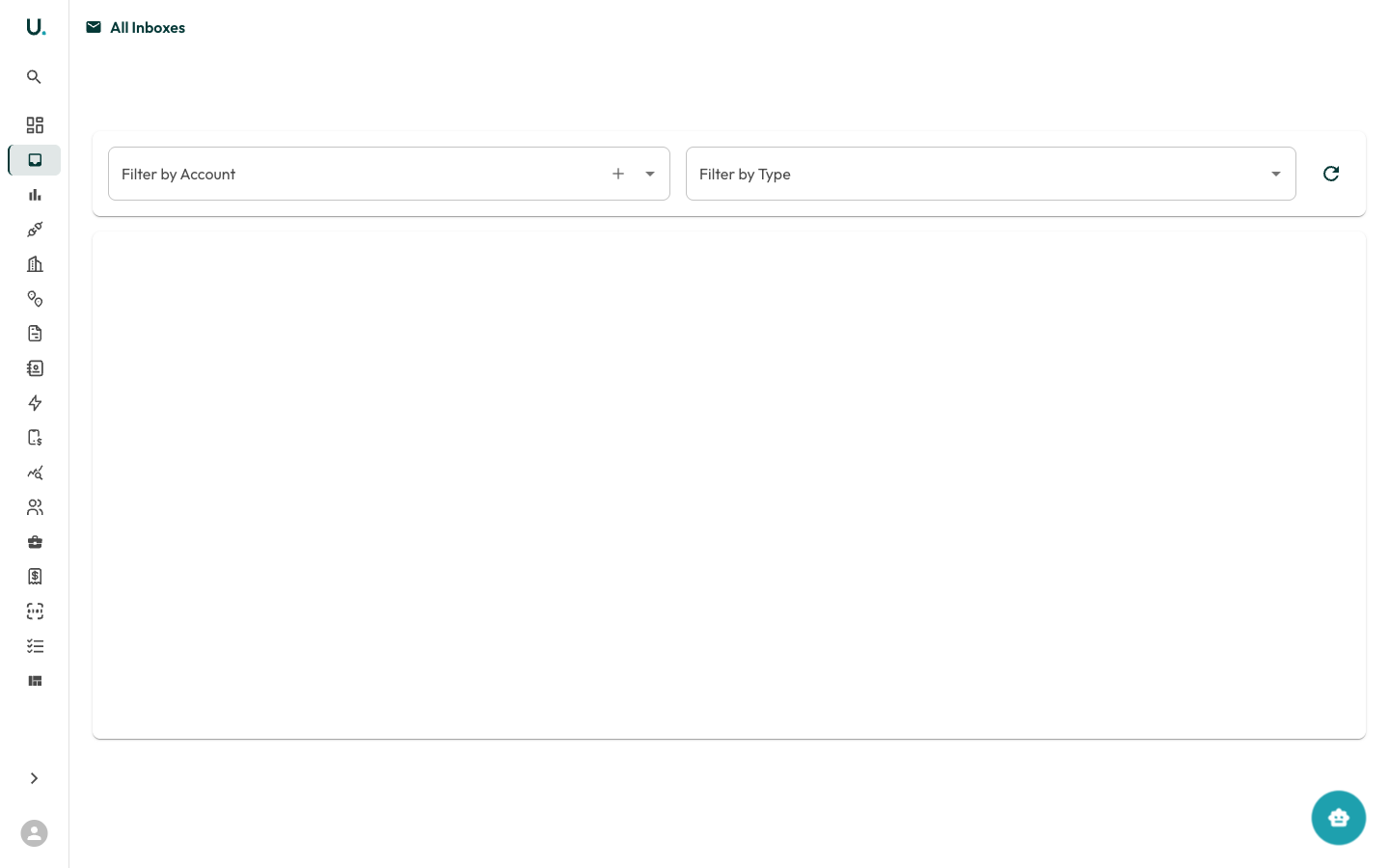
The Inbox is a split-pane review surface: a filterable list on the left, the selected message on the right. Status filter tabs group items for triage — Needs Review, Skipped, Duplicates, In Progress, Processed, Archived, and All — each with a live count. Above the list, filter by Account, Type, or a Search across subject and sender. Each row shows the subject (bold when unread), sender, the received date, an attachment icon, and chips for the message’s type, status, and pipeline outcome (for example,2 invoices, OCR failed, or OCR review). Tick the checkboxes to Exclude or Archive items in bulk. The list auto-refreshes every 30 seconds, and Load more pages through older messages.
Keyboard shortcuts speed up triage: j/k move through the list, a archives, x excludes, r reprocesses, and Enter marks an item read.
Message statuses
A message’sstatus reflects where it sits in the pipeline:
Message detail
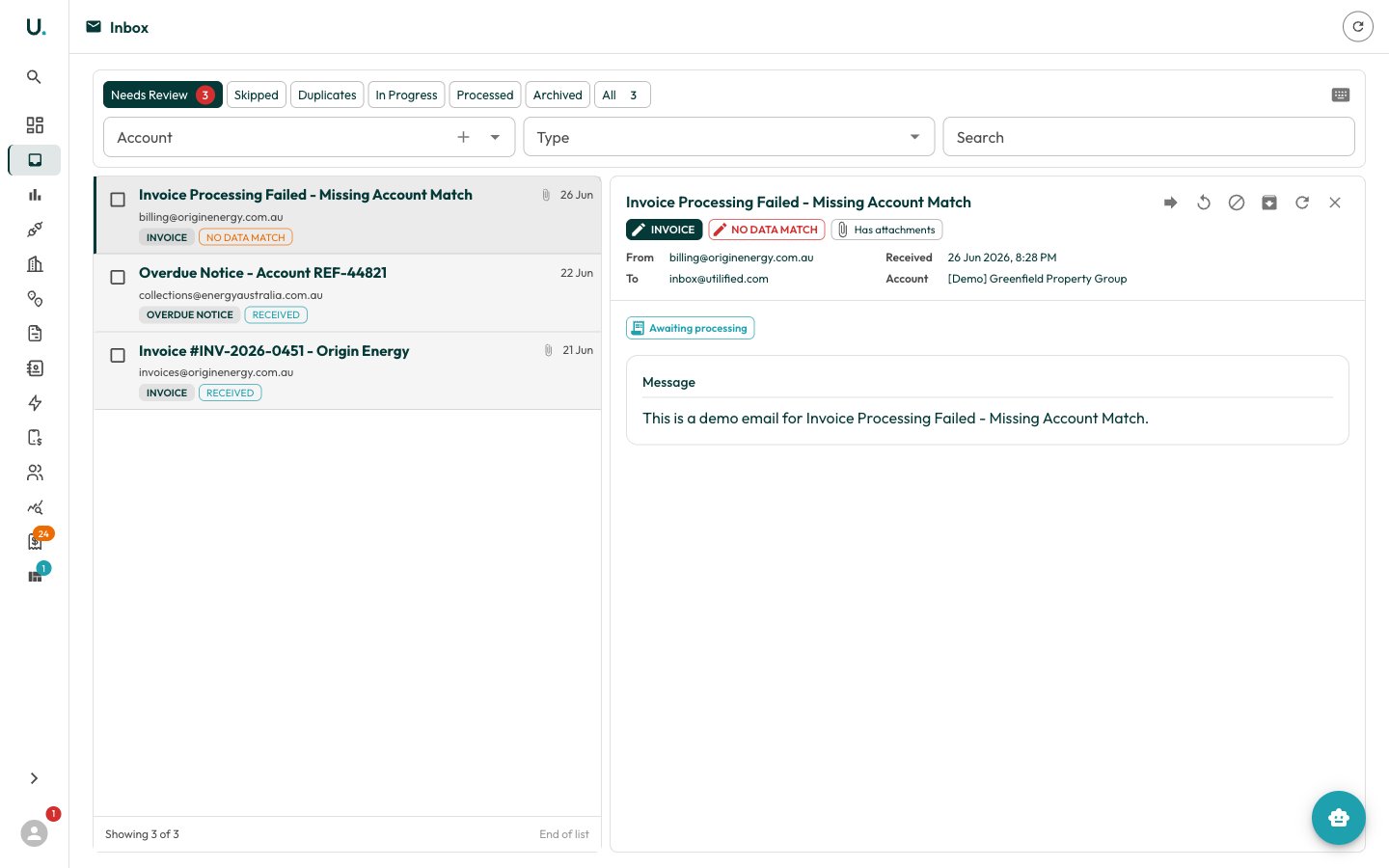
email_type) or status, or toggle Read/Unread. The context rail shows an AI Summary of the message and the OCR result, including any duplicates detected and invoices created.
Header actions let you Download all attachments, Forward the email to yourself, or Reprocess with OCR to re-run the pipeline. The three-dots menu holds Archive and Delete.
The same inbox appears as an Inbox tab on an account’s detail page (scoped to that account), and as the Inbox review tab in Validation for triaging email-sourced invoices across your portfolio.