

Validation dashboard
Navigate to Invoices from the sidebar and open the Dashboard tab.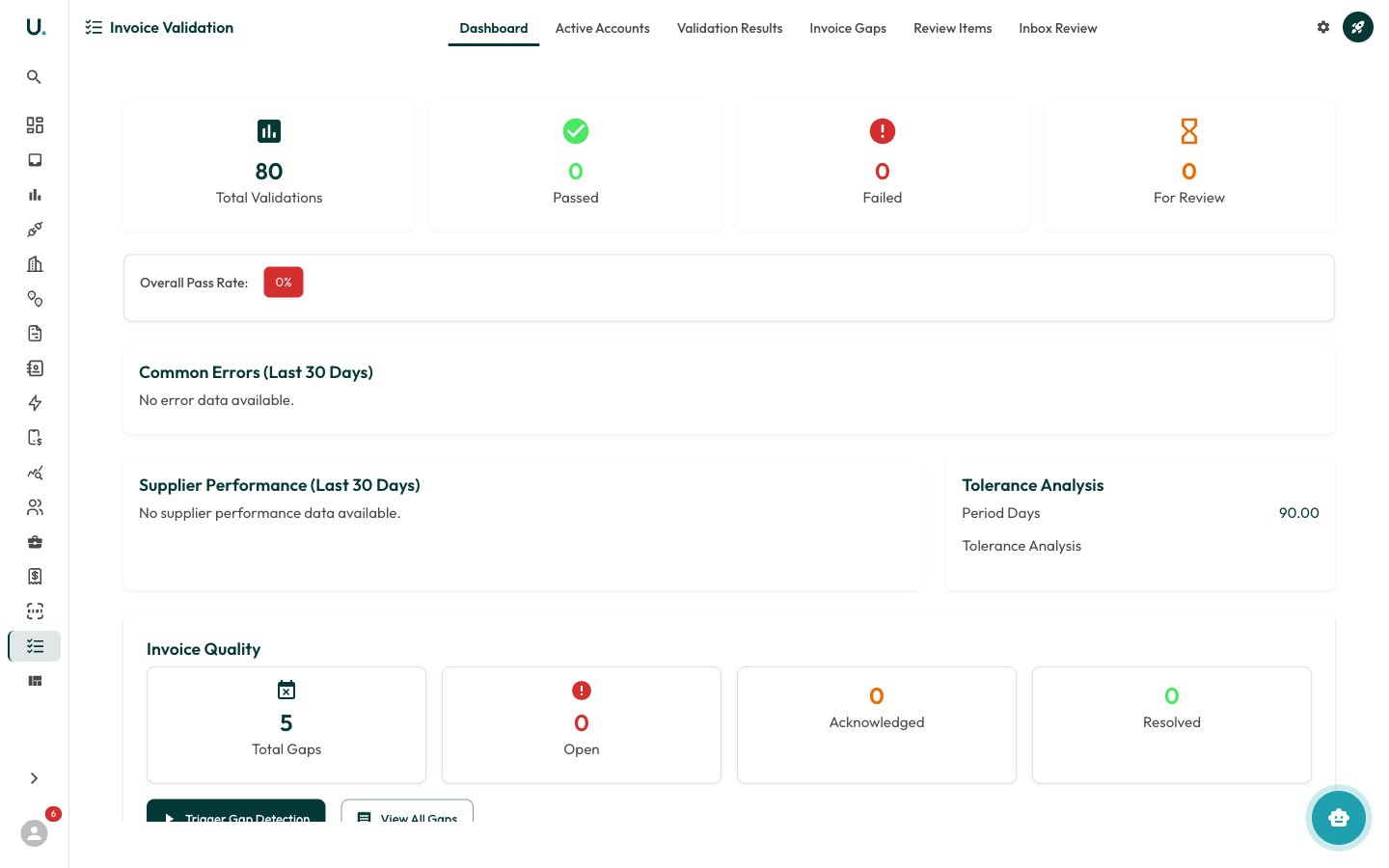
- Summary Stats — Total Validations, Passed, Failed, and For Review counts
- Overall Pass Rate — Percentage of invoices passing all checks
- Common Errors — Most frequent validation failures (last 30 days)
- Supplier Performance — How suppliers compare on validation quality
- Invoice Quality — Gap detection results (Total Gaps, Open, Acknowledged, Resolved)
Running validation on an invoice
1
Open an invoice
Open an invoice detail page.
2
Start validation
Click the Validate button in the header.
3
The engine runs its checks
The validation engine checks:
- Amount accuracy — Do line item totals match the invoice total?
- Date consistency — Are billing periods correct and non-overlapping?
- Connection matching — Are charges linked to valid connections?
- Rate verification — Do rates match the expected tariff?
- Duplicate detection — Is this invoice a duplicate of an existing one?
4
Review the results
Results appear in the invoice’s Review tab and the Invoices module’s Review tab.
Validation results
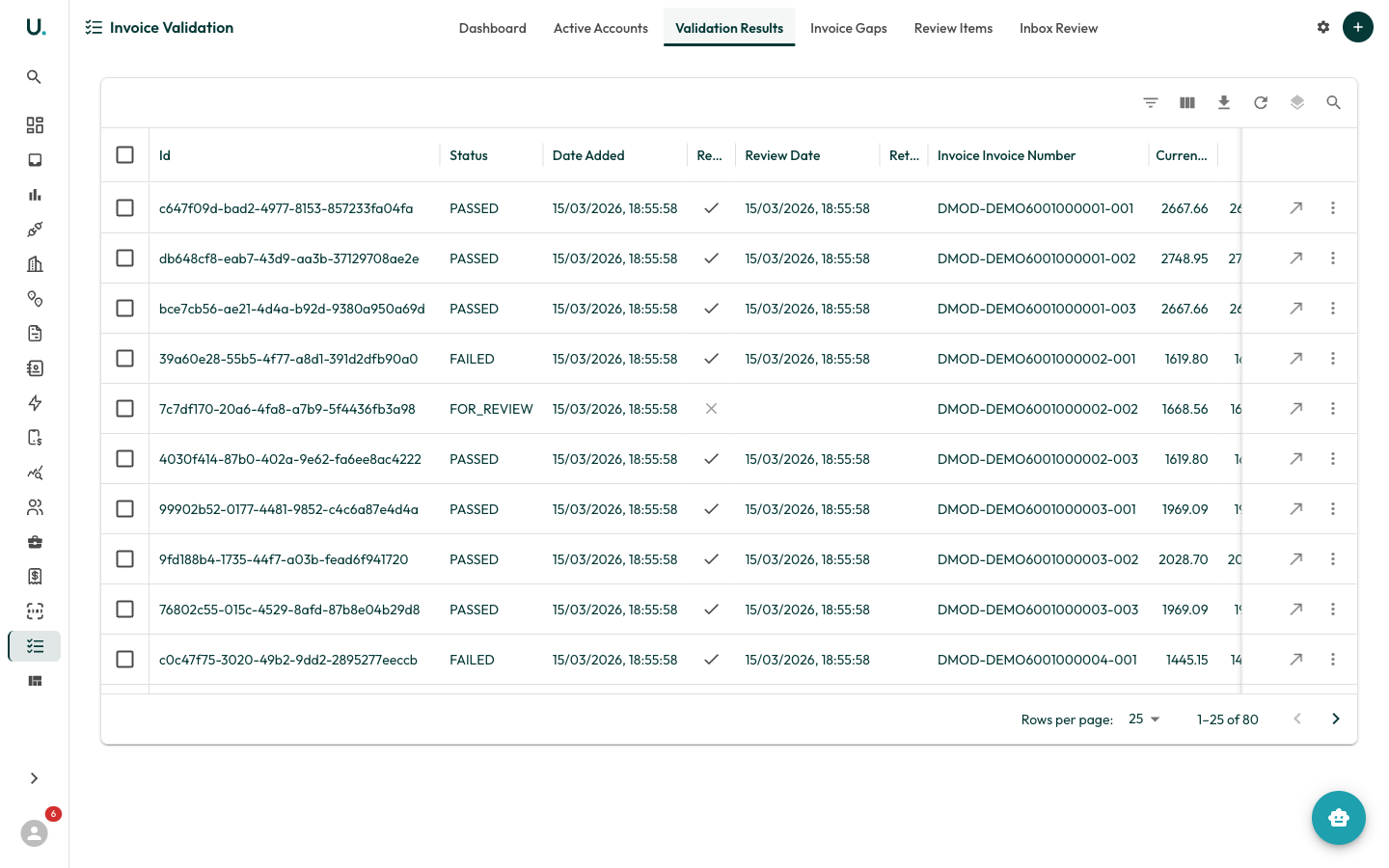
- Status — PASSED, FAILED, or FOR_REVIEW
- Current Charges and Tax amounts
- Confidence Score — System confidence in the result (0-1 scale)
- Error Source — What caused the failure (for example, TARIFF_MISMATCH, QUANTITY_CALCULATION)
Completing a review
1
Find items needing attention
Find invoices with status FOR_REVIEW or FAILED.
2
Open the validation detail
Click See Details to open the validation detail.
3
Review the variance breakdown
Review the variance breakdown showing where charges diverge from expected tariff rates.
4
Check the AI analysis
Check the AI Analysis section for automated insights and recommendations.
5
Take action
- Approve — Mark as reviewed and accept the charges.
- Reject — Flag for further investigation.
- Edit — Open the source invoice to correct line items.
Review items
The Review Items tab consolidates all issues across the validation pipeline.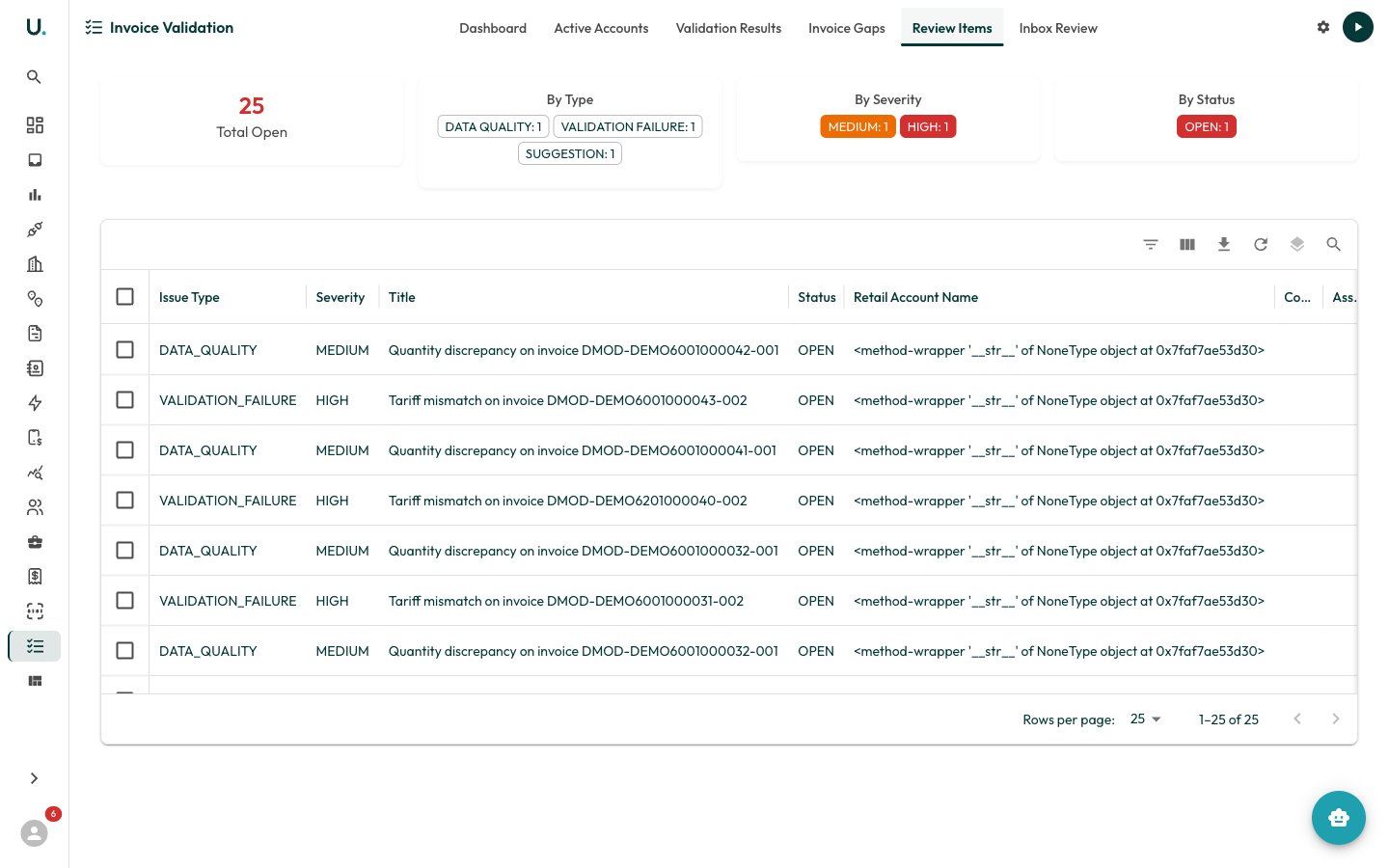
- Issue Type — VALIDATION_FAILURE, DATA_QUALITY, DUPLICATE_INVOICE, GAP, SUGGESTION
- Severity — CRITICAL, HIGH, MEDIUM, LOW, INFO
- Status — OPEN, ACKNOWLEDGED, IN_PROGRESS, RESOLVED, DISMISSED
- Title — Human-readable summary of the issue
- Variance — Dollar amount and percentage difference detected
- Recommendations — Suggested actions to resolve
Working through review items
1
Filter by severity
Filter by severity — start with CRITICAL and HIGH.
2
Open a review item
Click into a review item for full details.
3
Review the description and recommendations
Review the description and recommendations.
4
Take action
- Acknowledge — You have seen it, but it needs further work.
- Resolve — Mark as fixed with resolution notes and action taken.
- Dismiss — Not a real issue; dismiss with a reason.
- Assign — Delegate to another team member with a due date.
Invoice gap detection
Invoice gaps are periods where an expected invoice is missing.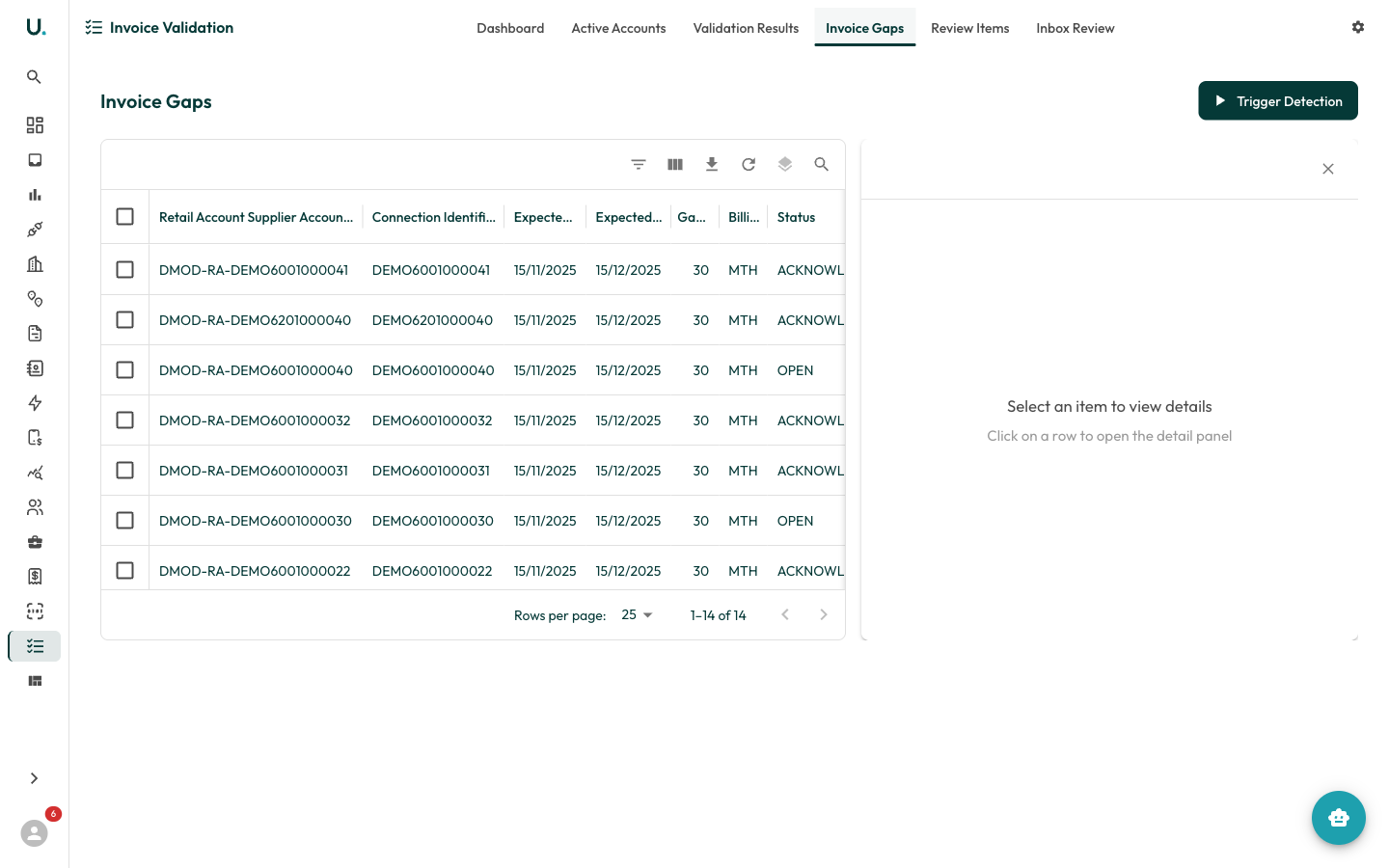
Triggering gap detection
1
Open the Validation Dashboard
Navigate to the Validation Dashboard.
2
Trigger gap detection
Click Trigger Gap Detection at the bottom of the Invoice Quality section.
3
The system analyses connections
The system analyses all connections and identifies missing billing periods.
4
Review the results
Results appear in the Invoice Gaps tab.
- Open — Not yet addressed
- Acknowledged — Noted but awaiting supplier response
- Resolved — Invoice received or gap explained
Inbox review
The Inbox Review tab manages email-sourced invoices within the validation workflow.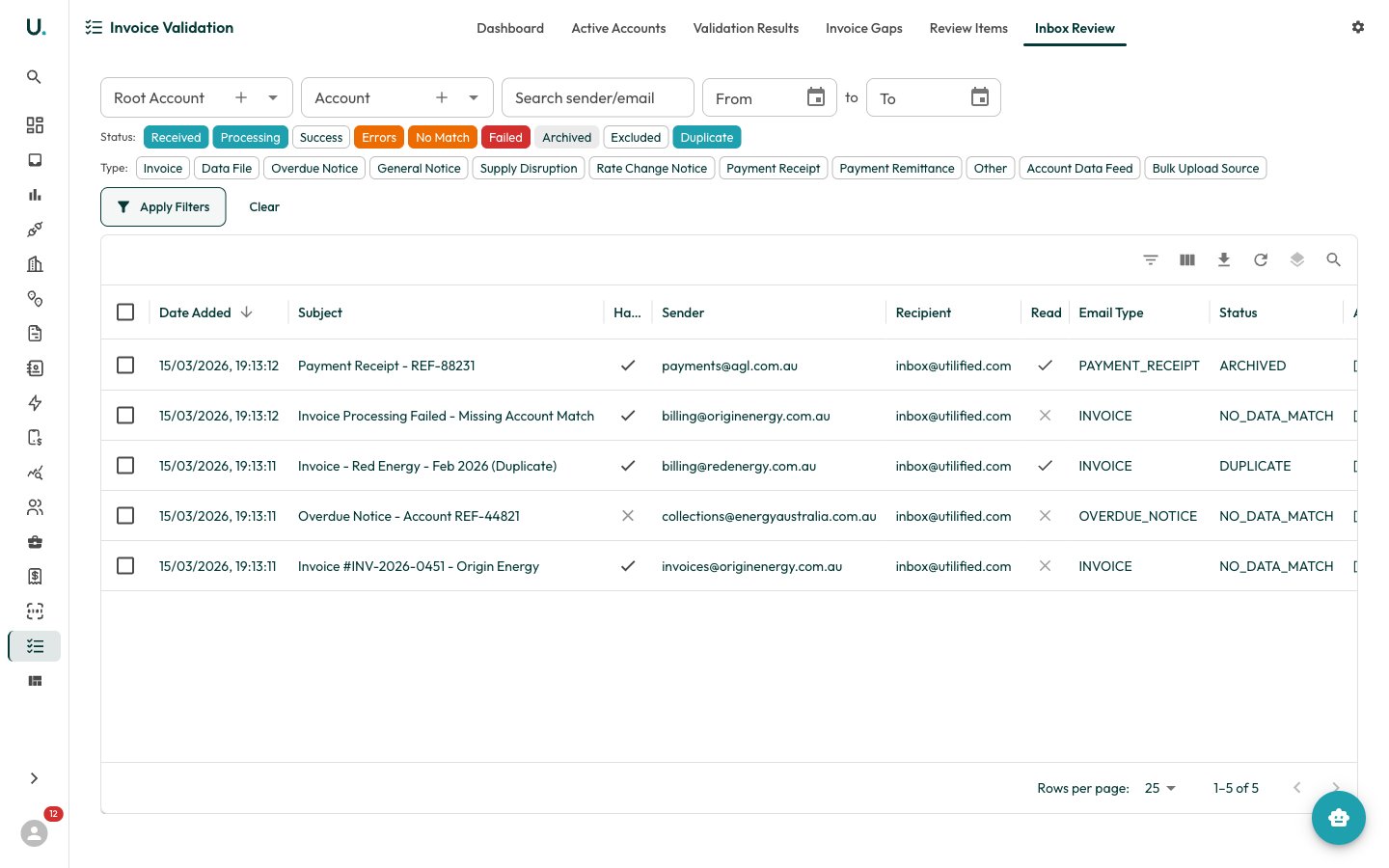
Filtering inbox items
The data grid shows inbox items with columns for Date Added, Subject, Has Attachments, Sender, Recipient, Read status, Email Type, Status, and Account Name. By default, only items matching the active status filters are shown — click Clear, then Apply Filters, to see all items regardless of status. The Inbox Review provides filtering by:- Root Account / Account — Narrow to specific accounts.
- Search — Find by sender or email subject.
- Date Range — Filter by received date.
- Status chips:
- Received — New, unprocessed emails
- Processing — Currently being processed by UtiliRead
- Success — Successfully processed into invoices
- Errors — Processed with some errors
- Unmatched — No Account — The inbound email’s recipient could not be matched to any account
- No Data Match — An account was matched, but the data could not be linked to a specific meter or connection
- Skipped — Non-Invoice Category — The classifier tagged the email as a non-invoice type (for example, marketing or rate-change notice) and skipped invoice processing
- Failed — Processing failed completely
- Archived — Manually archived
- Excluded — Deliberately excluded from processing
- Duplicate — Detected as a duplicate
- Type chips — Invoice, Data File, Overdue Notice, Rate Change Notice, Payment Receipt, and so on.
Unmatched and Skipped are backend-assigned triage states. They appear as filter chips and status labels in the grid, but you cannot move an email into them from the status dropdown — you only move emails out of them by re-matching the account or reclassifying the email type and reprocessing.
Reviewing an inbox item
Click any row in the grid to open the detail panel on the right side.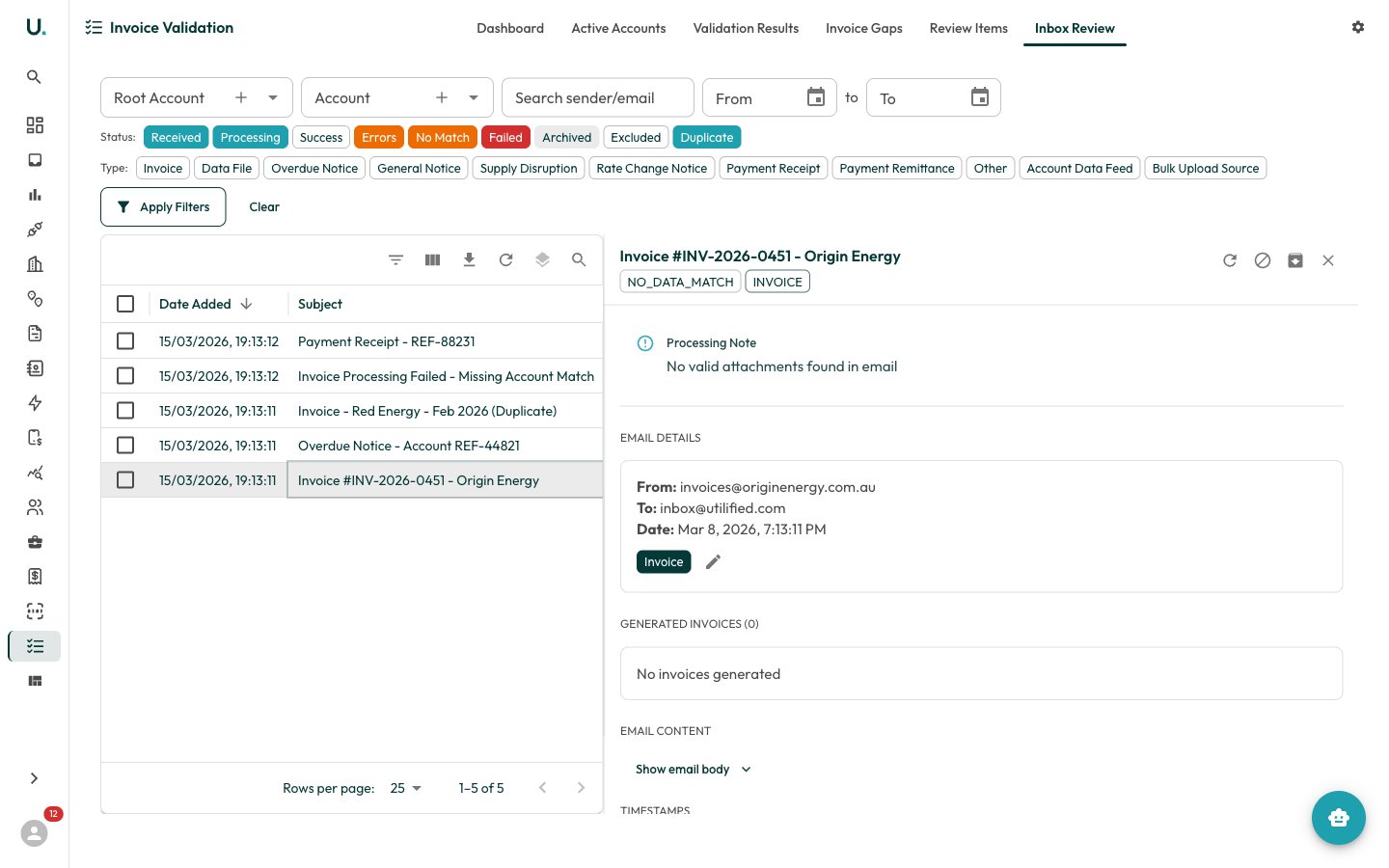
- Subject and status badges — The email subject with status (for example, NO_DATA_MATCH) and type (for example, INVOICE) badges
- Processing Note — Any notes from automated processing (for example, “No valid attachments found in email”)
- Email Details — From address, To address, received date, and email type, with an edit button to reclassify
- Generated Invoices — Any invoices created from this email. Shows count and links to the invoice detail pages
- Email Content — Expandable section to view the full email body
- Timestamps — When the email was received and processed
- Refresh — Reprocess the email.
- Exclude — Mark the item as excluded from processing.
- Process — Send to UtiliRead for OCR processing.
- Close — Close the detail panel.
Processing an inbox email
1
Open the detail panel
Click the email row to open the detail panel.
2
Review the email
Review the email details and content.
3
Send to UtiliRead
Click the Process button (cloud icon) to send the attachment to UtiliRead (OCR).
4
The system extracts the data
The system extracts invoice data, identifies the supplier and account, creates an invoice record, and links it to the correct connection.
5
Confirm the generated invoice
The Generated Invoices section updates with a link to the new invoice.
6
Continue through the pipeline
The processed invoice then flows through the validation pipeline.
Excluding invoices
To exclude an inbox item from processing:1
Open the detail panel
Click the item to open the detail panel.
2
Exclude the item
Click the Exclude button (circle with line icon) in the top-right action buttons.
3
Confirm the new status
The status changes to Excluded and the item will no longer be processed.
4
Find excluded items later
Excluded items remain visible when the Excluded filter chip is active.
- Duplicate emails that should not create new invoices
- Non-invoice communications (account notices, marketing)
- Items already processed through another channel
- Test or spam emails