

/settings.
Profile
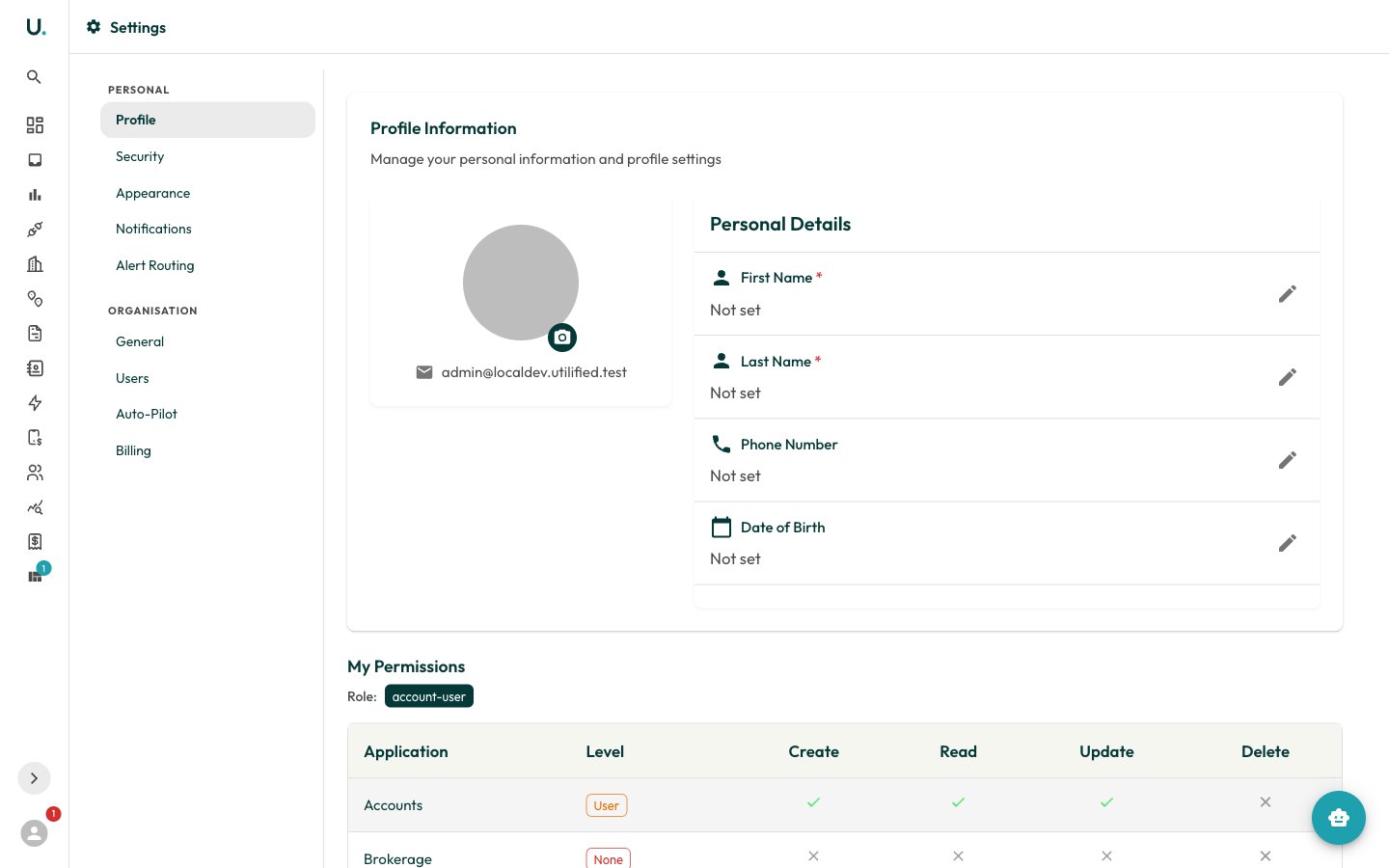
The Profile section manages your personal details and profile picture.- Profile picture — Click the camera badge on your avatar to upload an image. Files must be a valid image type and under 5 MB.
- Personal details — Each field has a pencil icon to edit inline; click the save icon to confirm or cancel to discard:
first_nameandlast_name— required, up to 150 characters.phone_number— optional.date_of_birth— optional.
email is shown alongside your avatar but is not editable here. Below the form, My Permissions displays a read-only matrix of what your access group can create, read, update, and delete across each application.
Security
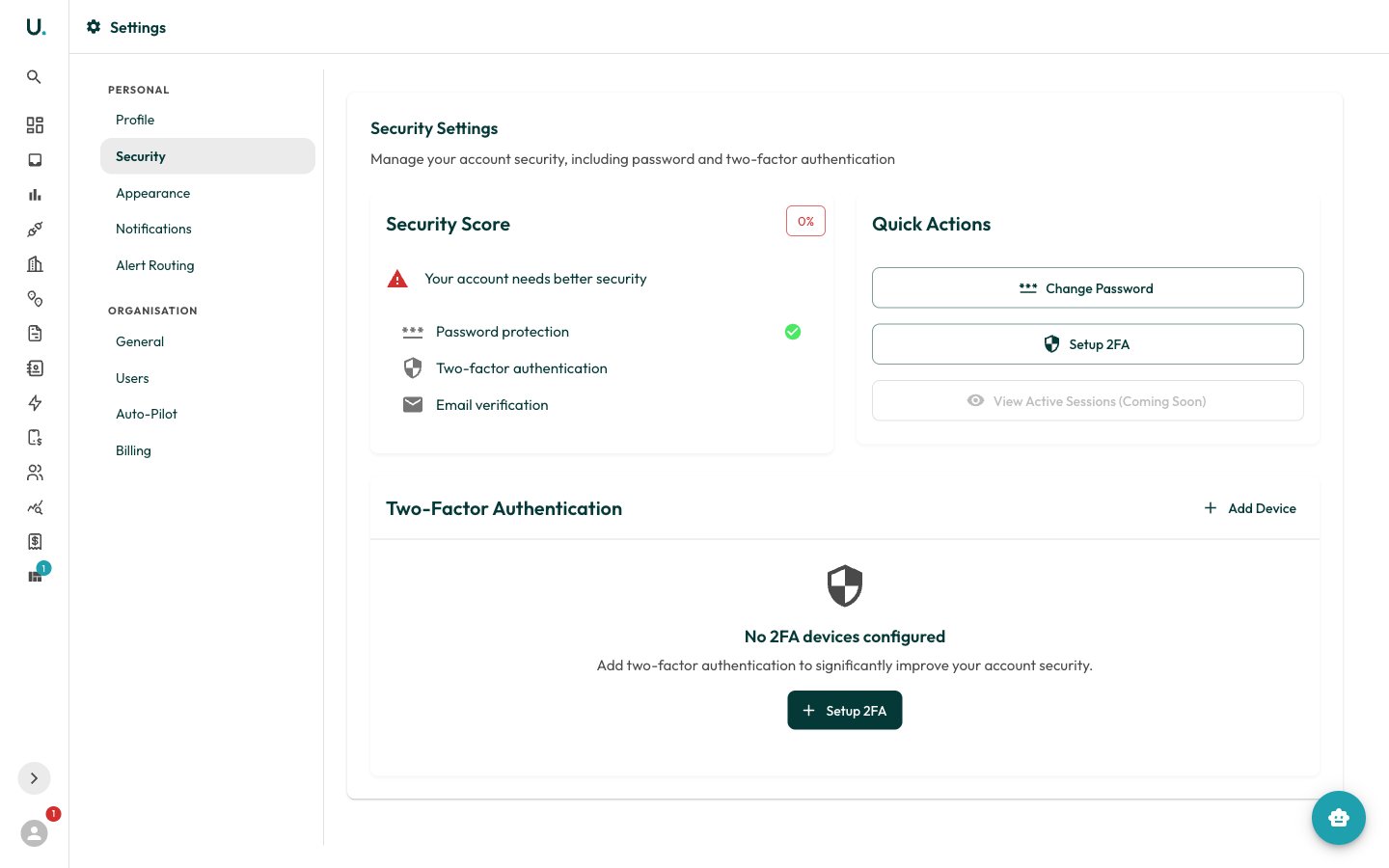
The Security section manages your password and two-factor authentication (2FA). A Security Score at the top reflects which protections you have enabled.- Change Password — Enter your Current Password, then a New Password (at least 8 characters, and different from the current one) and confirm it.
- Two-Factor Authentication — Add one or more methods: Authenticator App (recommended), Email Verification, or Backup Codes. Each active method is listed as a device you can remove (password required) or, for backup codes, regenerate.
Enable two-factor authentication
1
Open the 2FA setup
Click Setup 2FA or Add Device in the Two-Factor Authentication card.
2
Choose a method
Select Authenticator App, Email Verification, or Backup Codes, then click Continue.
3
Configure the authenticator
For an authenticator app, scan the displayed QR code with your app (for example Google Authenticator or Authy), then enter the 6-digit code it generates. For email, click Send Verification Email and enter the code sent to your inbox.
4
Complete setup
Click Verify & Complete. The new method then appears in your list of active 2FA devices.
Regenerating backup codes invalidates your existing codes. Save the new codes somewhere secure — they are shown only once.
Appearance
The Appearance section controls the application theme for your device. Choose a Theme Mode:- System — Follow your operating system’s light or dark setting.
- Light — Always use the light theme.
- Dark — Always use the dark theme.
Notifications
The Notifications section manages your notification preferences. This is distinct from the in-app Notifications drawer, which lists the messages you have received — see Notifications for that.- Browser Notifications — Enable real-time browser notifications, and use the test button to confirm they work.
- Notification Overview — See your unread count, notifications from the last 24 hours, and browser-notification status, with a Mark All as Read action.
- Priority Breakdown — A count of notifications by Urgent, High, Normal, and Low priority.
- Notification Subscriptions — Toggle a switch for each subscribable notification type to opt in or out. Subscriptions are delivered both by email and in-app.
Alert Routing
The Alert Routing section defines rules that forward incoming alerts and notifications to specific contacts based on event type and filters. Existing rules are listed in a table showing each rule’s Name, Account, Event Type, Enabled state, recipient count, and filter summary.Create a routing rule
Click Create Rule and complete:- Name — required.
- Account — scope the rule to a single account, or leave as All accounts (org-wide).
- Event Type — required; the event that triggers the rule.
- Enabled — toggle the rule on or off.
- Filter Criteria — narrow which messages match:
- Email Types — one or more types (for example
INVOICE,OVERDUE_NOTICE,RATE_CHANGE_NOTICE). - Sender Contains — comma-separated patterns matched against the sender (for example
origin.com.au, agl.com.au). - Subject Contains — comma-separated patterns matched against the subject (for example
overdue, reminder).
- Email Types — one or more types (for example