

1
Open the create drawer
Navigate to the Accounts page from the sidebar and click the + button in the top-right corner.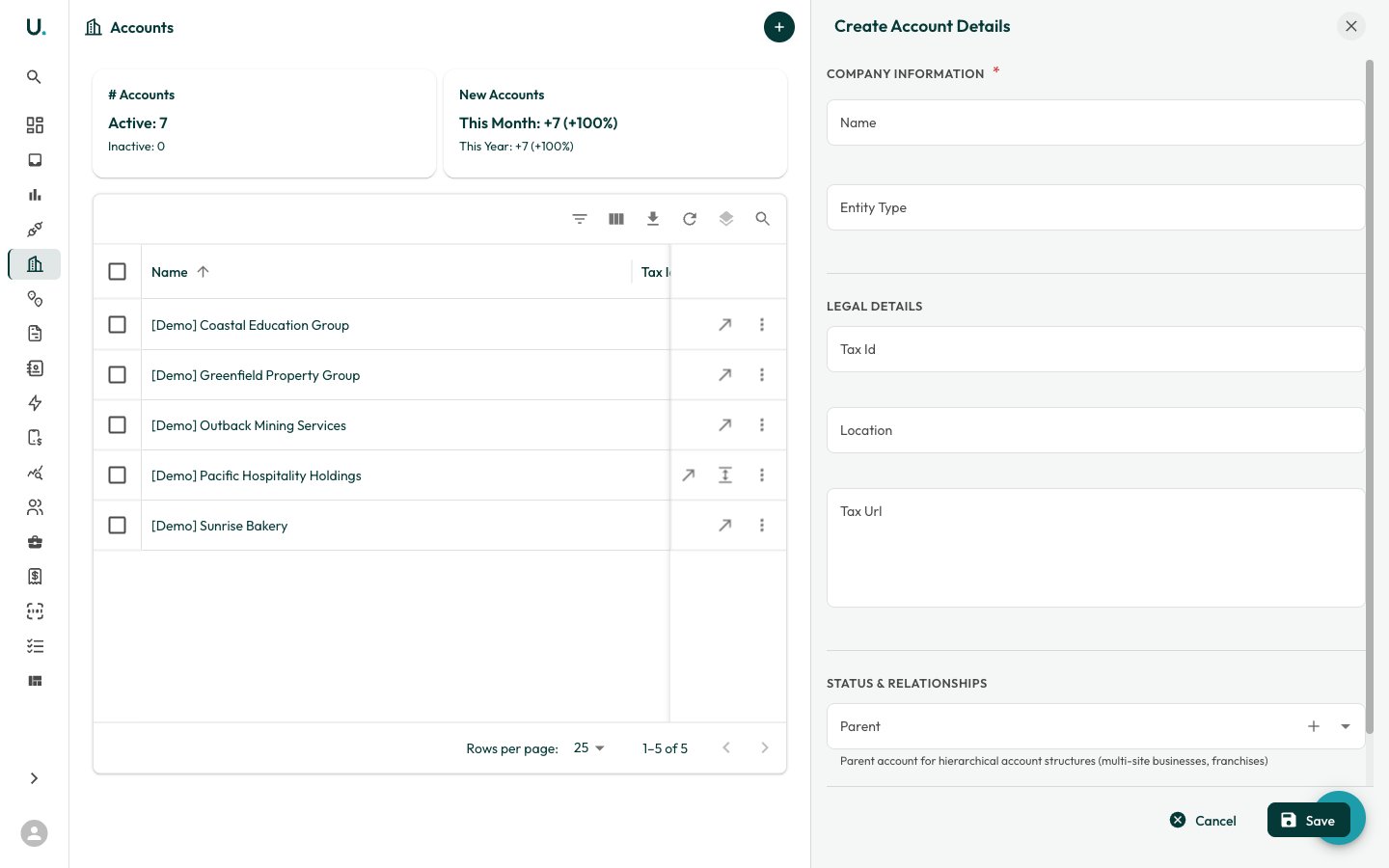
2
Fill in company information
The create drawer opens with the following sections:
Company information (required)
- Name — Enter the business name. This field supports autocomplete to help you avoid duplicates.
- Entity Type — Select the legal entity type (for example, Australian Private Company, Strata-title, Other Partnership).
Legal details
- Tax Id — Enter the ABN or ACN (format: 11 111 111 111).
- Location — Country code (for example, AU).
- Tax Url — Link to the ABR entry for verification.
Status and relationships
- Parent — Optionally link this account to a parent account for hierarchical structures (for example, franchises or multi-site businesses). Use the Quick Add button to create a parent account on the fly.
3
Save
Click Save to create the account. You are taken to the new account’s detail page, where you can add sites, connections, and agreements.
After creating an account
Once created, you should:1
Add sites
Navigate to the Sites tab and add physical locations.
2
Add connections
Link electricity, gas, or water meter connections to each site.
3
Create agreements
Set up energy agreements with suppliers. See Managing Agreements for details.
4
Link retail accounts
Associate retailer account references for invoice matching.