

Viewing agreement details
Click See Details on any agreement to open the detail page.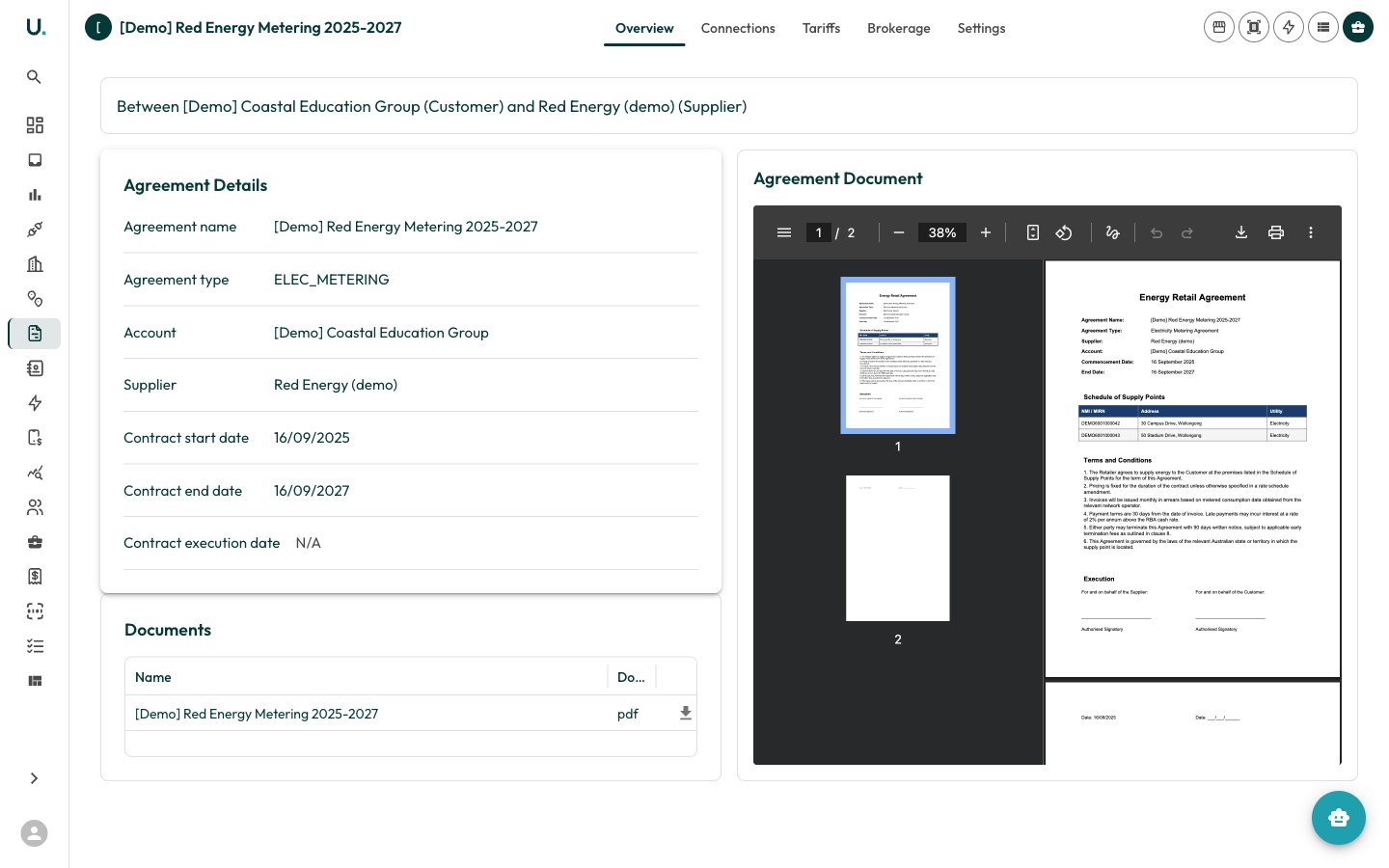
- Overview — Agreement summary, dates, supplier, and key details
- Connections — Connections covered by this agreement
- Tariffs — Tariff structures and rates for this agreement
- Brokerage — Brokerage records linked to this agreement
- Settings — Agreement-specific settings
Managing connections
The Connections tab shows which meter connections are covered by this agreement.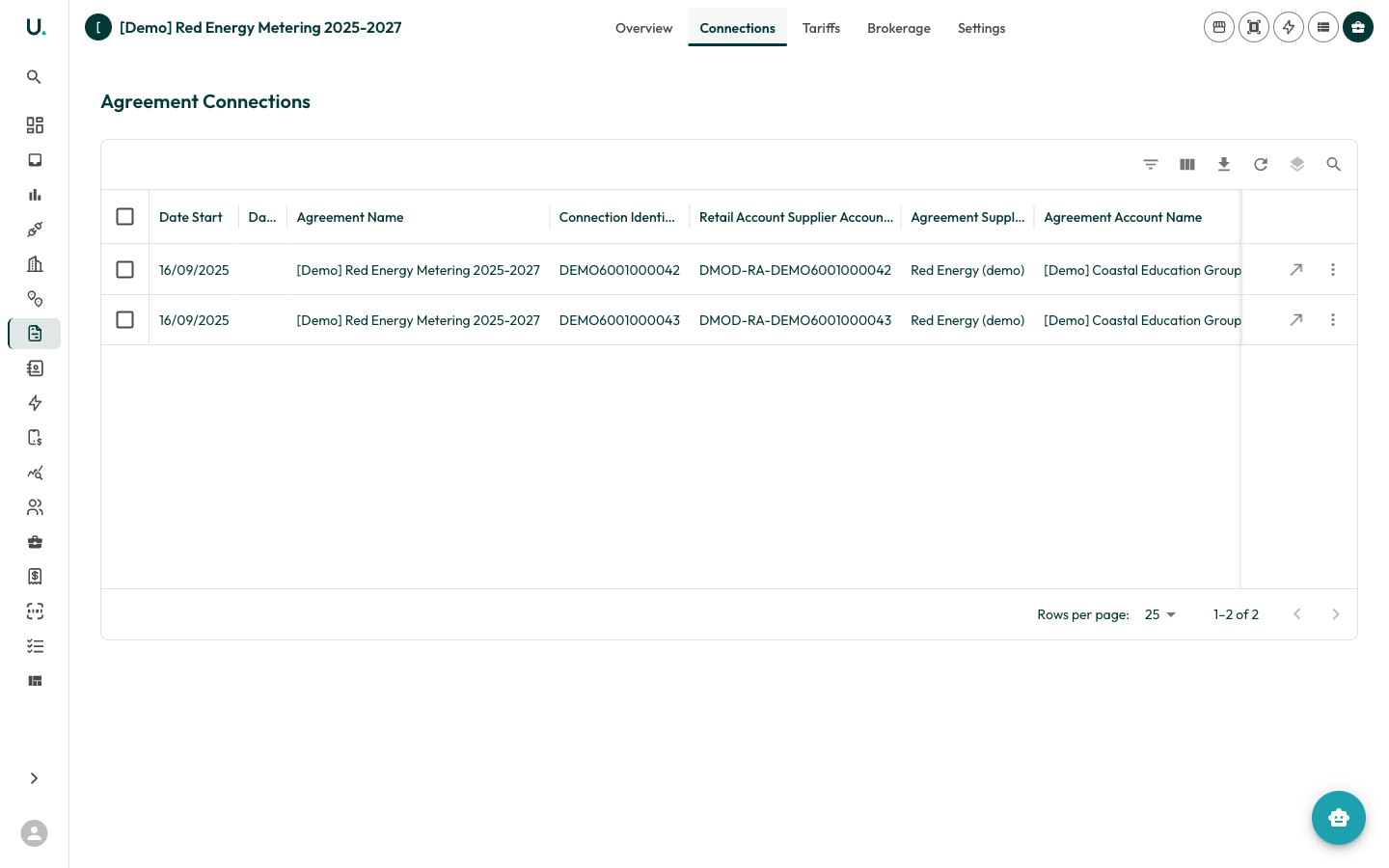
Adding connections
You can add connections individually or in bulk:- Individual — Click Add a Connection and search for the connection identifier (NMI, MIRN).
- Bulk — Click Bulk Add Connections to open the wizard, where you can:
- Enter connection identifiers manually
- Upload a CSV file with identifiers
- Paste identifiers from a spreadsheet
- Set effective dates for all connections at once
Managing tariffs
The Tariffs tab shows tariff structures linked to this agreement.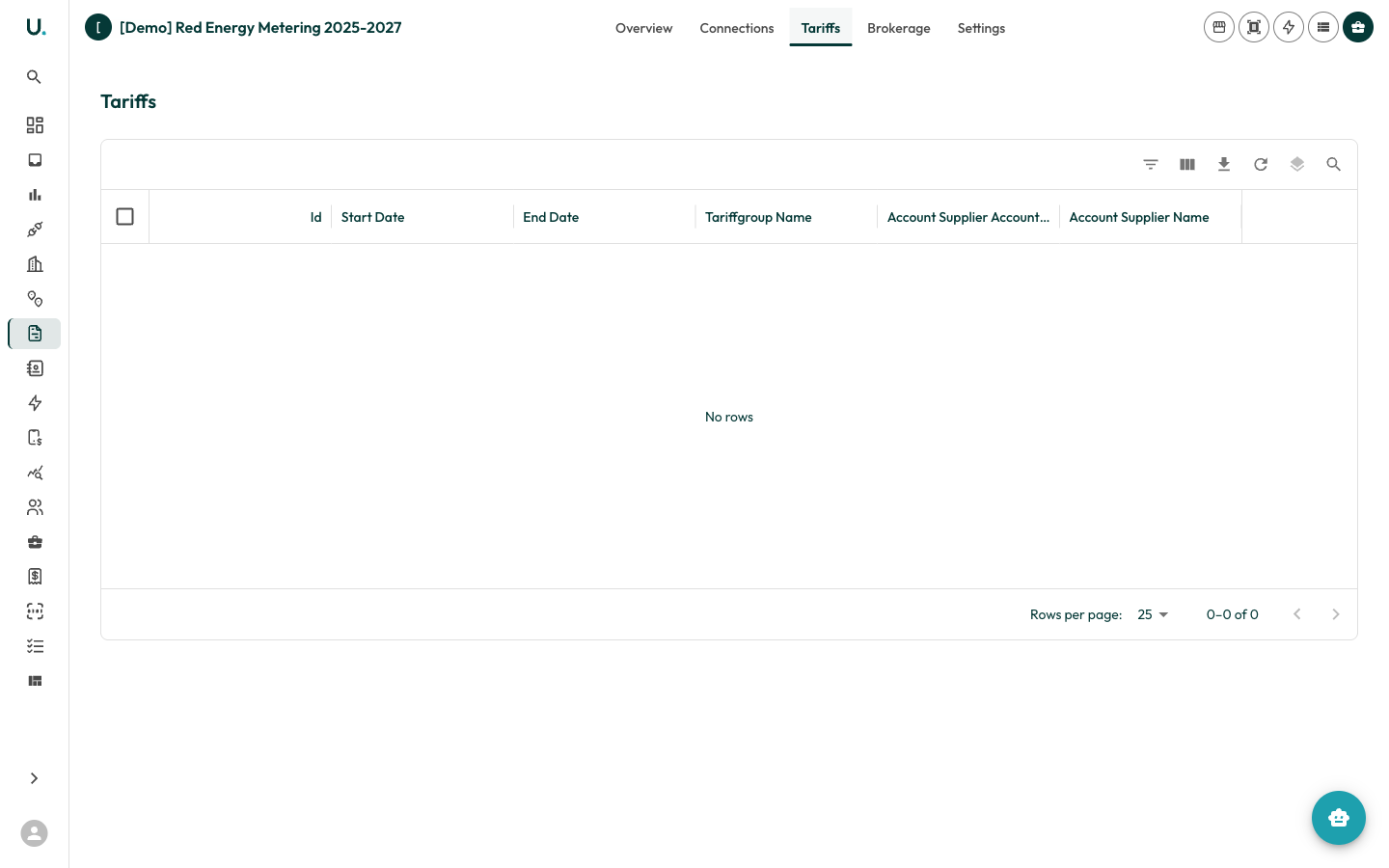
Creating a new agreement
1
Open the Agreements page
Navigate to the Agreements page.
2
Open the create drawer
Click the + button in the top-right corner.
3
Fill in the agreement details
- Name — Descriptive name for the agreement
- Type — ELEC_RETAIL, ELEC_METERING, NGAS_RETAIL, and so on
- Account — The account this agreement belongs to
- Supplier — The energy retailer or metering provider
- Date Start / Date End — Contract period
4
Save
Click Save.
5
Complete the setup
Add connections and tariffs to complete the setup.