

How tariffs are structured
UMS models pricing in three nested layers:
Each rate can carry rate quantities — the applicable factors or consumption blocks that govern when the rate applies. See Key Concepts for where tariffs sit in the wider data model.
Tariffs list
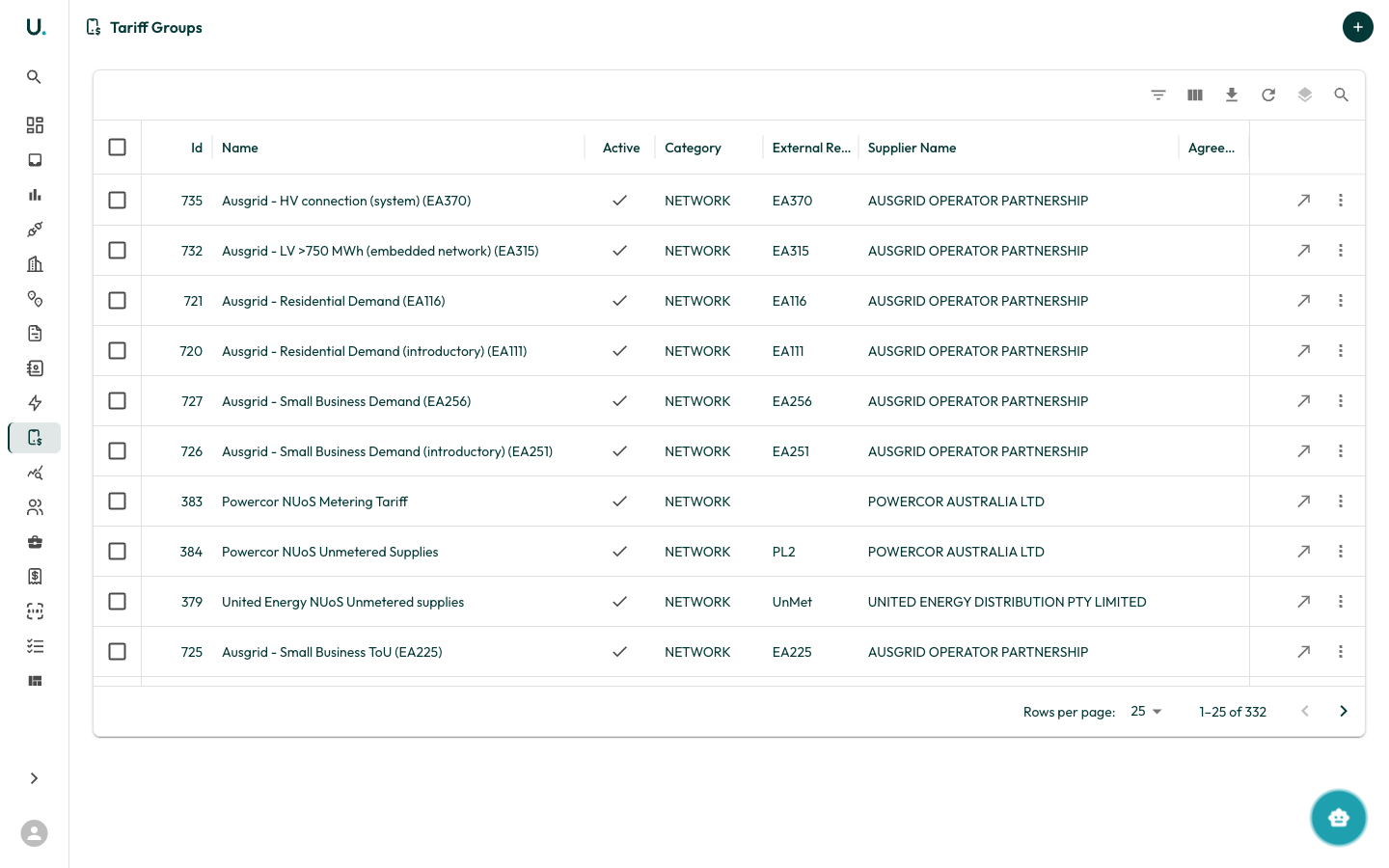
The Tariff Groups page displays every tariff group in your organisation in a data grid:
The toolbar provides filtering, column visibility, export, density, and quick-search, matching the other list pages. Click New Tariff Group (the + action) to launch the Tariff Creation Wizard.
Tariff detail page
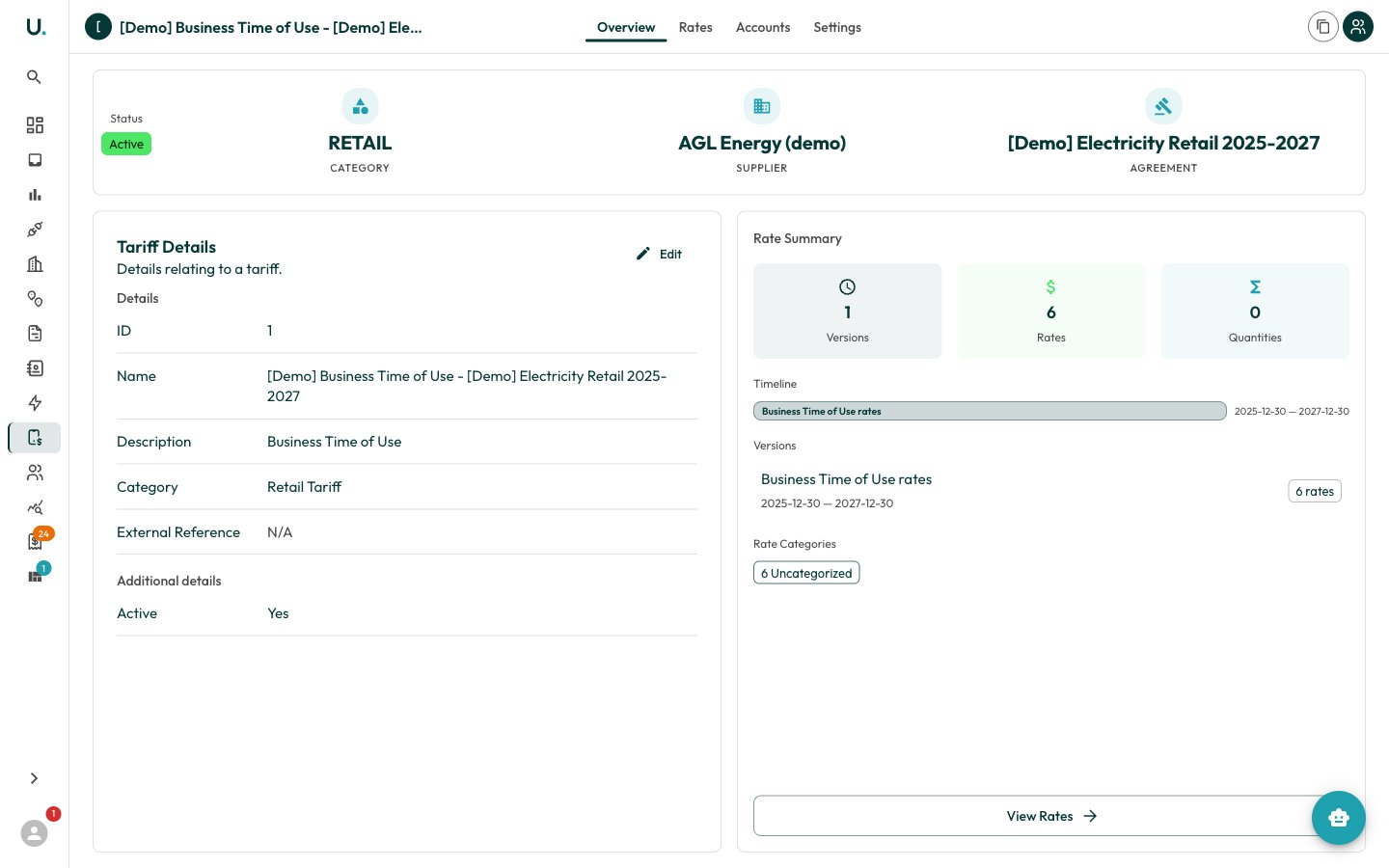
The header offers two actions: Duplicate (clone the group with all of its rates) and Add to Retail Account (create a tariff assignment).
Rates tab
The Rates tab toggles between a Tree view (rates grouped under their version) and a Table view with columns fordescription, category, value, display_units, and tax_applicable. Two controls drive it:
- New Version — create a date-scoped tariff version (
description,start_date, optionalend_date) so rates can change over time. A group must have at least one version before rates can be added. - Add Rate — add an individual rate component to the current version.
Tariff assignments
A tariff assignment links a tariff group to a retailer’s retail account for a date range, so incoming invoices are validated against the correct rates. Each assignment records thetariffgroup, account (retail account), start_date, and end_date, and can be edited or removed from the assignment detail page.
Tariff reviews and scenarios
Comparing tariffs against actual or modelled consumption now lives under Scenarios — the tariff review routes redirect there. Use scenarios to model expected costs across rate plans before committing. See Building Scenarios for the workflow.Accurate tariffs are essential for invoice validation and brokerage calculations — keep versions and effective dates current as retailers re-price.