

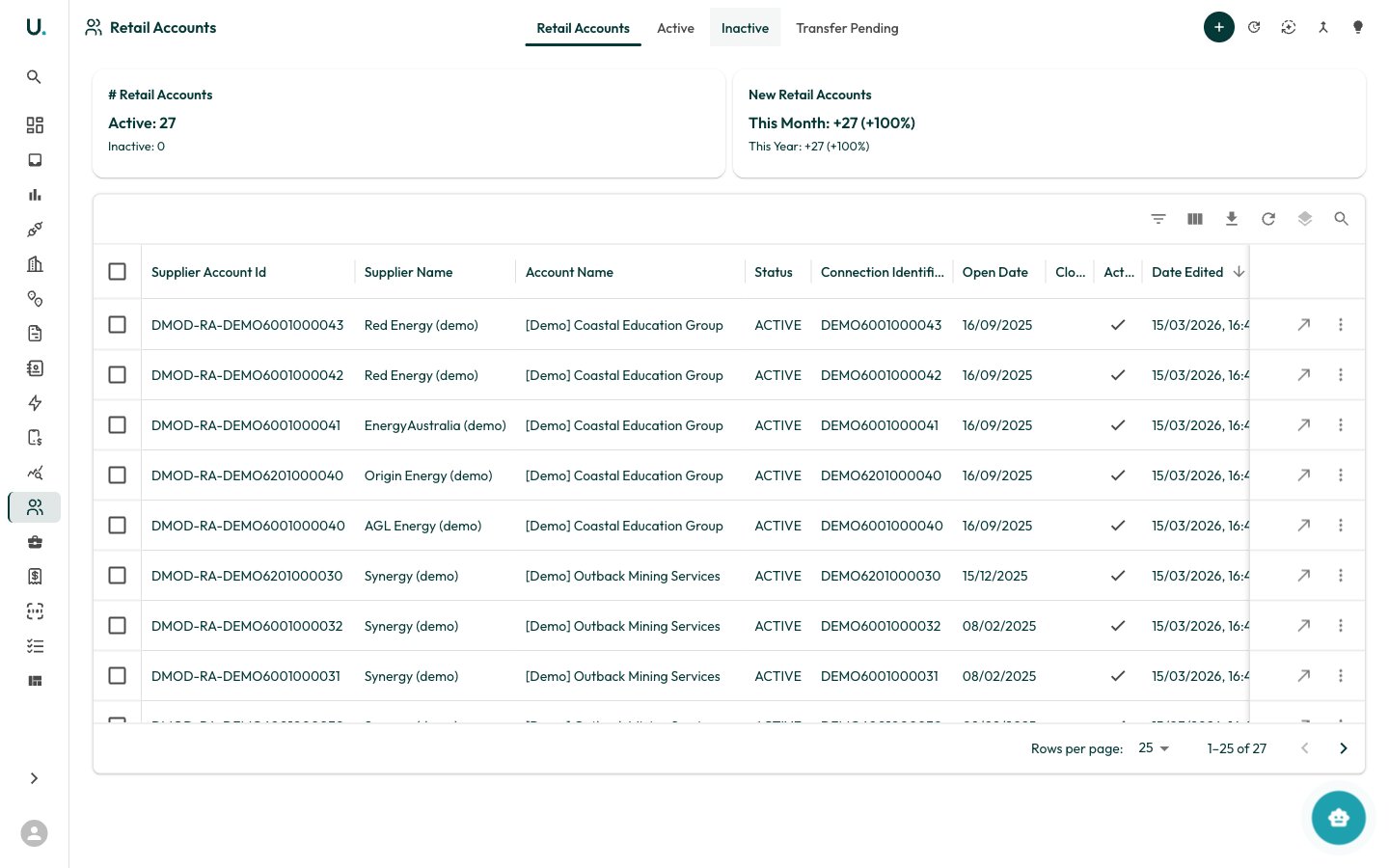
Retail accounts list
The Retail Accounts page displays all retail account references in your organisation in a data grid. Tabs across the top filter the list:- Retail Accounts — All active retail accounts
- Active — Status
ACTIVEonly - Inactive — Status
INACTIVEonly - Transfer Pending — Accounts in transition (
PENDING_ACTIVE,PENDING_INACTIVE, orDRAFT)
Status meanings
Toolbar actions
The header provides:- New Retail Account (+) — Open a drawer to create a retail account
- Update from CSV — Bulk-update existing retail accounts from a spreadsheet
- Generate Retail Accounts — Auto-generate accounts from existing connection data
- Merge Retail Accounts — Combine duplicate accounts (see below)
- Merge Recommendations — Review system-suggested merges of likely-duplicate accounts
Creating a retail account
Click New Retail Account to open a drawer. You supply the retailer reference (supplier_account_id), and link the Supplier, Account, and Connection. You can also set the open/close dates, status, validation and gap-check toggles, match tolerance, expected billing frequency, and payment terms.
A retail account links one connection to one retailer reference. When a connection transfers between retailers, a new retail account is created and the old one is closed — keeping a full billing history per retailer.
Retail account detail page
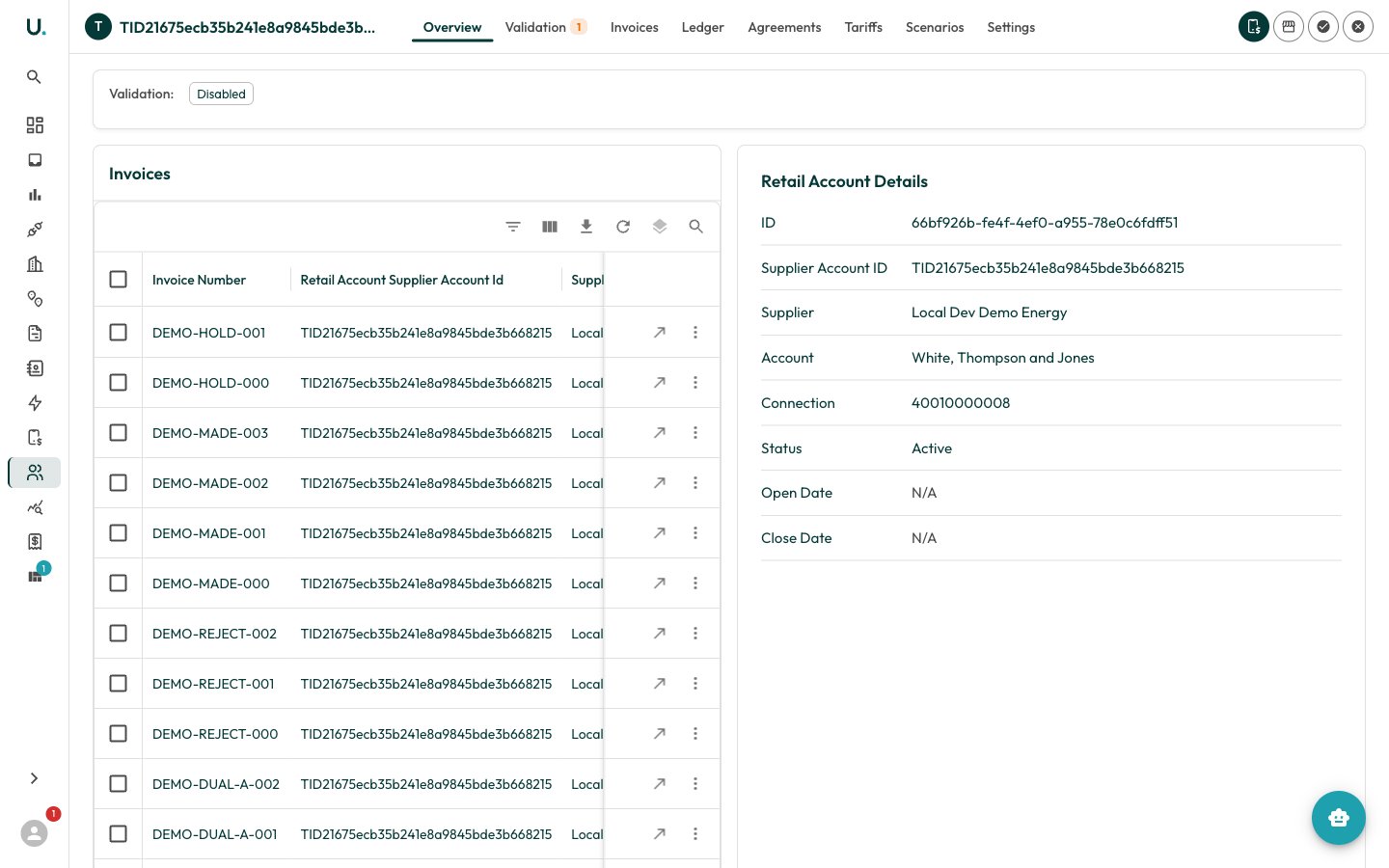
Header actions let you Add a Tariff, create a Retail Sub-Account (a child account under this one), Activate the account, or Close it. Activating an account also closes any other Active or pending accounts on the connection; closing prompts for a close date and can be marked as Deactivation Pending.
Merging retail accounts
When duplicate retail accounts exist for the same connection, merge them into a single root. The merge is irreversible — all agreements, connections, invoices, and related data move into the chosen root account.1
Select
Choose the root account to keep, then select the other accounts to merge into it.
2
Review
Confirm the root and the accounts being merged. Each shows its supplier reference and open/close dates.
3
Merge
Run the merge. Data is reassigned to the root and the merged accounts are processed.
4
Results
Review per-account Success/Failed results. Download the results as JSON, resolve any exceptions, and delete successfully-merged accounts as needed.